



Everyone has a list of what Microsoft Copilot could do. Few people have a list of what is worth doing on Monday morning. This is ours: ten use cases ranked by how much time they save and how easy the output is to check.
We tested the multi-step ones ourselves by running Copilot Cowork on a Word report template and a five-slide deck. For the rest we lean on our earlier guides to Copilot in Excel, Word and Teams. Each use case has a prompt you can paste, what to check, and the main risk.
TL;DR: the top 10 at a glance
| # | Use case | Where | Risk level |
|---|---|---|---|
| 1 | Analyse and clean a table | Excel | Medium |
| 2 | Summarise a meeting and list actions | Teams | Low |
| 3 | Catch up on a long email thread | Outlook | Low |
| 4 | Draft a first version of a document | Word | Low |
| 5 | Turn a brief into a deck | PowerPoint | Medium |
| 6 | Weekly status report | Cowork | Medium |
| 7 | Meeting prep pack | Cowork | Medium |
| 8 | Research summary with sources | Cowork | Medium |
| 9 | FAQ agent over your documents | Copilot Studio | Medium |
| 10 | Scheduled daily briefing | Cowork or Studio | High if it can send |
1. Analyse and clean a table in Excel
Excel is where Copilot saves the most hours, because so much work lives in messy sheets. Ask questions of the data, fix inconsistent columns, summarise trends and draft formulas.
Prompt: "This is a table of monthly sales by region. Find the three biggest month-on-month drops, explain what changed, and suggest one chart."
Check: every formula it writes, and that it used the right range. Copilot works best on data in a proper table, as we explain in our Copilot in Excel guide.
Risk: a confident wrong total. Spot-check two numbers by hand.
2. Summarise a meeting and list actions
A recap that lists decisions, owners and open questions is the easiest win in Copilot. It turns a 45-minute meeting into a two-minute read.
Prompt: "Summarise this meeting in five bullets, then list action items with owners and dates mentioned."
Check: names and dates against what you remember. Our Teams recap guide covers where recaps go wrong, such as missed tone and misattributed owners.
Risk: low, but do not forward a recap you have not read.
3. Catch up on a long email thread
Paste or open a thread and ask what changed. This is useful after leave, or when you join a project late.
Prompt: "Summarise this thread in four lines. What was decided, what is still open, and what do I need to answer?"
Check: that the decision it names really was a decision, not a suggestion.
Risk: low, as long as drafts are reviewed before sending.
4. Draft a first version of a document
Word is best for first drafts, restructures and tone changes. Give it the audience, the point and the facts you want included.
Prompt: "Draft a one-page project update for the leadership team using these notes. Plain language, no jargon, end with the three decisions we need."
Check: that every claim traces to your notes. See our Copilot in Word guide.
Risk: invented detail when your notes are thin.
5. Turn a brief into a deck
PowerPoint can build slides from a brief, and Cowork can build a whole deck. In our test, Cowork produced a five-slide pitch deck in a few minutes, generated an image and made around 64 edits.
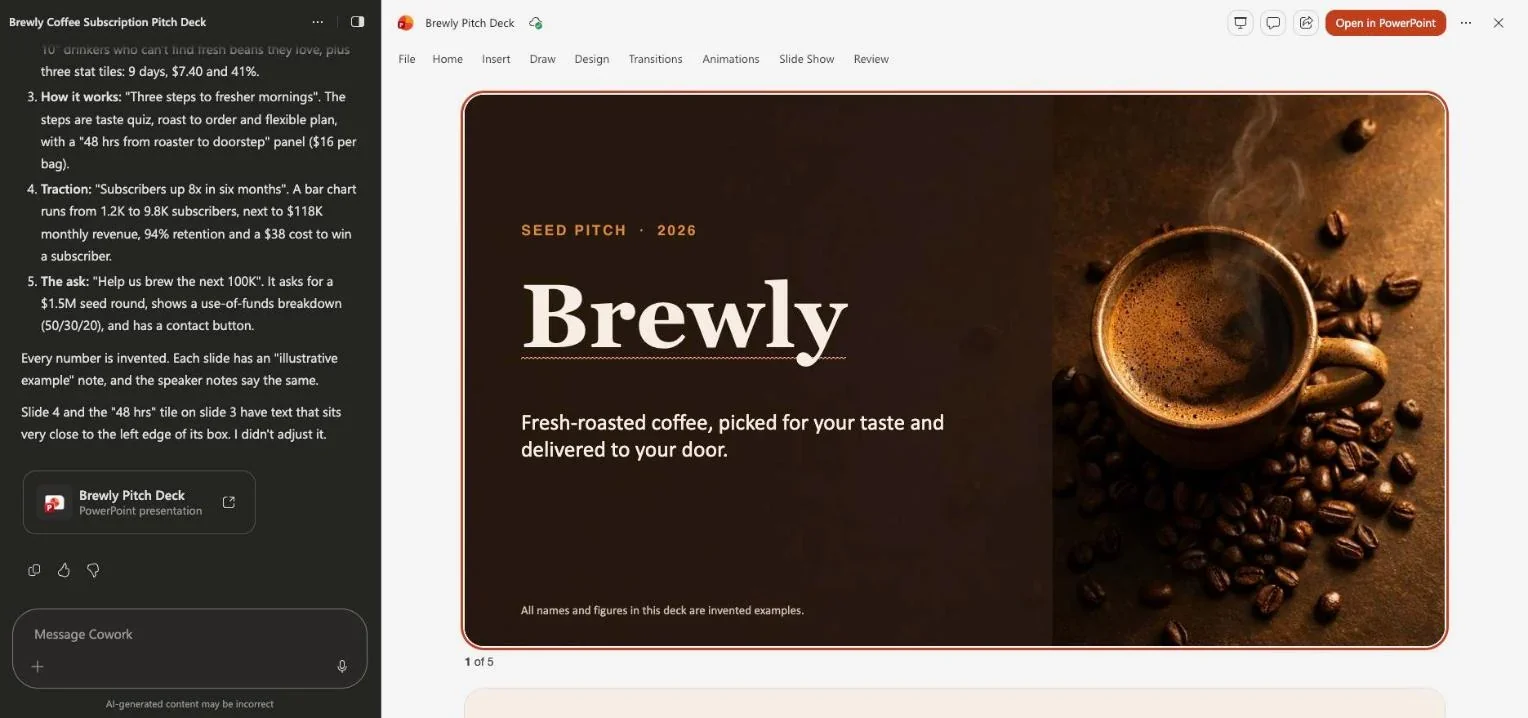 A five-slide pitch deck built by Copilot Cowork in a few minutes and shown open in PowerPoint on the web
Prompt: "Create a five-slide deck for a quarterly review: results, three wins, two risks, the plan, and the ask. Use only the numbers in the attached file."
Check: layout and spacing. Cowork told us two text boxes sat too close to an edge and that it had left them.
Risk: invented numbers. Tell it to use only supplied figures.
6. Weekly status report with Cowork
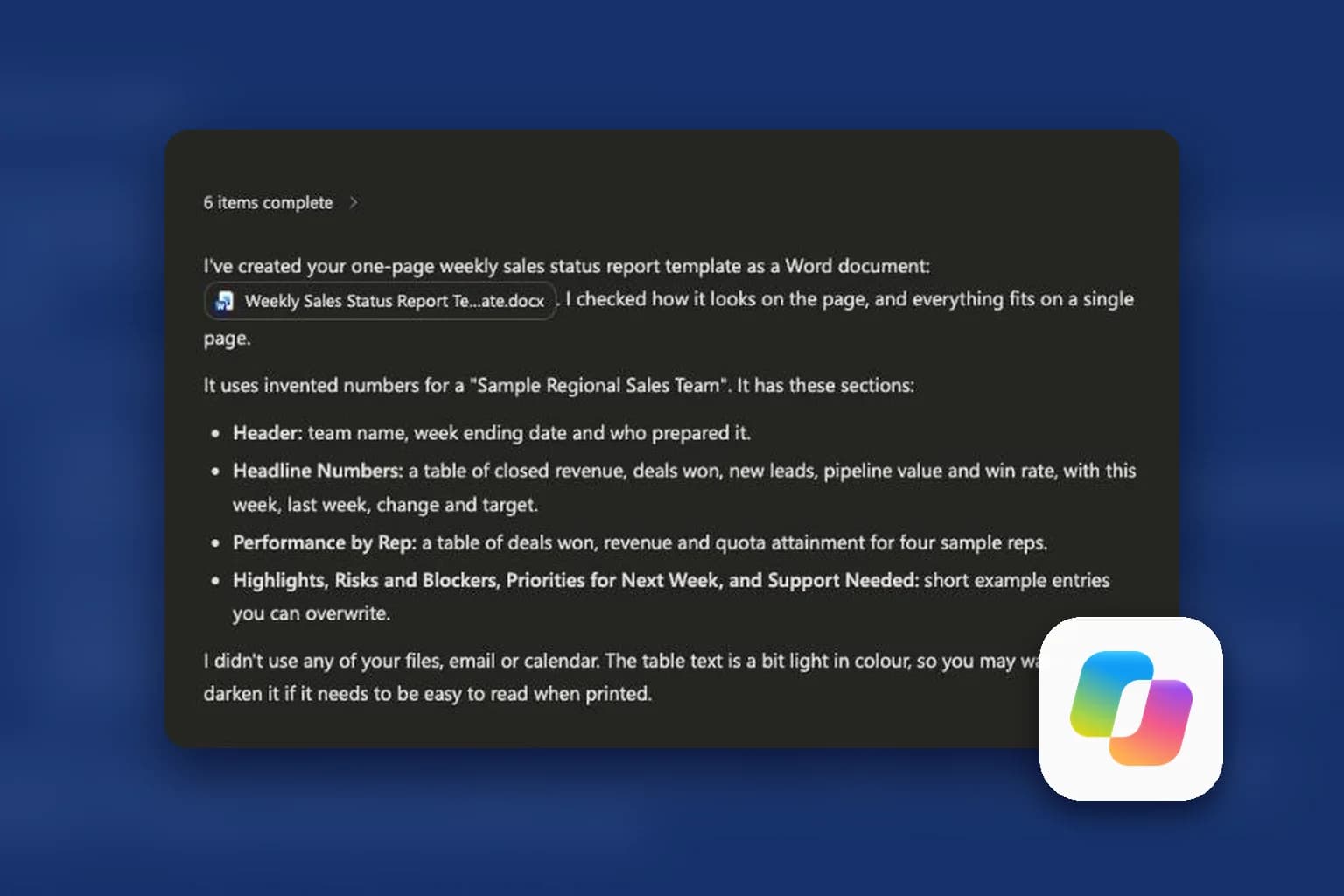
A repeat report with a fixed shape is a perfect Cowork task. In our test it created a one-page weekly sales status template as a Word document in under a minute and summarised the sections it built.
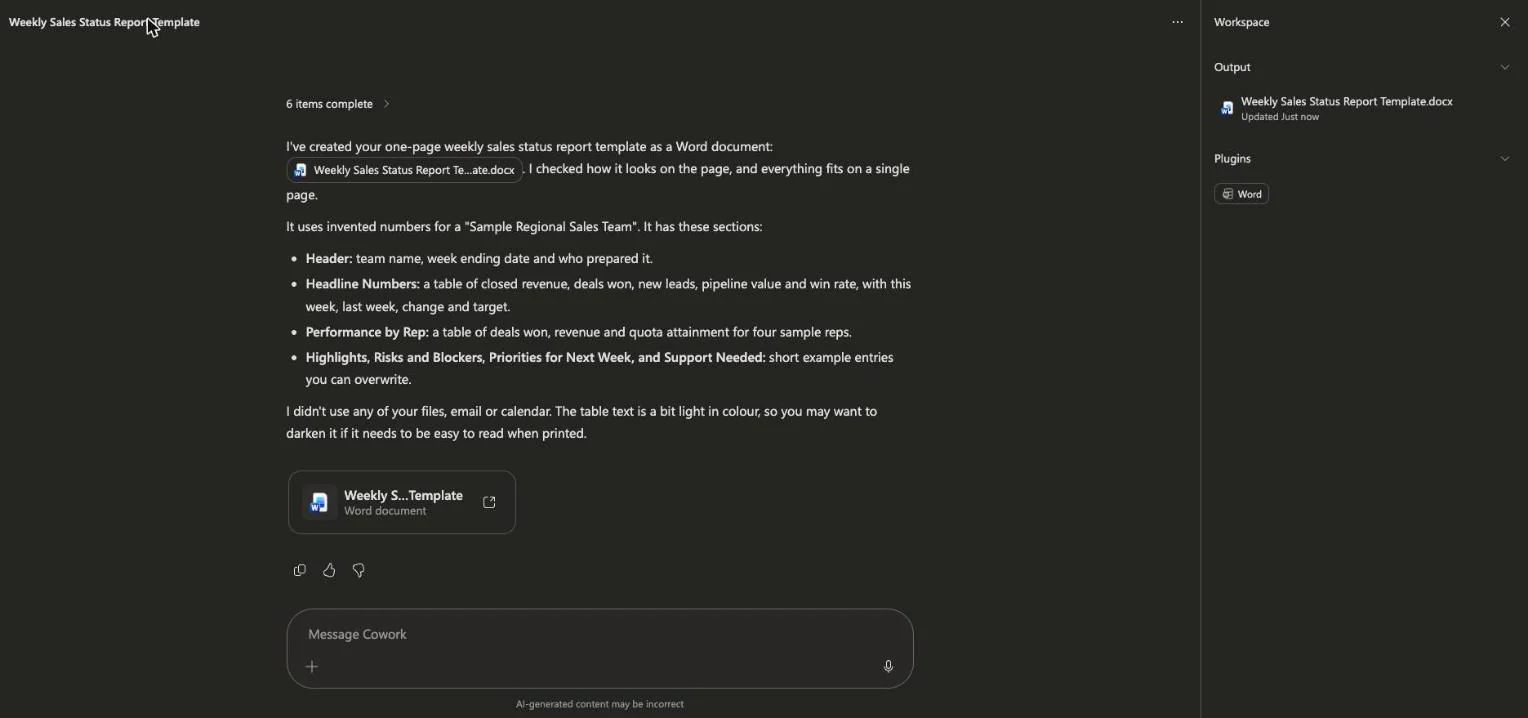 Copilot Cowork finishing a weekly status report template in Word and listing its sections
Prompt: "Each Friday, draft my weekly status from my sent mail, calendar and the planning workbook. Keep it to one page, with risks first."
Check: that it only used the sources you named.
Risk: it reads your data. Give it the least access, and keep approval on before anything is sent.
7. Meeting prep pack with Cowork
Before a customer call, ask for a briefing: recent threads, open issues, last meeting notes and three questions to ask.
Prompt: "Prepare me for Thursday's call with this customer. Summarise the last three email threads, open tickets and past decisions, then suggest three questions."
Check: that nothing confidential from another account leaks in.
Risk: mixing contexts. Name the account explicitly.
8. Research summary with sources
Ask for a structured first pass, then open the sources yourself. Treat it as a reading list with a summary, not a verdict.
Prompt: "Summarise the main arguments for and against option A, with a source link for each claim. Mark anything you could not verify."
Check: open at least three of the links.
Risk: a source that does not say what the summary claims.
9. An FAQ agent over your documents in Copilot Studio
Build an agent that answers staff questions from a small set of approved documents, such as an HR policy or an IT guide. Copilot Studio lets you give it instructions and knowledge sources without code.
Prompt for the agent: "Answer only from the attached policy documents. If the answer is not there, say you do not know and name who to ask."
Check: test twenty questions, including trick ones, and fix the gaps.
Risk: a confident answer that is out of date. Review the source documents on a schedule. Third-party licensing guides report that Studio is billed in Copilot Credits and that external-facing agents cost more, so confirm pricing first.
10. A scheduled daily briefing
Cowork has an Automations page for recurring tasks, with suggestions such as a daily briefing and a weekly business review.
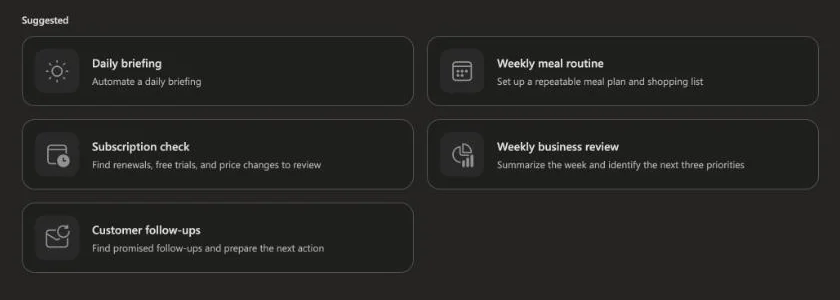 The Copilot Cowork Automations suggestions: daily briefing, subscription check, weekly business review and customer follow-ups
Prompt: "Every weekday at nine, list my meetings, the three emails that need a reply today, and anything due. If there is nothing, say so."
Check: the first three runs by hand. The "if there is nothing, say so" line stops it padding a quiet day.
Risk: highest on this list if the automation can send. Start read-only.
A worked example: measuring the time you actually save
Claims of "hours saved" are easy to make and hard to believe, so measure your own. Take use case 6, the weekly status report. Time the manual version once: gathering notes, writing, formatting and proofreading. Say it takes 50 minutes.
Now run it with Copilot Cowork three weeks in a row. For each run, write down two numbers: how long the agent took, and how long you spent reviewing and fixing. Suppose the agent finishes in a few minutes while you work on something else, and your review takes 12 minutes. Your real cost is the review time, not the agent time, because the agent runs in the background. That is 12 minutes against 50.
Then add the cost side. If you use Copilot Cowork, the task is billed in Copilot Credits on top of your licence, so note the credits used per run and multiply by how often you will run it. A use case is worth keeping when the review time plus the credit cost is clearly below the manual time, and the quality is at least the same. If the numbers are close, drop it and pick another from the list.
Common mistakes that waste the time you save
- Vague prompts. "Make a report" produces a generic report. Name the audience, the length, the sources and the sections.
- No source rule. Without "use only the attached file", Copilot may fill gaps with plausible invented detail. Our deck test labelled every number as invented, which is the behaviour you want, but you should ask for it.
- Skipping the review. The best tools still leave small flaws. In our test, the output was strong and still had text sitting too close to a box edge.
- Starting with the riskiest task. Teams often begin with an automation that sends email. Begin with a read-only briefing instead.
- Ignoring licences and costs. A use case that needs Cowork or Studio needs access and a budget. Ask your administrator before you promise it to a team.
How to choose your first three
- Start with one from the low-risk group: a meeting recap, an email catch-up or a first draft.
- Add one that touches data you own, such as an Excel analysis.
- Add a Cowork or Studio task only after you can describe its input and output in one sentence.
Three rules that keep these safe
- Read first, send later. Reading tasks fail quietly. Sending tasks fail loudly.
- Give the least access. Connect the files and mail the task needs, nothing more.
- Check what you will repeat. Open the source for any number or quote before it reaches a customer or a manager.
These mirror the habits in our guides to Claude for Work and agent skills, because the discipline of briefing, checking and saving templates carries across tools.
Where to go next
If you want to be walked through the Excel, Cowork and Copilot Studio use cases live, we run a Microsoft Copilot and Copilot Studio workshop. If you prefer to learn at your own pace, our ranked list of the best ways to learn Microsoft Copilot shows the free routes first.
Related reading
- Copilot Cowork explained: what it does, what it costs, how to try it
- Top 7 ways to learn Microsoft Copilot in 2026
- Microsoft Copilot in Excel: what it can actually do
- Microsoft Copilot in Word: a 2026 guide
- Microsoft Copilot in Teams: meeting recap guide
- Top 10 Claude Cowork use cases
- AI skills employers actually want in 2026
- Official: Get started with Copilot Cowork
Features, licensing and prices are accurate as of November 6, 2026. Microsoft changes Copilot often, so confirm current terms before you roll anything out.