



Most office workers' first Copilot prompt in Word is some version of "write me a first draft" — and the honest answer is that it works, with real caveats. Copilot in Word drafts from a prompt plus your own reference files, rewrites tone and length on selected text, summarizes reports you didn't have time to read fully, and — as of April 2026 — runs Agent Mode, which revises a whole document toward a stated goal instead of waiting for line-by-line instructions.
This is a companion post in explainx.ai's Microsoft Copilot series — start at the Microsoft 365 Copilot beginner's guide if your organization just turned Copilot on and you haven't set it up yet. This guide is scoped to Word: what to prompt, what Agent Mode changes, and where it still needs a human check.
TL;DR — prompts and what Copilot in Word actually does
| Prompt | What Copilot does | Watch out for |
|---|---|---|
| "Draft a one-page project update using @status.xlsx and @notes.docx" | Generates a structured first draft grounded in the referenced files | Verify every number pulled from the spreadsheet before sending |
| "Rewrite this section in a more formal tone" | Rewrites selected text, keeps the meaning, changes register | Re-read for tone drift on the rest of the document |
| "Summarize this 40-page report in 5 bullet points" | Produces a short executive summary of the open document | Long files can drop or misattribute a detail — spot-check against the source |
| "Restructure this proposal so pricing comes before scope, tighten to 3 pages" (Agent Mode) | Plans and applies multiple edits across the document autonomously | Review the whole diff, not just the summary Copilot reports back |
| "Use our organization's Q3 template from SharePoint to build this report" | Pulls a file you have access to via Graph grounding, matches its structure | Copilot cannot see files behind permissions you haven't opened |
| "Add citations for the claims in this section" | Inserts sourced references from files or the open web | Confirm each citation actually supports the sentence it's attached to |
| "Continue writing from where I left off" | Extends the document in your established voice and structure | Works best after you've already set tone in the first page or two |
Drafting a document from a prompt plus reference files
Open Word, start a blank document, and click the Copilot icon (or press Alt+I) to open the drafting pane. The highest-leverage habit is putting the reference material directly in the prompt rather than writing in a vacuum: type @ and Word's file picker lets you attach a spreadsheet, a prior report, or meeting notes by name.
 Microsoft Copilot in Word: a prompt referencing attached files turning into a structured draft with headings and a status table
Draft a two-page quarterly status report for the Marketing team, using
@Q3-campaign-results.xlsx for the numbers and @last-quarter-report.docx
for the structure and tone to match. Include a risks section.
Copilot pulls the referenced files, any SharePoint or OneDrive content you already have permission to open, and — when relevant — your recent Outlook and Teams context through Microsoft Graph, then produces a structured first draft with headings, a status table, and prose sections. This is the same grounding mechanism covered in the Microsoft 365 Copilot beginner's guide — Copilot only sees content you could already open yourself, but it drafts against your organization's actual data instead of generic filler.
The draft it produces is a starting point, not a finished document. Treat the first pass the way you'd treat a junior colleague's draft: usable structure, needs a fact and tone pass before it goes out.
Rewriting and changing tone
Select any block of text, right-click or open the Copilot pane, and use Rewrite with a specific instruction rather than a vague one:
Rewrite this paragraph in a more formal, executive-facing tone
Rewrite this section to be half the length without losing the key numbers
Rewrite this in plain language a non-technical reader can follow
Make this more persuasive without changing the underlying facts
Rewrite works on a selection, not the whole document by default, which is deliberate — it's a targeted tool for the paragraph that reads too casually for a board deck or the section that's twice as long as it needs to be. Running it repeatedly on isolated sections without a final read-through is the most common way a document ends up with mismatched tone from top to bottom; do one rewrite pass, then read the whole thing once, start to finish.
Summarizing long reports
Open an existing document — someone else's 40-page vendor proposal, a lengthy internal report, a contract you were CC'd on — and ask Copilot to condense it:
Summarize this document in 5 bullet points for an exec who has 2 minutes
What are the three biggest risks mentioned in this document?
Summarize the financial terms in this section only
Copilot's summarization is genuinely one of the highest time-value uses of Word Copilot — it can turn a document you'd otherwise skim into a reliable 30-second read. Microsoft shipped a July 2026 update aimed specifically at navigating long and complex files with clearer source citations, using document structure to point summaries back to the right section rather than a vague "somewhere in this file." That's a real improvement, but it is not a guarantee: the failure mode worth watching for is a summary that is fluent, plausible, and sourced to the right file while still describing the wrong part of it. Spot-check any number or claim you plan to repeat in a meeting.
Agent Mode: autonomous document editing
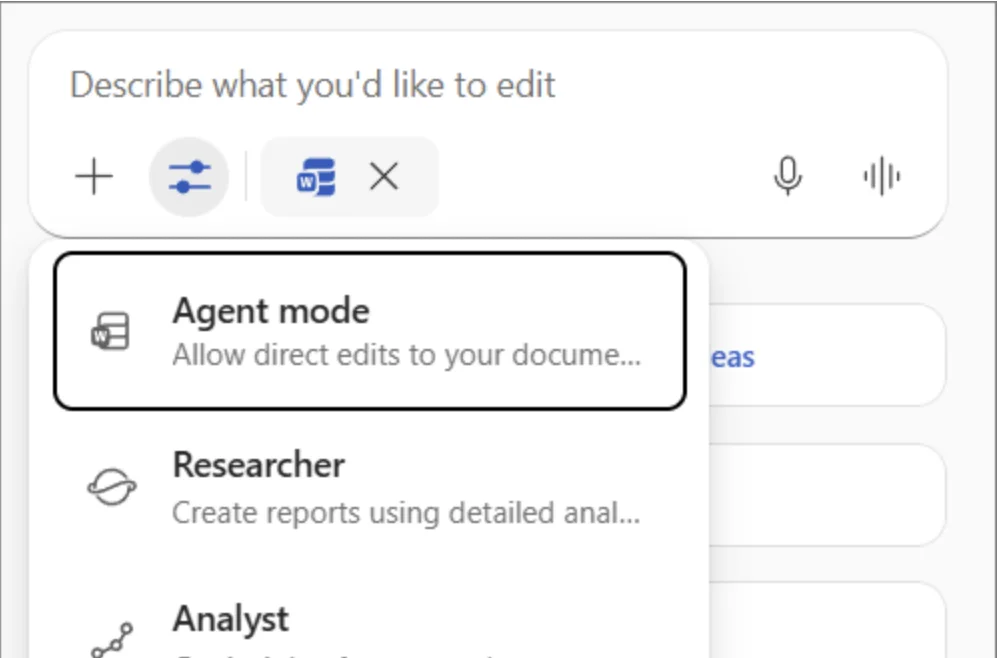 Microsoft Copilot in Word mode selector showing Agent mode, Researcher, and Analyst options in the prompt pane
Screenshot: the real mode picker in Word's Copilot pane, from Microsoft's official "Edit with Copilot in Word" support page.
Agent Mode is the 2026 shift in how Copilot works inside Word. Instead of one instruction producing one edit, you give Agent Mode a goal, and it plans and executes multiple steps across the document on its own — restructuring sections, rewriting for consistency, and applying changes directly, then reporting back what it did. Microsoft pushed Agent Mode in Word to general availability for all Microsoft 365 Copilot subscribers on April 22, 2026, and by mid-2026 it became the default experience across Word, Excel, and PowerPoint rather than an opt-in mode. Satya Nadella framed the shift bluntly: "The era of AI that suggests things is over. We are in the era of AI that does things."
A goal-based Agent Mode prompt looks different from a Rewrite prompt — it states an outcome, not a single edit:
Restructure this proposal so pricing appears before the scope section,
tighten the whole document to 3 pages, and make sure every section
heading uses sentence case
This report has inconsistent terminology for our product name across
sections — find every instance and standardize it to the name used in
the executive summary, without changing anything else
Under the hood, Agent Mode operationalizes multistep planning, tool use across the open document (and referenced files), and persistent context as it works — closer to the agent harness pattern covered elsewhere on explainx.ai than to the old single-shot "generate text" model. That also means it inherits agentic risk: it can make several changes you didn't explicitly ask for while pursuing the stated goal, and it reports what it did in a short summary that is easy to skim past. Review the full document after an Agent Mode pass, not just the change summary — the summary tells you what Copilot believes it did; the document is what actually shipped.
If you need Copilot to run on a recurring schedule or fire automatically when a file changes — rather than a one-time autonomous pass you trigger — that's outside what Agent Mode in Word does. See how Microsoft 365 Copilot handles (and doesn't handle) loops for where turn-based Agent Mode stops and Copilot Studio picks up.
Pulling in SharePoint and organization content
Copilot in Word references your organization's content in two ways: explicit @file mentions, and implicit retrieval when a prompt clearly needs more context than what's on the page. Both respect your existing permissions — Copilot in Word can reference files from SharePoint, OneDrive, and your recent documents, but it cannot access files behind additional permission layers you have not opened recently, and it will not surface content from a site you don't have access to just because it exists in the tenant.
Practical patterns that work well:
- "Use the template from @Q3-report-template.docx and fill it in with data from @sales-figures.xlsx" — combines a structural template with a data source in one prompt.
- "Match the formatting and tone of our last board deck" — works when that prior document is recent enough for Copilot to find without an explicit
@reference; attach it explicitly if it doesn't surface. - "Pull the latest version of the vendor contract from SharePoint and summarize the payment terms" — works if you've opened that SharePoint file recently or reference it by name; a file you've never opened won't appear even if you technically have access.
If a prompt returns generic content instead of your organization's actual data, the most common cause is a missing file reference, not a broken feature — be explicit with @filename rather than assuming Copilot will find the right document on its own.
Coauthoring workflow tips
Copilot in Word doesn't replace human coauthoring — it changes what each round of editing looks like when multiple people touch the same document:
- Let Copilot do the first structural pass, humans do the substance pass. Draft the skeleton and rough content with Copilot, then have the actual subject-matter expert rewrite the sections that carry real judgment calls — projections, risk language, anything with legal or financial exposure.
- Run Rewrite before circulating, not after. Fixing tone consistency after three people have already commented on a draft means redoing review. Do one Copilot tone pass first, then send for human review.
- Use Track Changes alongside Agent Mode, not instead of it. Turn on Track Changes before a large Agent Mode pass so a reviewer — including you, an hour later — can see exactly what moved, not just trust the change summary.
- Assign one person as final fact-checker. Copilot-assisted documents fail review most often when everyone assumes someone else verified the numbers Copilot inserted. Name that person explicitly for anything client-facing.
Honest limitations
Ship this list to your team before anyone trusts a Copilot-drafted document unread:
- Citation accuracy is improving but not solved. Microsoft's July 2026 update helps Copilot navigate long files and cite the right section, but a fluent, well-sourced-looking answer can still point to the wrong part of a source document. Verify citations against the actual source, especially in anything with legal or compliance weight.
- Long documents drift in formatting. Copilot has a practical limit on how much text it reasons over per request. On documents past roughly 15–20 pages, expect heading style, tone, and structure to drift even when a single prompt asked for consistency throughout — Copilot may not fully apply or verify a requested change across the entire file. Read the whole document after a big edit, not just the section you were focused on.
- Fluent is not the same as accurate. Copilot writes in a grammatically confident, professional register whether or not the underlying claim is true. It can't independently evaluate whether a generated statistic or business claim is actually correct — that check is still yours to make before the document goes to a client or leadership.
- Agent Mode's autonomy cuts both ways. The same multistep planning that makes Agent Mode useful also means it can make changes beyond what you explicitly asked for while pursuing a stated goal. Review the full diff, not the summary, after any Agent Mode pass — and be aware that document-borne prompt injection is a real, disclosed attack surface for AI editing tools that read untrusted files, so treat externally sourced documents with more caution than your own.
- Permission boundaries are a feature, not a bug — but a confusing one. Copilot cannot see a file you technically have access to but haven't opened, which reads as a bug the first time it happens. Open or explicitly
@-reference anything you expect Copilot to use. - Requires a paid license. Drafting, Rewrite, and Agent Mode need a Microsoft 365 Copilot subscription ($30/user/month on a qualifying base plan) or a Personal/Family plan with AI credits — see Microsoft 365 Copilot pricing and licensing for the full SKU breakdown.
What this means for what you build or pay
| If you write reports/proposals for your job | Then |
|---|---|
| Start every draft with a prompt that names your reference files explicitly | @filename beats hoping Copilot finds the right document on its own |
| Use Rewrite for tone, Agent Mode for structural passes | Don't use Agent Mode for a single paragraph tweak — that's what Rewrite is for |
| Fact-check every number and citation before it leaves your document | Copilot's fluency is not evidence of accuracy |
| Turn on Track Changes before a large Agent Mode edit | You need to see the diff, not just trust the summary |
| Budget for the $30/user/month license if your org hasn't already | Free Copilot Chat can discuss an open document but doesn't draft or run Agent Mode in it |
Related reading
explainx.ai Microsoft Copilot series
- Microsoft 365 Copilot: beginner's guide
- Microsoft Copilot in Excel guide
- Microsoft Copilot in Teams: meeting recap guide
- Microsoft 365 Copilot pricing and licensing
- What is Copilot Studio? Build your first agent
- How to run loops in Microsoft 365 Copilot
Related on explainx.ai
- Copilot for Word AI worm — document-borne XPIA
- Mastering business communication with AI and GPT
- Microsoft MAI hill-climbing: Copilot and Excel
Dictionary
Microsoft documentation
- Draft and add content with Copilot in Word
- Introducing Word, Excel, and PowerPoint agents in Microsoft 365 Copilot
- FAQ about Copilot in Word
Feature names, the April 22, 2026 Agent Mode general-availability date, and licensing details reflect Microsoft's documentation as of August 2026. Rollout waves, default settings, and exact prompt behavior vary by tenant and Word build — verify against Microsoft Learn before relying on this for client-facing documents.