



If your calendar is back-to-back, the real cost isn't the meeting — it's the meeting you schedule afterward just to catch someone up. Copilot in Teams is built to remove that second meeting: it turns the live transcript into a running record you can query mid-call, then compresses it into a recap, action items, and follow-ups the moment the call ends.
This is part of explainx.ai's Microsoft 365 Copilot series — start at the Microsoft 365 Copilot beginner's guide if you haven't set up Copilot at all yet.
TL;DR: Teams Copilot features → what they solve
| Feature | What it actually replaces |
|---|---|
| Ask Copilot (live, in-meeting) | Whispering "wait, what did I miss?" to a coworker — or a second recap meeting for latecomers |
| Intelligent Recap | Someone manually writing meeting minutes after the call |
| Auto-generated action items | Scanning back through chat and transcript to figure out who owns what |
| Post-meeting Copilot chat/history | Re-watching a recording to find one specific decision |
| Recap shared to Outlook | Pinging invitees who missed it to ask "what happened?" |
| Copilot in Teams chat/channels | Scrolling a long channel thread to find the actual decision buried in it |
| Meeting policy / transcription controls (admin) | Every user deciding for themselves whether recording is on — inconsistent and a compliance risk |
What Copilot in Teams actually does during a live meeting
Copilot doesn't wait for the meeting to end. Once it's turned on for a session, you can open the Copilot pane mid-call and ask it questions grounded in what's been said so far — "what were the main points in the first 10 minutes," "did anyone mention the budget number," "summarize the discussion about the launch date."
Microsoft's own guidance is specific about the trigger point: a late-joining participant "will be able to access any content from the moment Copilot was initiated by another participant in the meeting or call" — not from before Copilot was turned on, and not from before the meeting started if Copilot came on partway through. Turn Copilot on at minute 20, and it can't retroactively summarize the first 19 minutes.
Copilot without transcription is not useless — it's just narrower. Microsoft explicitly supports using Copilot without transcribing or recording a Teams meeting: Copilot can still answer live questions in that mode. What you lose is everything durable — no Intelligent Recap, no action items, no post-meeting Copilot chat history to revisit. Transcription is the line between "assistant for this call" and "record I can search later."
Catching up if you join late
This is the single most cited productivity claim around Teams Copilot: fewer standalone "catch-up" meetings, because a missed attendee can read an AI-generated summary instead of scheduling a call to get briefed. The mechanic is simple — open Copilot, ask "catch me up," and it answers from the transcript captured since the Copilot session began.
It's worth being precise about the boundary here, because it trips people up: Copilot catches you up on what happened after Copilot itself was active, not on the whole meeting by default if it was turned on late, and not at all if transcription/Copilot was never enabled for that call. If your org wants this to reliably work for latecomers, Copilot needs to be on from the start — which is a meeting-policy decision, not something each user configures per call.
Intelligent Recap: what it generates and where it lives
 Speech-bubble checklist above empty meeting-room chairs, symbolizing Copilot in Teams turning a meeting into a recap and action items after everyone leaves
After a recorded, transcribed meeting ends, Teams builds an Intelligent Recap — an AI-generated summary that typically includes:
- A written summary of the discussion, broken into topics
- Auto-generated action items, each tied to the speaker who raised it where the transcript makes that attributable
- Notable timestamps and, on some meetings, speaker-attributed highlights
- The chat and any files shared during the call, consolidated in one place
Microsoft rolled this out further in 2026 with a dedicated Meeting Recap app for Teams desktop and web, pulling recent summaries, recordings, transcripts, and Copilot's newer AI-generated video recaps and podcast-style audio recaps into one left-rail destination instead of scattering them across the meeting chat, calendar, and OneDrive. Video and audio recap are Copilot-license features layered on top of the base Intelligent Recap, not a replacement for it.
The recap posts inside the meeting chat and the calendar event, and organizers can also share it out — including to Outlook, so people who never opened Teams for that meeting (an invitee who declined, a stakeholder who was cc'd but not required) still get the summary in their inbox instead of chasing someone down for it.
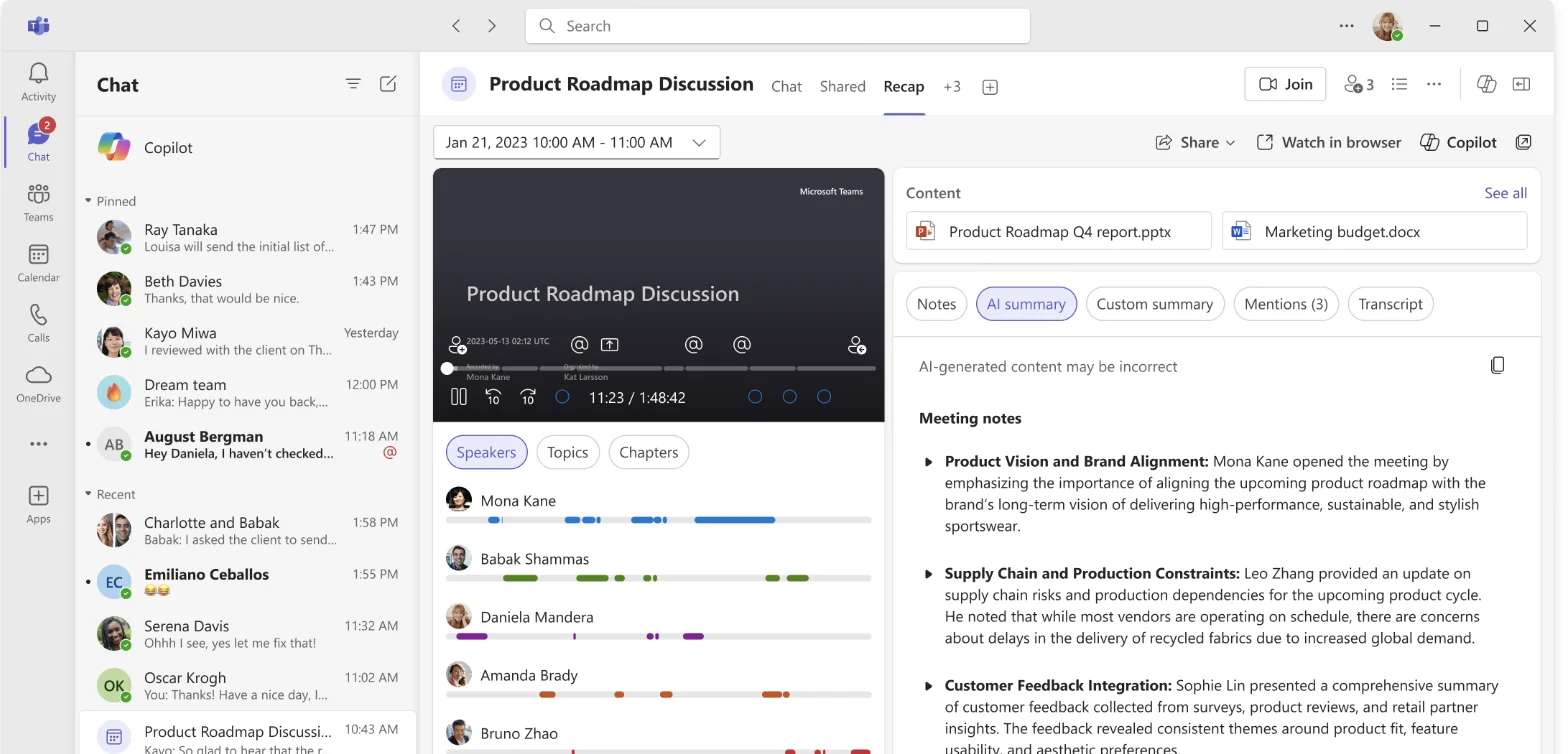 Microsoft Teams Recap tab showing meeting recording, speaker timeline, and AI-generated meeting notes panel
Screenshot: the real Recap tab inside a Teams meeting, from Microsoft's official "Recap in Microsoft Teams" support page.
Copilot in Teams chat and channels
The same assistant shows up outside meetings, inside Teams chat and channels. Ask Copilot to summarize a long thread, catch you up on a channel you muted for a week, or draft a reply grounded in the conversation history. This is the same "what did I miss" problem applied to async chat instead of a live call — the meeting-recap use case and the channel-catch-up use case are the same underlying pattern: compress a long transcript (spoken or typed) into something you can read in 30 seconds.
What Copilot in Teams needs turned on first
None of this works by default. Three things have to line up:
- Copilot license assigned to the user, or the meeting organizer's tenant policy allows it
- Meeting recording and/or transcription enabled — Intelligent Recap specifically needs a retained transcript; live-only transcription that isn't saved won't produce a post-meeting recap
- Admin meeting policy allowing Copilot in Teams meetings, set in the Teams admin center
For admins: this lives under Teams admin center → Meetings → Meeting policies → Copilot setting, where the choices are effectively off, on, or on only with retained transcript. That last option is the one that gates whether Intelligent Recap can be generated at all — pick "on" without retained transcript and users get live Copilot but never get a recap.
Recording consent and admin policy considerations
Recording and transcribing a meeting is a legal question in a lot of jurisdictions, not just a Teams settings toggle. Teams shows an in-meeting notice when recording or transcription starts, and depending on your region and industry, an organizer may be required to get explicit verbal or written consent from participants before recording or transcription begins — that requirement doesn't go away because Copilot is the thing consuming the transcript instead of a human note-taker.
Practically, that means the admin decision about meeting policies (who gets Copilot, whether transcription defaults on) is also a compliance decision, and it usually sits with IT and legal jointly rather than being left to whichever employee happens to schedule the call. If your org operates across regions with different recording-consent laws, a single tenant-wide policy may not be appropriate — Teams meeting policies can be scoped per group so different teams get different defaults.
Honest limitations
- Recap accuracy depends on transcription and audio quality. Crosstalk, weak connections, strong accents, and multiple people talking at once all degrade the transcript, and Copilot's summary and action items inherit whatever the transcript got wrong. Treat the recap as a strong first draft you skim and correct, not a verbatim minute-taker you forward unread.
- No transcript, no recap. Copilot can still answer live in-meeting questions without recording, but skip transcription and you lose Intelligent Recap, action items, and the ability to open Copilot chat history after the call.
- Catch-up is bounded by when Copilot was turned on, not the full meeting, if it started partway through.
- This is Microsoft-reported behavior, and rollout wave, licensing SKU, and exact admin toggle names vary by tenant — verify against your own Teams admin center before you brief a team on what's available.
- It's a different product surface from Copilot in Word or Excel. Same brand and license, different grounding — see the Copilot in Excel guide and Copilot in Word guide if meetings aren't the whole story for your rollout.
Related reading
explainx.ai Copilot series
- What is Microsoft 365 Copilot? Beginner's guide
- Microsoft Copilot in Excel: complete guide
- Microsoft Copilot in Word: complete guide
- Microsoft 365 Copilot pricing and licensing (2026)
- What is Copilot Studio? Build your first agent
- How to run loops in Microsoft 365 Copilot
- How to run loops in Copilot Studio
Related explainx.ai coverage
- Satya Nadella — ROIC Intelligence App, Copilot /drill-me and Fabric
- Microsoft's MAI models hill-climbing Copilot and Excel
- Copilot Word document AI worm — prompt injection disclosure
Microsoft documentation
- Recap in Microsoft Teams
- Use Copilot without recording a Teams meeting
- Catch up on meetings with Microsoft 365 Copilot in Teams
- Admin guide to Copilot in Teams
Dictionary: Microsoft 365 Copilot · Intelligent Recap · Copilot brand
Feature names, admin policy paths, and rollout details reflect Microsoft's Teams and M365 Copilot documentation as of August 2026. Availability varies by license SKU, tenant rollout wave, and region — verify recording-consent requirements against your own legal guidance before enabling transcription org-wide.