



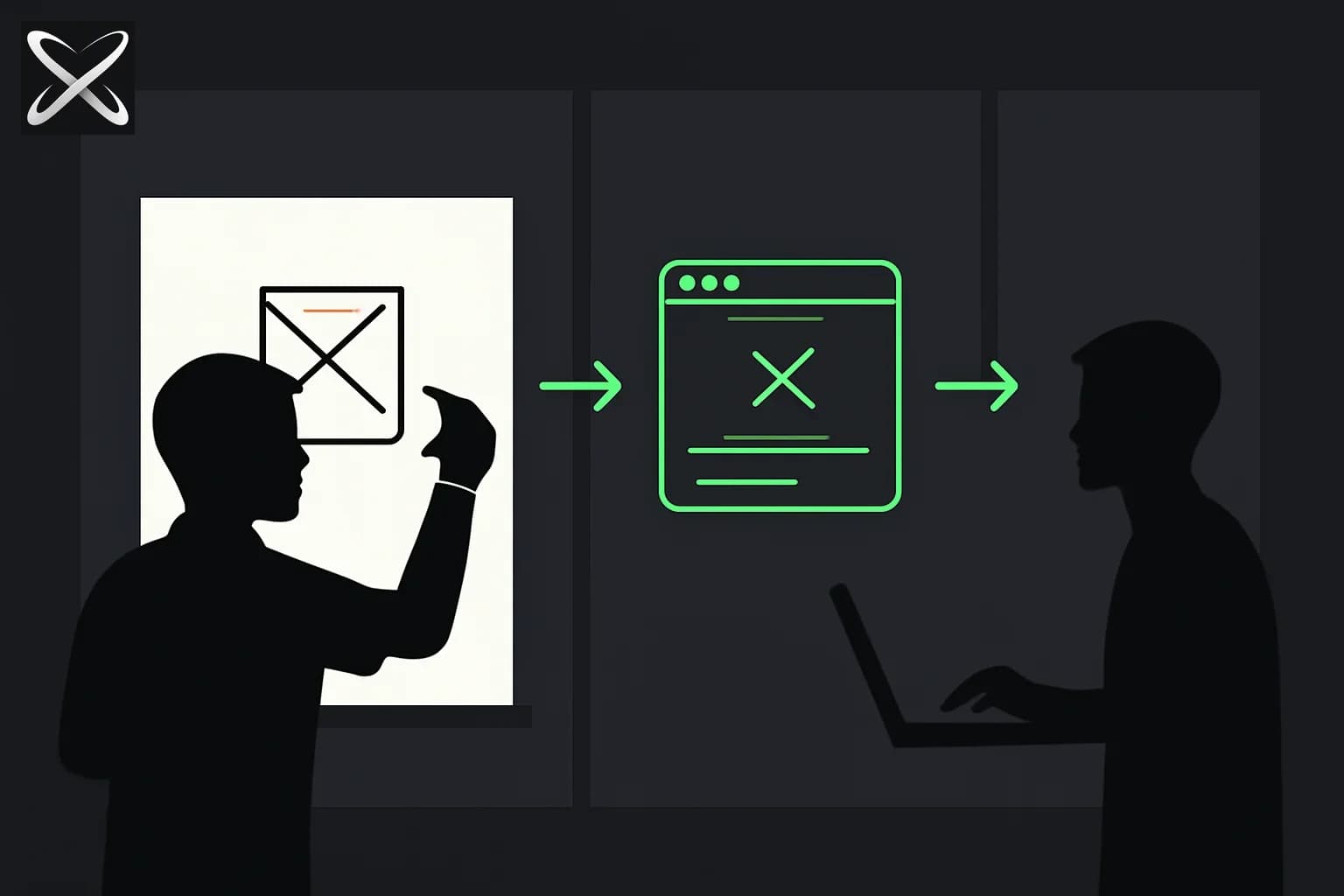
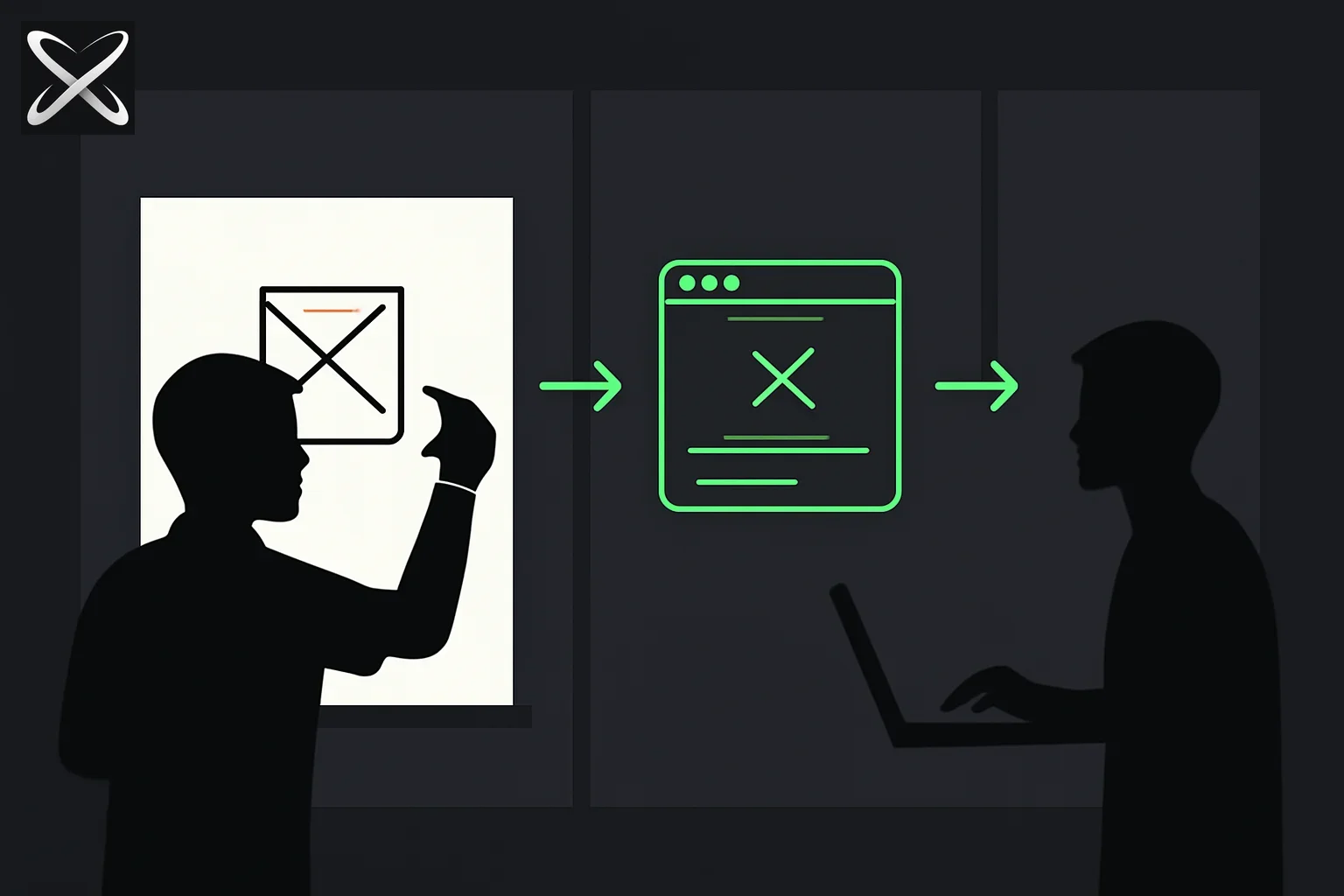
Product managers spend enormous amounts of time translating ideas into words — PRDs, specs, wireframes, Figma mockups — and then waiting for engineers to translate those words back into something clickable. Most of that delay is avoidable.
With AI coding tools, a PM can now go from idea to working interactive prototype in hours — without writing code. Not a Figma mockup. A real thing that runs in a browser, responds to clicks, and can be shared with a URL.
This guide is specifically for PMs: what to build, what tools to use, how to prompt, and how to connect your vibe coding work back to your engineering process.
For the consumer social version of vibe coding — Meta's Pocket app with prompt-built mini-games — see Meta Pocket: Vibe-Coded Gizmos. Pocket targets phone toys in a feed; this guide targets prototypes PMs hand to engineering.
Why vibe coding matters specifically for PMs
You validate faster. Running a prototype past 5 users in a day beats two weeks of PRD review.
Your specs improve. Building something forces you to answer questions you didn't know you had — what happens if the field is empty? what does the error state look like? Engineering teams write less back-and-forth when the spec was written by someone who tried to build it.
You unblock yourself. Internal tools, dashboards, data pulls — things that would sit in the backlog for quarters can now be built in a day.
You earn engineering trust. PMs who understand what's hard to build (because they tried) write better trade-off decisions. Engineers notice.
What to build as a PM
Start with things that are entirely yours to build — internal tools, prototypes for user research, exploratory dashboards. Not production code.
| Build this | When |
|---|---|
| Interactive prototype of a new feature | Before writing the PRD — use it to align stakeholders |
| Landing page for an A/B test | For marketing tests that don't need backend logic |
| Internal dashboard (metrics, status board) | When eng backlog is full but you need the data |
| User research stimulus | A fake version of the product to test reactions |
| Script to clean or analyse a data export | Instead of copying 500 rows into a spreadsheet manually |
| Admin tool for customer ops | Simple CRUD interface your support team needs |
| Changelog / release notes page | Public-facing, fast to ship |
Tools to use
Cursor (recommended starting point)
Cursor is the easiest entry point. It looks like VS Code — a code editor — but has AI built in that writes code from your descriptions.
Install it from cursor.com. Free tier is enough.
The key mode for PMs is Composer (Cmd + I on Mac, Ctrl + I on Windows): type what you want to build, press Enter, watch it create files.
Claude Code (for more autonomous builds)
If you want to give a bigger task and come back to a result, Claude Code (a terminal tool) can run longer sessions. Install:
npm install -g @anthropic-ai/claude-code
Then claude in any folder to start a session.
What you also need
- Node.js installed (for running most projects)
- Git set up (to save and share your work)
- A browser (Chrome)
Your first PM prototype: a feature mock-up
Let's build an interactive prototype of a new onboarding flow — the kind you'd normally sketch in Figma and then explain to 3 different people 5 different ways.
Open Cursor. Create a new folder. Open Composer (Cmd + I). Type:
Build a 3-step onboarding flow for a B2B SaaS product called "Trackr"
— a project management tool for remote teams.

Step 1: "What's your team size?" — 4 options as clickable cards:
Solo, 2–10, 11–50, 50+

Step 2: "What's your main challenge?" — 4 clickable cards:
async standups, task visibility, deadline tracking, team communication

Step 3: "You're all set" — personalised summary based on their answers.
e.g. if they chose "11-50" and "async standups", show:
"Trackr will help your mid-sized team cut standup time by 80%"

Single HTML file. Clean modern design. Dark background, white text,
blue accent (#3b82f6). Progress bar at the top. Back/Next buttons.
No external dependencies.
It writes a single index.html. Open it:
open index.html
You now have a clickable prototype to put in front of users today.
How to prompt for PM use cases
PM prompts are different from developer prompts. You care about behaviour, user experience, and edge states — not implementation details.
Describe the user's experience, not the code:
When the user clicks "Submit" with an empty email field,
show a red error message directly under the email input
that says "Please enter a valid email address".
The Submit button should not do anything until all required fields are filled.
Reference real product context:
This is a dashboard for our internal customer success team.
They need to see: customer name, plan tier, MRR, days since last login,
and a health score (1-5). The table should be sortable by any column.
Rows with health score 1-2 should have a red left border.
Describe the state, not the logic:
After the user saves their profile, show a green banner at the top
for 3 seconds that says "Profile updated" then disappears.
Don't navigate away.
Iterate with specifics, not "make it better":
The card layout looks cramped. Give each card 24px padding,
add 8px gap between them, and make the card title 18px instead of 14px.
Build #2: An internal metrics dashboard
This is the PM superpower — a custom dashboard that would otherwise sit in engineering's backlog.
Open a new folder in Cursor. Open Composer:
Build an internal metrics dashboard HTML page.

Data to display (hardcode sample data for now):
- 3 summary cards at the top: "Active Users" (2,847),
  "New Signups This Week" (142), "Churn Rate" (1.8%)
- A table below showing 8 customers: columns are
  Company, Plan, MRR, Last Login, Health Score (1-5)
  Health scores 1-2 show red, 3 shows amber, 4-5 show green
- A simple bar chart showing weekly signups for the last 8 weeks
  (use SVG, no chart library)

Design: clean, professional, dark theme. Font: system-ui.
No external dependencies. Single HTML file.
When it's done, open it. Then iterate:
Add a filter row above the table with dropdowns:
"All Plans" (Pro/Starter/Enterprise) and "All Health" (All/At Risk/Healthy).
Selecting a filter should instantly show/hide rows without a page reload.
You now have a filterable dashboard. Share the file by uploading to tiiny.host — free static hosting, get a URL in 30 seconds.
Build #3: A data analysis script
PMs live in spreadsheets. This replaces hours of manual work.
Say you have a CSV export of user sessions. Open Claude Code in your terminal, point it at the CSV folder:
claude
Then describe the analysis:
I have a CSV called sessions.csv with columns:
user_id, session_date, feature_used, session_duration_seconds, plan_type

Write a Python script that:
1. Loads this CSV
2. Shows average session duration by feature_used
3. Shows which features are used most by Pro vs Starter plan users
4. Flags any users who haven't had a session in the last 14 days
5. Outputs the results to a readable summary in the terminal

Then run it.
It writes the script, runs it, you read the output. What would have taken 90 minutes in Excel takes 5.
How to use your prototype in the PM workflow
For user research: Test your prototype with real users before writing any spec. Use Maze or UserTesting — upload your HTML file or share a URL. Get behavioural data before you commit engineering time.
For stakeholder alignment: Show, don't tell. Put the prototype in your next review meeting instead of Figma. Stakeholders ask better questions when they can click something.
For engineering handoff: Share the prototype alongside your spec as a behavioural reference — not as implementation guidance. Say explicitly: "This shows what I mean by the experience. The actual implementation will differ." Engineers can use it to align on states and edge cases.
For PRD writing: Build the prototype first, then write the PRD. You'll write it in half the time and catch 80% of the questions engineering would have asked.
What not to do
Don't try to make your prototype production-ready. The moment you start worrying about code quality, test coverage, and database schemas, you've left PM territory. That's engineering work.
Don't skip the handoff conversation. Engineers sometimes receive a vibe-coded prototype and feel pressure to build from it. Pre-empt this: "this is a prototype to communicate intent, not a starting point for code."
Don't debug alone for too long. If something isn't working after two attempts at describing the fix, paste the exact error message and let the AI diagnose it. Don't try to read the code yourself and fix it manually.
Don't build things that need real security. Anything handling real user data, payments, or authentication needs proper engineering. Vibe-coded prototypes are for exploration and communication.
5 prototypes to build this week
Pick one per day:
- Day 1 — An empty-state design for one of your product's key pages (use Composer, single HTML file)
- Day 2 — An internal tool your team uses that's clunky (rebuild just the UI)
- Day 3 — The feature you're currently speccing, as a clickable mock
- Day 4 — A landing page for a feature you want to A/B test
- Day 5 — A Python script that analyses your last week's data export
After five sessions, you'll have a workflow. The sixth is where it becomes fast.
Go deeper
- What is vibe coding? — the full explanation of the concept
- What is Cursor? — set up your environment
- Claude for Work workshop — hands-on session for professionals building with AI
Decide what the prototype needs to prove
Before prompting, write one product question: can a new user understand the team-size choice, can support staff find an at-risk account, or can a shopper recover from a failed checkout? A prototype that answers one question clearly is more useful than a polished collection of unrelated screens.
Label sample data and simulated outcomes. A hardcoded dashboard should not imply it has live analytics, and a success banner should not imply it saved to a real account. During a research session, explain which interactions are simulated so participants' feedback concerns the intended experience rather than a mistaken expectation.
For the onboarding example, avoid inventing an improvement percentage in the personalized summary. Show the intended benefit in ordinary language unless the product has evidence for the number. Prototype copy often survives into later specifications, so unsupported claims should be caught while they are still easy to replace.
Turn observations into a handoff engineers can evaluate
Ask participants to complete a task and describe what they expect at each step. Record where they hesitate, what they misunderstand, and which state they reach. "They liked the design" is less useful than "three participants looked for the back button after changing team size." Use observations to decide the next edit.
Package the handoff with the product question, tested interactions, unresolved states, and sample-data assumptions. Include the prototype as a behavioral reference and name which results were actually observed. Engineers can then assess requirements without having to infer them from generated source code.
When you request a revision, keep it tied to the observation. If users missed an error message, change its location or wording and repeat that task. Changing colors, layout, and navigation simultaneously makes it harder to tell which change addressed the problem.
Separate a data exercise from a product metric
For the CSV example, define what a session, active user, and absent user mean before asking for analysis. Missing rows may mean instrumentation failure, a filtered export, or genuine inactivity. Ask the script to report missing values and the covered date range rather than silently turning every absence into churn.
Use a synthetic or approved export for the first experiment, and review the calculation on a few rows by hand. A script that runs successfully can still compute the wrong denominator. Connecting a prototype to real operational data is a separate engineering step requiring an owner and appropriate review.