



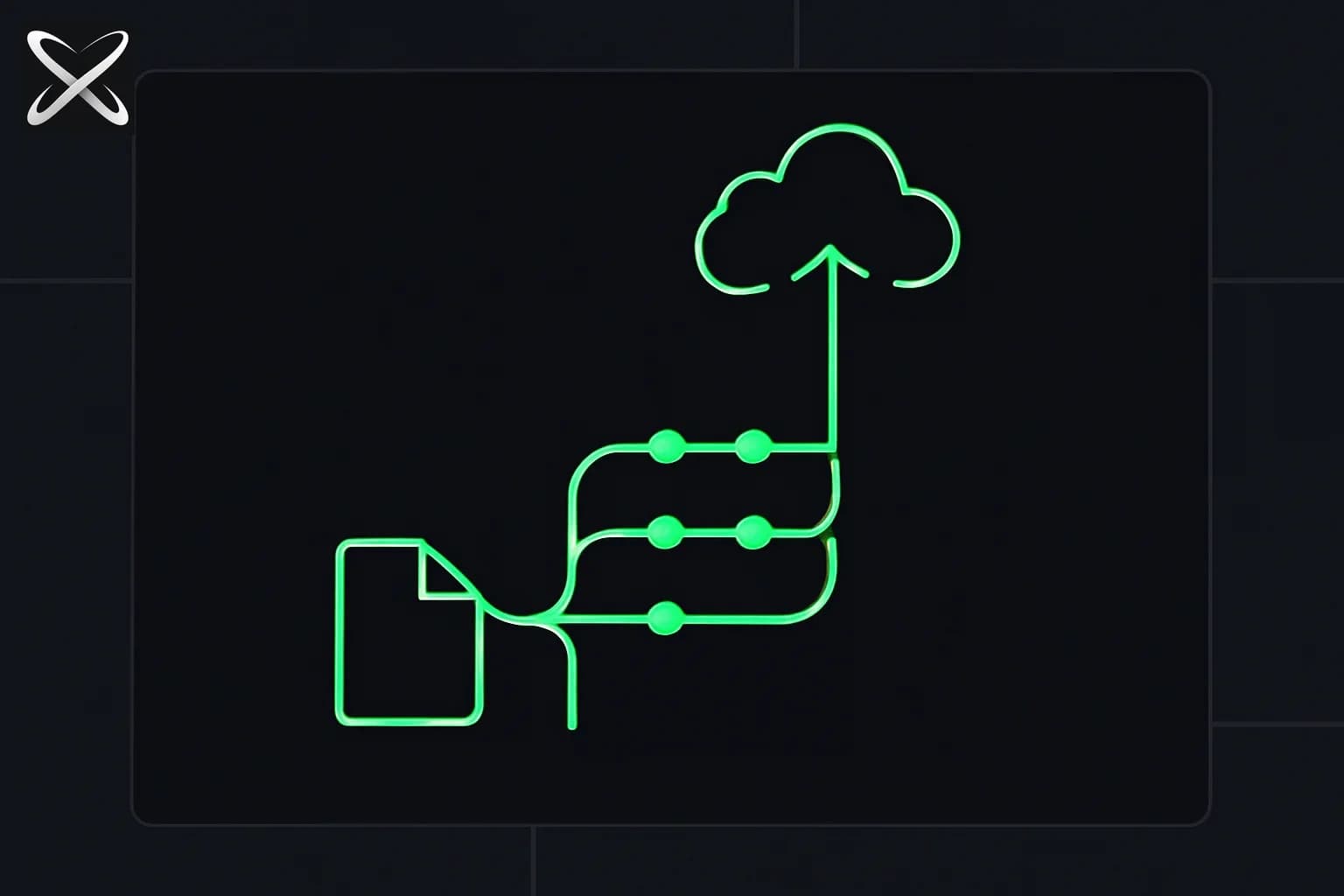
Git is the tool that lets you track every change you make to your project — who changed what, when, and why. GitHub is where those changes live online so you can access them from anywhere, share them with others, or roll back to any earlier version.
Every developer uses Git, every day. This guide gets you from zero to your first pushed commit.
What is version control?
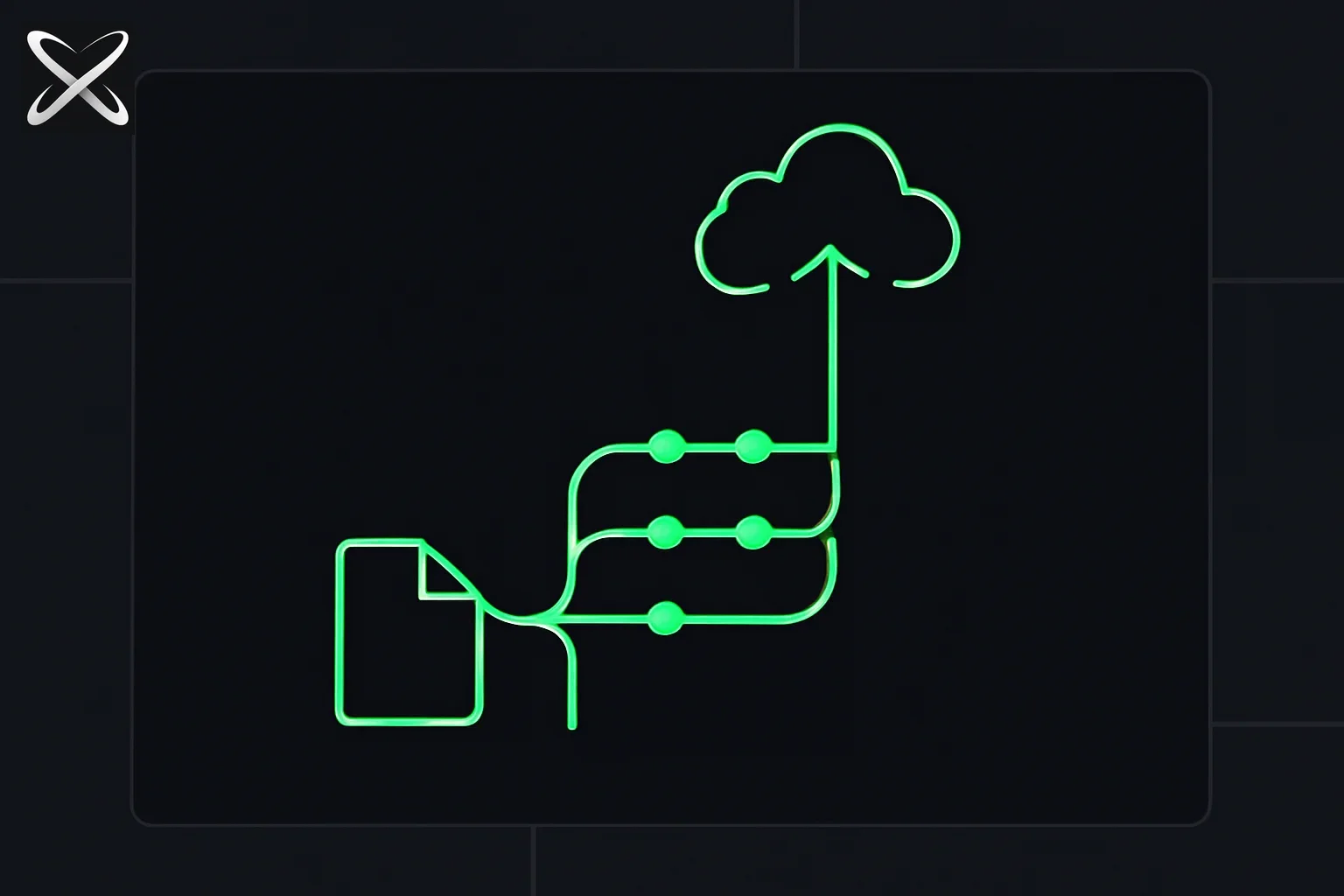
Without version control, you end up with folders like this:
project/
  index.html
  index-v2.html
  index-FINAL.html
  index-FINAL-v2.html
  index-ACTUALLY-FINAL.html
Git replaces all of that. You keep one version of your files. Git tracks every change invisibly in the background, and you can jump back to any point in the history instantly.
Step 1: Install Git
On macOS
Open Terminal (press Cmd + Space, type "Terminal", press Enter).
Check if Git is already installed:
git --version
If you see a version number like git version 2.45.2, you're done. Skip to Step 2.
If not, install it with Homebrew. First install Homebrew if you don't have it:
/bin/bash -c "$(curl -fsSL https://raw.githubusercontent.com/Homebrew/install/HEAD/install.sh)"
Then install Git:
brew install git
Verify:
git --version
On Windows
- Go to git-scm.com/download/win
- Download the latest 64-bit installer
- Run it — accept all default settings
- Open Git Bash (search for it in the Start menu)
- Verify:
git --version
Use Git Bash on Windows for all commands in this guide.
Step 2: Configure Git with your identity
Git attaches your name and email to every commit you make. Do this once:
git config --global user.name "Your Name"
git config --global user.email "your@email.com"
Replace with your actual name and the email you'll use for GitHub. Verify it saved:
git config --global --list
Step 3: Create a GitHub account
Go to github.com and sign up for a free account if you don't have one. Use the same email you set in Step 2.
Step 4: Create your first local project
Create a folder for your project:
mkdir my-first-project
cd my-first-project
Create a simple file inside it:
echo "# My First Project" > README.md
You now have a folder with one file in it.
Step 5: Initialise a Git repository
Tell Git to start tracking this folder:
git init
You'll see:
Initialized empty Git repository in /path/to/my-first-project/.git/
A hidden .git folder has been created. This is where Git stores all its tracking data. Don't touch it.
Step 6: Stage and commit your file
Check the status of your working directory:
git status
You'll see README.md listed as an "untracked file" — Git can see it exists but isn't tracking it yet.
Stage the file (tell Git to include it in the next commit):
git add README.md
To stage all files at once:
git add .
Commit the staged files with a message describing what you did:
git commit -m "Add README"
You'll see output like:
[main (root-commit) a3f1c2d] Add README
 1 file changed, 1 insertion(+)
 create mode 100644 README.md
That string (a3f1c2d) is your commit hash — a unique ID for this snapshot.
Step 7: Create a repository on GitHub
- Go to github.com/new
- Repository name:
my-first-project - Leave it Public (or Private — your choice)
- Do NOT tick "Add a README file" — you already have one
- Click Create repository
GitHub will show you a page with setup instructions. You only need the commands in the "push an existing repository" section.
Step 8: Connect your local project to GitHub
Copy the repository URL from the GitHub page. It looks like:
https://github.com/yourusername/my-first-project.git
Add it as the remote origin:
git remote add origin https://github.com/yourusername/my-first-project.git
Rename your current branch to main (GitHub's default):
git branch -M main
Step 9: Push to GitHub
git push -u origin main
Git will ask for your GitHub username and password. Note: GitHub no longer accepts your account password here — you need a Personal Access Token.
To create a token:
- Go to github.com/settings/tokens
- Click Generate new token (classic)
- Give it a name, set expiry, tick repo scope
- Copy the token — you won't see it again
Use the token as your password when Git prompts you.
After a successful push, refresh your GitHub repository page. Your README.md is there.
The daily Git workflow
Once your project is set up, your day-to-day workflow is:
# 1. Make changes to your files
# 2. See what changed
git status

# 3. Stage the changes
git add .

# 4. Commit with a message
git commit -m "Describe what you changed"

# 5. Push to GitHub
git push
After the first push with -u origin main, you only need git push from then on.
Commands you'll use most
| Command | What it does |
|---|---|
git status | Show what's changed and what's staged |
git add . | Stage all changed files |
git add filename | Stage one specific file |
git commit -m "message" | Save a snapshot with a description |
git push | Upload commits to GitHub |
git pull | Download latest changes from GitHub |
git log | Show commit history |
git log --oneline | Show commit history, condensed |
git diff | Show line-by-line changes not yet staged |
What to do when something goes wrong
Accidentally staged the wrong file:
git restore --staged filename
Want to undo your last commit (but keep the changes):
git reset HEAD~1
Check where your remote is pointing:
git remote -v
Clone an existing GitHub repository to your computer:
git clone https://github.com/username/repo-name.git
What exactly did you save, and what did you upload?
There are three useful places to understand: your working files, the staging area, and committed history. Editing a file changes the working copy. Staging selects the content for the next snapshot. Committing records that selected snapshot locally. Pushing sends commits to the remote repository. Git's status documentation describes these distinctions.
A common beginner surprise is editing a file after staging it. The next commit contains the staged version, not automatically your latest edits. Check the unstaged diff and the staged diff separately before committing. If both contain changes to the same file, decide which version belongs in the snapshot and stage again if necessary.
Another surprise is that a successful commit does not mean GitHub has your work. Your commit exists on your computer until a push succeeds. Likewise, copying a folder to another machine is not the same as sharing its history. Use a repository clone when you want the remote's files and version history together.
A small exercise that makes staging visible
After your first README commit, add one sentence describing the project. Check the diff, then stage the README. Add a second sentence without staging again. Inspect status and both diffs. You should be able to explain why Git shows staged and unstaged changes at the same time.
Now choose whether the second sentence belongs in the same commit. If it does, stage the file again and review the staged diff. If it does not, commit only the staged sentence. This exercise is more valuable than memorizing a command list because it teaches what the command changes.
How do you avoid uploading secrets or unrelated files?
Create your ignore rules early, but understand their scope: ignoring a file does not remove a file already tracked in history. Before your first push, inspect the files in the proposed commit. Look for environment files, private keys, access tokens, generated artifacts, and large files that were never meant to be source code.
Prefer staging named files while learning. Staging everything is convenient after you understand the checkout, but it can include an unrelated experiment or a credential file. A narrow commit also makes review easier: another person should be able to connect its message to the actual change without searching through unrelated edits.
Keep examples separate from real secrets. If a project needs an environment template, use placeholder values and explain where developers supply their local configuration. Do not paste your authentication token into a README, a repository URL, or a command that gets stored in shell history. GitHub's authentication guide explains HTTPS and SSH options.
Why did GitHub reject the push?
Read the error before changing anything. An authentication error means GitHub did not accept your credentials or access rights. A missing repository can mean the URL is wrong or your account cannot see it. A non-fast-forward rejection usually means the remote branch contains commits your local branch does not contain. These problems need different fixes.
If you initialized the GitHub repository with a README and also made an independent local first commit, you created two separate histories. For a beginner's disposable exercise, the simplest path may be to clone the GitHub repository into a new folder and copy your intended project files into that clone. Preserve the original folder until you confirm the new repository contains what you need.
For a shared project, inspect remote changes before integrating them. Do not use a force push merely to make a rejection disappear: it can replace history others rely on. Ask a teammate about the repository's collaboration workflow if branch protection or required reviews block a direct push. Those rules are part of the project, rather than a sign that Git is broken.
What happens after your first successful push?
Open the repository in the browser and verify the branch, commit message, and files. Make one small follow-up edit, commit it, and push again. Looking at both commits on GitHub helps connect local history with the remote copy. The browser view is also where you can catch an accidentally included file before sharing the repository widely.
When joining an existing project, clone it instead of initializing a nested repository inside its folder. Read its contribution instructions and check the current branch before working. Create a branch for your change, keep the diff focused, and use a pull request when the project expects review. That habit becomes especially useful when coding agents help edit files alongside you.
A clean working directory means tracked files match the committed state; it does not prove the application works. Run the project's relevant checks before describing a change as complete. Git records your work reliably, but choosing what to record and verifying that it behaves correctly remain your responsibility.
What to learn next
Once you're comfortable with add, commit, and push, the next things to learn are:
- Branching —
git checkout -b feature-nameto create a new branch - Merging — combining branches when work is done
- Pull requests — the GitHub workflow for proposing and reviewing changes
- .gitignore — a file that tells Git which files to never track (like
node_modules/or.env)
A good .gitignore for most projects:
node_modules/
.env
.DS_Store
*.log
dist/
Create it at the root of your project before your first commit.