



Related — October 7, 2026: A viral post claimed Claude Code's suggested next message is training data; Anthropic says it is not. See the claim, the reply and how to turn it off.
Update — September 24, 2026: New coverage — Will Claude Code kill plan mode?.
Claude Code is not just a chat window. It can read and write files, run arbitrary bash commands, call external APIs, and spawn sub-agents. That power is exactly what makes it useful — and exactly why the permission system exists.
Permission modes control which actions require your explicit approval before Claude executes them. Get the mode wrong and you either spend your day clicking "yes" on trivial edits, or you hand an AI agent unrestricted shell access to a machine with production credentials. Neither outcome is great.
This guide covers every mode, every flag, and the five real-world scenarios where each configuration makes the most sense.
Why Permissions Matter
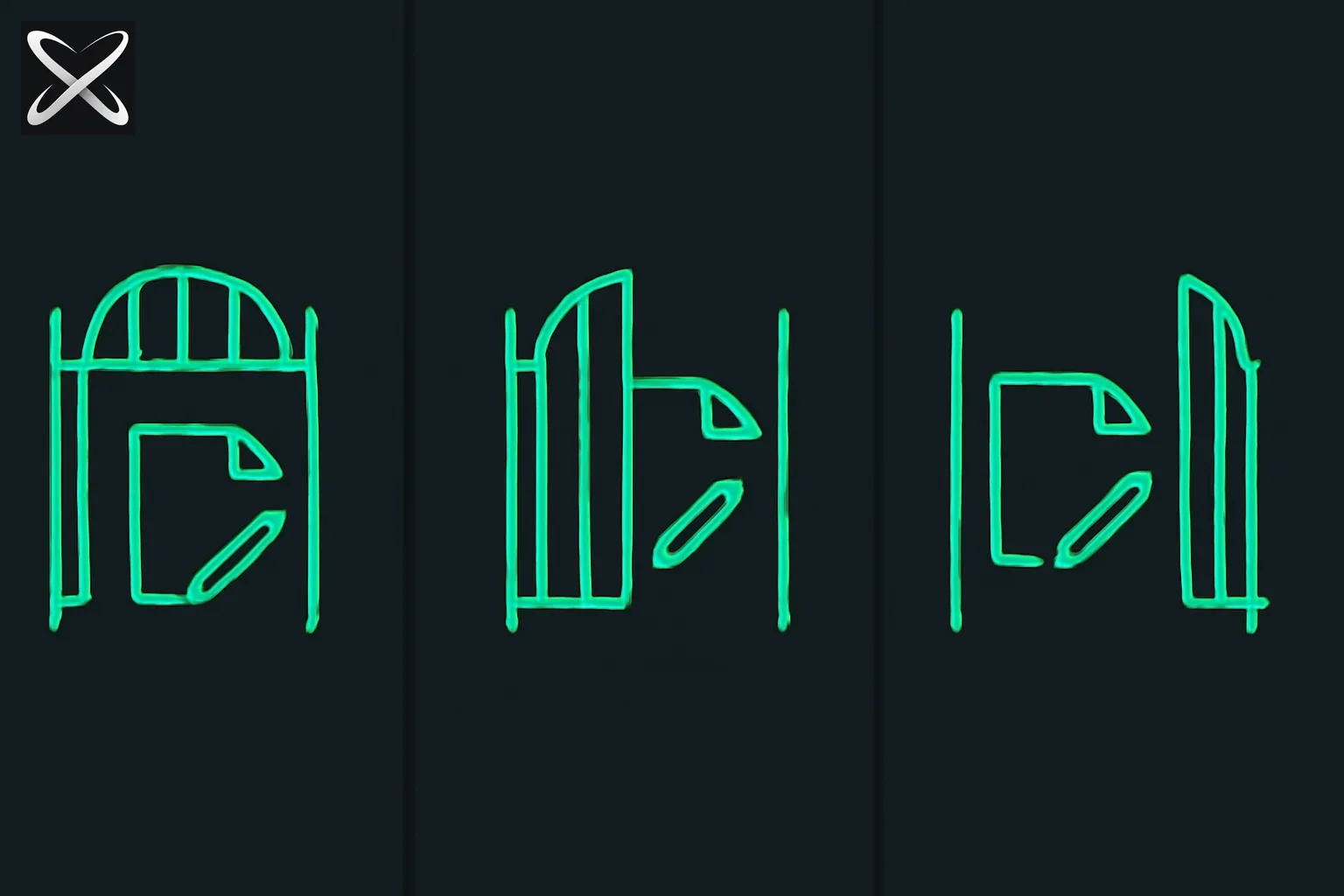 Claude Code permission modes diagram: three gates at different openness levels guarding a file-edit icon
Every Claude Code session can potentially:
- Read source files, config files,
.envfiles, and secrets - Write or overwrite any file the current user can access
- Execute shell commands (
rm,curl,git push, database migrations) - Make outbound HTTP requests to APIs
- Install packages, change git history, or trigger deployments
The permission system sits between Claude's intent and your machine. It is the difference between Claude suggesting a change and Claude making that change unilaterally.
The --permission-mode Flag
The primary entry point is the --permission-mode flag, which sets the approval behavior for an entire session:
claude --permission-mode default        # ask before bash + significant writes
claude --permission-mode acceptEdits    # auto-approve file edits, ask for bash
claude --permission-mode bypassPermissions  # skip all checks (danger zone)
Each mode is a different trade-off between safety and speed. Here is the full comparison:
| Mode | File Reads | File Writes / Edits | Bash Commands | Use Case |
|---|---|---|---|---|
| default | Auto | Asks | Asks | New projects, unfamiliar codebases, production machines |
| acceptEdits | Auto | Auto | Asks | Trusted projects, daily development |
| bypassPermissions | Auto | Auto | Auto | Sandboxed CI/CD only |
Mode 1: default
The default mode is what Claude Code uses when you do not specify anything. Claude will auto-approve read operations (it needs to read code to help you), but will ask for confirmation before:
- Running any bash or shell command
- Writing or editing files beyond what you explicitly approved in the current turn
claude --permission-mode default
# or simply:
claude
When to use it: Any time you are working in an unfamiliar codebase, on a shared machine, or in a context where a wrong command could have irreversible side effects. This is the correct mode for exploring open-source repos, running on staging/production machines, or during security-sensitive work.
What it feels like: You see a prompt for every bash execution. For large refactors this can feel slow, but you retain complete situational awareness of every action.
Mode 2: acceptEdits
acceptEdits is the sweet spot for most day-to-day development. File operations — Read, Edit, Write — are auto-approved without interruption. Bash commands still require explicit approval.
claude --permission-mode acceptEdits
This mode trusts that you have already reviewed the project enough that Claude editing a TypeScript file is low risk. But you still hold the gate on anything that touches the system: package installs, git operations, running tests, database commands.
When to use it: Your own projects, repos you know well, or any session focused on writing code rather than running it. The productivity gain over default is significant on file-heavy tasks.
What it feels like: Edits flow continuously without interruption. Bash prompts appear only when Claude needs to execute something, keeping you in the loop on side effects while removing friction from pure coding.
Mode 3: bypassPermissions / --dangerously-skip-permissions
This mode disables all permission checks. Claude can read, write, and execute anything without asking. It exists specifically for automated pipelines where there is no human in the loop to approve prompts.
# Via permission-mode flag
claude --permission-mode bypassPermissions

# Via the legacy flag (identical behavior)
claude --dangerously-skip-permissions
The word "dangerously" is in the flag name for a reason. Running bypass mode on any machine that has:
- Internet access
- Cloud provider credentials (AWS, GCP, Azure)
- API keys for payment processors or data services
- SSH keys or GPG keys
- Database connection strings
...is a serious security risk. A single prompt injection in the codebase Claude is reading could trigger arbitrary command execution with no gate.
When to use it: Inside a fully sandboxed Docker container in a CI/CD pipeline that has no internet egress and no sensitive credentials mounted. The container should be ephemeral and discarded after the run.
When never to use it: Developer laptops, production servers, shared machines, or any environment where a compromised output could reach real systems.
--allow-dangerously-skip-permissions
This related flag makes bypass available as an option in a script without enabling it by default. It is designed for wrapper scripts that need to optionally pass through bypass behavior based on environment variables:
# The script can enable bypass when the CI flag is present
claude --allow-dangerously-skip-permissions "$@"
Configuring Allowed and Denied Tools
Beyond the top-level mode, you can whitelist and blacklist specific tools or tool patterns for fine-grained control.
CLI Flags
# Allow only git commands, npm, and file edits
claude --allowed-tools "Bash(git *) Bash(npm *) Edit Write Read"

# Allow everything except dangerous destructive bash commands
claude --disallowed-tools "Bash(rm *) Bash(curl *) Bash(wget *)"

# Combine both for a precise allow-list with exceptions
claude --allowed-tools "Bash(git *) Edit Write" \
       --disallowed-tools "Bash(git push *)"
Tool patterns use glob-style matching. Bash(git *) permits all git subcommands. Bash(rm *) blocks all rm invocations regardless of arguments.
settings.json Persistent Configuration
CLI flags only apply to a single session. For persistent rules that apply every time Claude Code runs in a project, add a permissions block to .claude/settings.json:
{
  "permissions": {
    "allow": [
      "Bash(git *)",
      "Bash(npm *)",
      "Bash(npx *)",
      "Edit",
      "Write",
      "Read"
    ],
    "deny": [
      "Bash(rm *)",
      "Bash(curl *)",
      "Bash(wget *)",
      "Bash(git push --force *)"
    ]
  }
}
This file is checked into your repository, so the rules travel with the codebase. Every developer who runs Claude Code on the project inherits the same guardrails automatically — no per-session flags required.
Key distinction: deny rules always override allow rules. If a tool matches both lists, it will be blocked.
--safe-mode: The Debugging Baseline
--safe-mode is a separate concern from permission levels. It launches Claude with all customizations completely disabled:
CLAUDE.mdproject instructions are ignored- Hooks (pre/post-tool hooks) do not run
- Plugins are not loaded
- MCP (Model Context Protocol) servers are not started
claude --safe-mode
When to use it: Diagnosing unexpected Claude behavior where you suspect a hook or CLAUDE.md instruction is interfering. It gives you a clean baseline session with none of the project-level overrides in effect — useful for audits or for reproducing issues before filing a bug report.
Safe mode does not change the permission level. You still need to set --permission-mode if you want non-default approval behavior.
Per-Session vs Persistent Permissions
| Mechanism | Scope | How to Set |
|---|---|---|
--permission-mode flag | Current session only | CLI flag at startup |
--allowed-tools flag | Current session only | CLI flag at startup |
--disallowed-tools flag | Current session only | CLI flag at startup |
.claude/settings.json | All sessions in the project | Committed file in repo |
~/.claude/settings.json | All sessions for the user | User-level config file |
For team projects, committing .claude/settings.json is strongly recommended. It ensures consistent permissions across all contributors and CI runners without requiring everyone to remember the right flags.
Before reading the scenarios below, pick the mode yourself:
Real-World Scenarios
Scenario 1: Daily Development on Your Own Project
Recommended mode: acceptEdits
claude --permission-mode acceptEdits
You know the codebase. File edits are low risk. Bash prompts keep you in control of installs, tests, and git operations. This is the fastest mode that still keeps you meaningfully in the loop.
Scenario 2: Exploring an Unfamiliar Codebase
Recommended mode: default
claude --permission-mode default
When you do not know what the bash commands in a Makefile do, or where the database migration scripts live, you want every execution to require your approval. The extra prompts are not friction — they are information.
Scenario 3: CI/CD Automated Pipeline in a Container
Recommended mode: bypassPermissions
# Inside a sandboxed Docker container with no internet egress
claude --permission-mode bypassPermissions \
       --print "Run the test suite and fix any failing tests"
The container is ephemeral, has no sensitive credentials, and no human is available to approve prompts. Bypass is the only viable option. Combine with explicit --disallowed-tools rules in settings.json as a secondary defense layer even in CI.
Scenario 4: Running on a Shared or Production Machine
Recommended mode: default + explicit deny rules
{
  "permissions": {
    "deny": [
      "Bash(rm *)",
      "Bash(curl *)",
      "Bash(wget *)",
      "Bash(ssh *)",
      "Bash(git push *)"
    ]
  }
}
On a shared machine, default mode keeps every action visible. The deny list adds a hard block on the most dangerous commands regardless of what Claude is asked to do — belt and suspenders.
Scenario 5: Quick One-Off Script
Recommended mode: --print (non-interactive)
claude --print "Generate a bash script to rename all .jpeg files to .jpg in the current directory"
--print mode outputs Claude's response to stdout and exits immediately. No interactive session, no permission prompts, no file modifications — Claude generates the text and you decide what to do with it. This is the lowest-risk mode for exploratory or generative tasks.
Security Best Practices
Never use bypass on a machine with internet access. The risk vector is prompt injection: if Claude reads a file that contains adversarial instructions (a malicious dependency README, a crafted code comment, a poisoned config file), those instructions could trigger shell commands with no approval gate.
Commit your settings.json. Persistent deny rules are far more reliable than remembering the right CLI flags. A committed settings.json is auditable, reviewable, and consistent across environments.
Prefer acceptEdits over bypassPermissions wherever possible. Even in local automation scripts, keeping the bash gate active prevents an entire class of accidents.
Use --safe-mode before filing bug reports. Isolating Claude from all hooks and instructions makes it far easier to determine whether unexpected behavior is a product bug or a configuration issue.
Scope your allow-list tightly in CI. Instead of full bypassPermissions, consider using default + a narrow allow list in settings.json even in automation. This prevents the pipeline from executing commands outside the expected set even if something goes wrong.
Update — August 5, 2026: A viral Reddit case study on bypass-permissions mode's real-world tradeoffs — Fable 5 found a RAT on a Windows PC, and what that story does and doesn't prove about running an agent unrestricted.
Update — August 6, 2026: New data on the human side of this equation — Alex Wauters' 40,000-play approval game found players missed 1 in 3 malicious commands, with attacks disguised as familiar npm run scripts fooling reviewers almost twice as often as obvious ones.
Update — August 8, 2026: Anthropic is replacing manual approval as the default entirely. Auto mode becomes the default permission mode for Pro, Max, and Team plans on August 14, 2026 — a classifier catches 89% of a planted dangerous command in Anthropic's own study, versus 13.6% for human reviewers.
Update — August 22, 2026: The same permission-scope discipline applies outside coding agents. Instinct AI, a personal assistant, retained a tester's Gmail messages for hours after she revoked its access — a reminder that "revoke" and "delete" are separate guarantees a system has to make explicitly, and that requested permission scope (screen capture, keystrokes, passwords) should match the task, not the account.
Update — September 5, 2026: The credential-access version of the same problem: Instinct is integrating with 1Password so users can grant it scoped account access through a vault broker instead of typing passwords directly into the agent — the same default-to-scoped-not-standing-access principle this guide argues for, applied to login credentials instead of file and shell permissions.
Related on explainx.ai
-
Claude Code v2.1.301 and v2.1.302: auto mode classifier model and new defaults
-
The Viral "AI Agent Browsed NSFW Content" Claim: What It Actually Teaches About Browser-Agent Guardrails — the same checkpoint-not-blanket-review principle applied to browser navigation instead of file writes or shell commands
-
'Sorry, typo.' — Claude Opus 5 rm -rf'd a Reddit user's drive — a real incident walking through exactly why permission mode matters here
-
Auto mode becomes the default in Claude Code — the classifier that replaces manual approval as the default, and what it does and doesn't catch
-
Alex Wauters' 40,000-play AI agent approval game — 409,000 real approve/deny decisions on why human review alone isn't enough
-
Fable 5 found a RAT on a Windows PC — the bypass-permissions tradeoff — a real-world case study of this mode's upside and risk
-
GitLost: GitHub Agentic Workflows Private Repo Leak — why permission scoping beats prompt guardrails
-
Claude Code Agent View and /goal Command — autonomous task execution with budget controls
-
What are Agent Skills? — portable instructions that travel with your agents
-
What is MCP? — connecting Claude to external tools and APIs
-
Agent Harness Engineering — the scaffolding that makes agents reliable in production
-
Claude Opus 4.7 Models Guide — the reasoning engine behind Claude Code sessions
Permission flag names and settings.json schema may evolve across Claude Code releases. Always verify current behavior against the official Claude Code documentation for the version you are running.