



One of the most underused features of Claude Code is the ability to resume previous conversations. By default, every time you open Claude Code it starts a fresh session with no memory of what you discussed yesterday. But with two simple flags—--continue and --resume—you can instantly reload any past conversation and continue right where you left off.
This guide covers everything you need to know: the exact flags, when to use each one, real-world workflows, and a few power-user tricks.
The Core Problem: Context Doesn't Survive Between Sessions
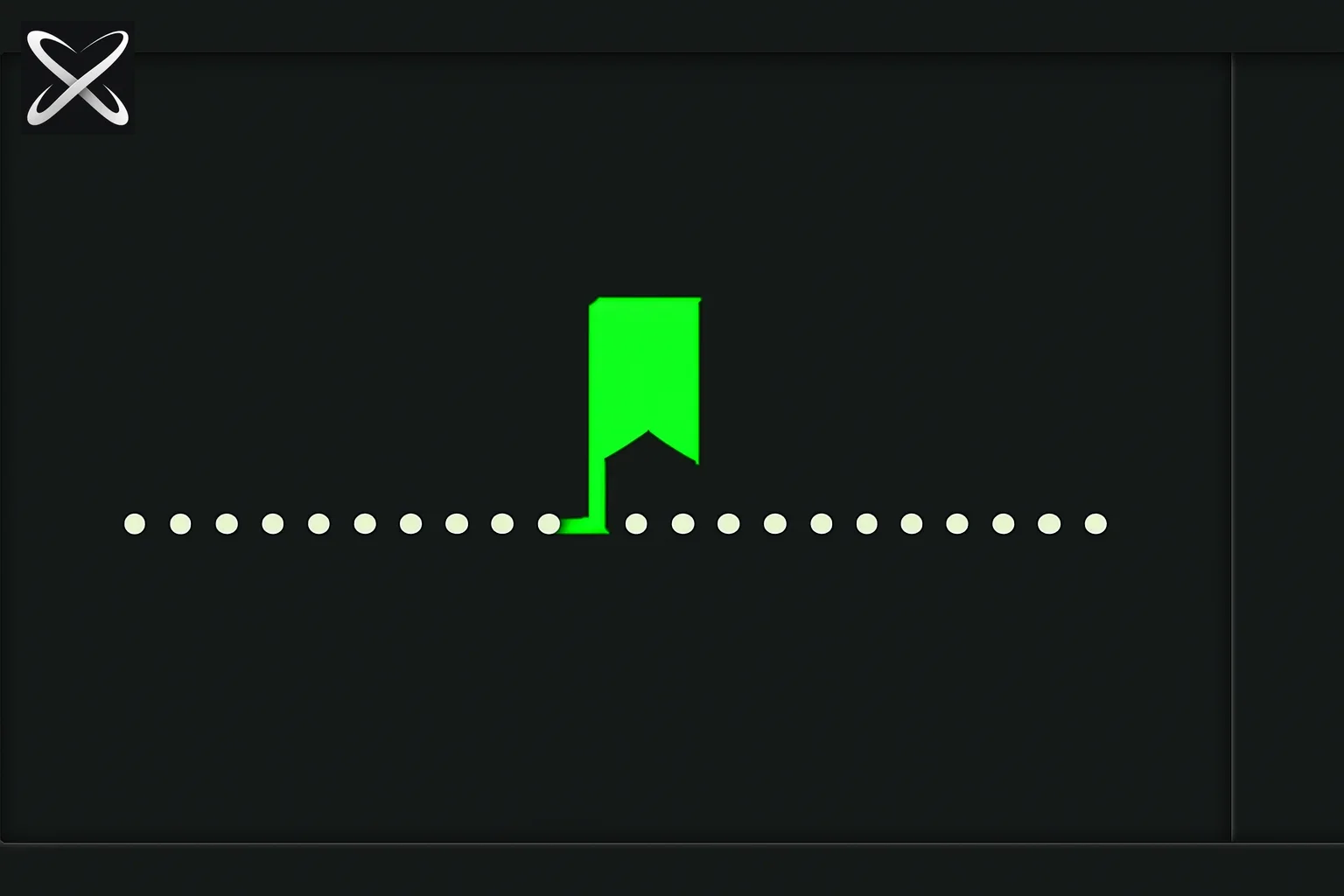 Claude Code continue and resume diagram showing a conversation thread pausing and resuming at one bookmark
When you close Claude Code, the active session is saved to disk—but the next time you run claude, you get a blank slate. That means:
- Re-explaining your project structure at the start of each session
- Retyping the same architectural decisions you already discussed
- Losing track of half-finished refactors you started yesterday
- Starting debugging from zero even though you already narrowed down the root cause
Claude Code solves this with session persistence. Every conversation is saved automatically. The --continue and --resume flags are how you get back into those saved sessions.
The Two Flags You Need to Know
--continue / -c: Jump Into Your Last Session
claude --continue
# or the short form:
claude -c
This is the flag you'll use 90% of the time. It does exactly one thing: loads the most recent conversation from your current directory and drops you back into it.
No prompts. No pickers. No session IDs to remember. Just run it and continue.
When to use it:
- You're working in the same project directory across multiple sessions
- You want to resume "right now" without any friction
- You finished for the day and want to pick up tomorrow morning
Example workflow:
# Monday evening — you got halfway through a feature
cd ~/projects/my-app
claude -c

# Claude immediately knows:
# - You're building a payment integration
# - You already set up Stripe webhooks
# - The next step was to write the success/failure handlers
# No re-explaining needed
--resume / -r: Pick Any Past Session
claude --resume
# or the short form:
claude -r
Without any arguments, --resume opens an interactive session picker—a scrollable list of every saved conversation. Each entry shows:
- The session name (or an auto-generated summary)
- The date and time it was last active
- The directory it belongs to
- A short preview of what was discussed
Navigate with arrow keys, press Enter to load a session.
You can also pass a session ID directly:
claude --resume abc123de-f456-7890-abcd-ef1234567890
This skips the picker entirely and loads that specific session.
When to use it:
- You want to return to a session from a different project or directory
- You have multiple ongoing features and need to switch between them
- You want to revisit a conversation from last week for reference
Quick Reference
| Goal | Command |
|---|---|
| Continue most recent session | claude -c |
| Pick from all past sessions | claude -r |
| Resume a specific session by ID | claude -r <session-id> |
| Continue non-interactively with a prompt | claude -c -p "your next instruction" |
| Fork a session (preserve original) | claude -c --fork-session |
| Name a session for easy retrieval | claude -n "payment-integration" |
Real-World Workflows
Workflow 1: The Daily Standup Pattern
Many developers now start their morning with a single command:
claude -c
Claude reloads your last session and you can immediately ask:
Where did we leave off? What was the next step?
Claude will summarize exactly where the conversation ended and what the next action was—effectively acting as a personal standup note.
Workflow 2: Parallel Feature Work
When you're working on multiple features simultaneously, name your sessions for easy navigation:
# Start the auth feature session
cd ~/projects/my-app
claude -n "auth-refactor"

# Start the payment feature session (separate session)
claude -n "payments-v2"

# Later, resume the auth work
claude -r
# Select "auth-refactor" from the picker
Session names show up in the picker, making it trivial to find the right one.
Workflow 3: Non-Interactive Continuation (Scripts & CI)
You can continue a session without entering interactive mode using --print / -p:
# Continue the last session and run a one-shot prompt
claude -c -p "run the test suite and summarize failures"

# Resume a specific session and ask a question
claude -r abc123de -p "what dependencies did we decide to upgrade?"
This is useful for automating follow-up steps after a human-approved session, or for running quick follow-up queries in scripts.
Workflow 4: Forking a Session
Sometimes you want to explore an alternative approach without losing your original conversation thread. Use --fork-session:
# Fork your current session before trying a risky refactor
claude -c --fork-session
This creates a new session ID branching from the current state. The original session is preserved exactly as it was. If the experiment fails, you can go back to the original with claude -r and pick the un-forked version.
The /resume Command Inside Claude Code
You don't have to exit Claude Code to switch sessions. Inside an active session, you can type:
/resume
This opens the same interactive picker from within the conversation. Select any past session and Claude will load it inline—effectively letting you "jump" between conversation histories without restarting the CLI.
Update — August 29, 2026: /resume now works in the Claude Code desktop app too — type /resume to pull any CLI-started session into the app with full history and context intact.
How Sessions Are Saved
Claude Code automatically persists sessions to disk. A few things worth knowing:
- Sessions are scoped to directories by default—
--continueloads the most recent session for your current directory - Sessions are saved even if you Ctrl+C out of Claude Code mid-conversation
- The
--no-session-persistenceflag disables saving (useful for one-off exploratory sessions you don't want cluttering the picker) - Session files are stored in
~/.claude/sessions/(you can inspect or back them up from there)
Combining Session Resume with CLAUDE.md
Session resumption and CLAUDE.md work together as complementary memory systems:
| Layer | What it stores | Scope |
|---|---|---|
CLAUDE.md | Project conventions, stack, commands, architecture | Every session in this project |
Session (-c / -r) | The actual conversation history and in-progress work | Only the resumed session |
The ideal setup: use CLAUDE.md for stable, project-wide context (stack, conventions, architecture decisions) and session resumption for the active thread of work (the current feature, the ongoing debug session, the in-progress refactor).
When you resume a session, Claude loads both the conversation history and the CLAUDE.md file—giving you full context with zero re-explaining.
Common Mistakes to Avoid
Mistake 1: Running claude without -c by habit
If you're used to just typing claude, muscle memory will give you a fresh session. Make -c your default when continuing work:
# Add to your shell profile for convenience
alias cc="claude -c"
Mistake 2: Forgetting that --continue is directory-scoped
If you move to a different directory and run claude -c, it will try to find the most recent session for that directory—not your most recent session globally. Use claude -r to find sessions across all directories.
Mistake 3: Not naming long-running sessions
For any session that's going to span multiple days, use -n when starting it:
claude -n "q3-performance-optimization"
Otherwise it gets an auto-generated name that's hard to spot in the picker later.
Mistake 4: Using --no-session-persistence unintentionally
If someone shared a script that includes --no-session-persistence, sessions from those runs won't be saved. Don't use this flag unless you genuinely want throw-away sessions.
Checking Session History
To see all your saved sessions without starting one, just run:
claude -r
Browse the picker, then press Ctrl+C or q to exit without loading anything. It's a quick way to review what you've been working on across projects.
Troubleshooting Session Resume
Even with a feature this reliable, a few failure modes show up often enough to document.
"No conversation found in this directory" — claude -c only ever looks at the current working directory. If you cd into a subfolder of a project you were working in, or you cloned the repo to a new path, the session index won't find a match because it keys off the exact directory string. Fix: run claude -r instead and pick the session from the picker's directory column, or cd back to the exact path the session was started from.
The picker shows the wrong session at the top — --resume sorts by recency, not by relevance. If you've since opened Claude Code in that directory for something unrelated (even a one-line question), that throwaway session now outranks the one you actually want. Naming sessions with -n when you start meaningful work is the fix — the picker becomes searchable by name instead of by "which one was I working in five minutes ago."
A resumed session "forgets" recent edits — this usually isn't a resume bug; it means files changed on disk after the session was saved (a teammate pushed, a formatter ran, a different tool touched the same files). Claude Code doesn't silently re-diff the filesystem against stale session state, so your first move after resuming a session that's more than a few hours old should be asking Claude to re-check the current state of any files it's about to edit.
Session files pile up over time — since every claude invocation without --no-session-persistence gets saved to ~/.claude/sessions/, long-lived projects accumulate dozens of entries. There's no built-in auto-pruning as of this writing, so periodically clearing out sessions you'll never resume keeps the -r picker fast and legible. Back up anything you might reference later before deleting.
Resume vs. Checkpoints vs. Context Compaction
Session resume solves a specific problem — getting back into a conversation you already had. It's easy to confuse with two adjacent Claude Code features that solve different problems:
| Feature | Solves | Granularity | How to invoke |
|---|---|---|---|
--continue / --resume | Reloading a past conversation after Claude Code exited | Whole session | claude -c / claude -r |
| Checkpoints / restore | Rolling back file edits within an active session that went wrong | Individual edit or turn | /rewind or the restore UI |
| Context window management | Keeping a long-running session from running out of context | Token budget | Compaction, /clear, /compact |
They're complementary, not competing. A realistic day looks like: resume yesterday's session with -c, let context compaction quietly manage the token budget as the conversation grows, and reach for a checkpoint restore if Claude makes an edit you want to undo without losing the rest of the conversation. Knowing which lever to pull saves you from over-using any single one — restoring a checkpoint won't fix a session you can't find, and resuming a session won't undo a bad edit still sitting in your working tree.
Session Resume in the Desktop App and on Mobile
Resume isn't CLI-only anymore. Beyond the /resume in-app command covered above, sessions started in the terminal now travel across surfaces:
- Desktop app — as noted in the August 29 update,
/resumepulls any CLI-started session into the desktop app with full history intact, useful when you want a GUI for reviewing a long diff without losing the conversation that produced it. - Mobile — for workflows where you kick off a Claude Code session on a machine and need to check progress or nudge it from your phone, see our Claude Code mobile remote control guide — session state syncs the same way
--resumedoes locally.
The underlying mechanism is the same in every case: a session ID is the portable unit. Anywhere Claude Code can look up that ID, it can rebuild the conversation.
Workflow 5: Sharing a Session with a Teammate
Resume is single-player by default — session files live in ~/.claude/sessions/ on your machine. When you need a teammate to pick up exactly where you left off (a handoff before PTO, an async code review, a support escalation), don't paste a transcript into Slack. Export the session as a shareable artifact instead — see shareable Claude Code session artifacts for the export flow. The teammate gets the same context a --resume would have given you, without needing filesystem access to your machine.
Summary
| Flag | Short | What it does |
|---|---|---|
--continue | -c | Loads the most recent session in the current directory |
--resume [id] | -r [id] | Opens an interactive picker, or loads a session by ID |
--fork-session | — | Creates a new session branching from the resumed one |
--name <name> | -n <name> | Names the session for easy retrieval later |
/resume | — | In-session command to switch to another past session |
The combination of --continue for daily flow and --resume for targeted session retrieval eliminates the biggest source of friction in long-running Claude Code workflows: having to re-explain context you've already established.
Start tomorrow's session with claude -c and notice the difference immediately.
Related reading
- Claude Code resume in the terminal, now in the desktop app
- Claude Code checkpoints and the restore feature
- Managing Claude Code's context window
- What is CLAUDE.md? Persistent memory for Claude Code
- Claude Code commands: complete reference guide
- Shareable Claude Code session artifacts
- Claude Code mobile: remote control from your phone
- What is loop engineering? — session memory is one of the five components of a well-designed agent loop