



Update — September 25, 2026: F-Droid 2.0 launches as Google tightens Android app installs. See F-Droid 2.0.
Update — September 24, 2026: New coverage — Claude Code cloud sessions are generally available.
Update — August 22, 2026: Anthropic shipped reliability upgrades to native remote control after it became the top user request in July 2026. Any machine running claude remote-control now shows up as a device card in the Claude mobile app's Code tab—tap it, pick a directory, and Claude Code starts a brand-new session on that machine directly from your phone. See what changed and what's still missing (voice mode) below. One day later, Google shipped a browser-based equivalent — see Google Antigravity Remote Control compared to Claude Code.
Update — August 9, 2026: Termux on Android is not only a Claude Code remote — one builder turned a CMF Phone 1 into the home server (runit, Cloudflare Tunnel, ssh cmf).
Update — June 30, 2026: pocketdev provisions a Tailscale-only Hetzner dev box with Claude Code, Codex, Cursor CLI, and more — SSH from Termius. OpenClaw iOS + Android shipped June 30. Full comparison: run AI coding agents from your phone.
Update — June 30, 2026: Cursor shipped a first-party iOS app with cloud agents, Live Activities, and PR merges — no DIY setup required. See Cursor for iOS launch (June 29). This guide still covers Claude Code mobile paths.
In June 2026, @mattshumer_ posted a simple question on X that resonated with 109,000 people:
"Is there a good way to control Claude Code on your computer (with dangerous permissions) from your phone, like Codex Mobile?"
The replies surfaced four distinct solutions, ranging from a one-click toggle inside Claude itself to a purpose-built open-source mobile app to a DIY terminal setup involving Tailscale, mosh, and Termux. This article walks through every option with setup instructions, trade-offs, and security guidance for the specific challenge of remotely supervising an AI agent that has been granted broad system permissions.
Why this matters: the agentic session problem
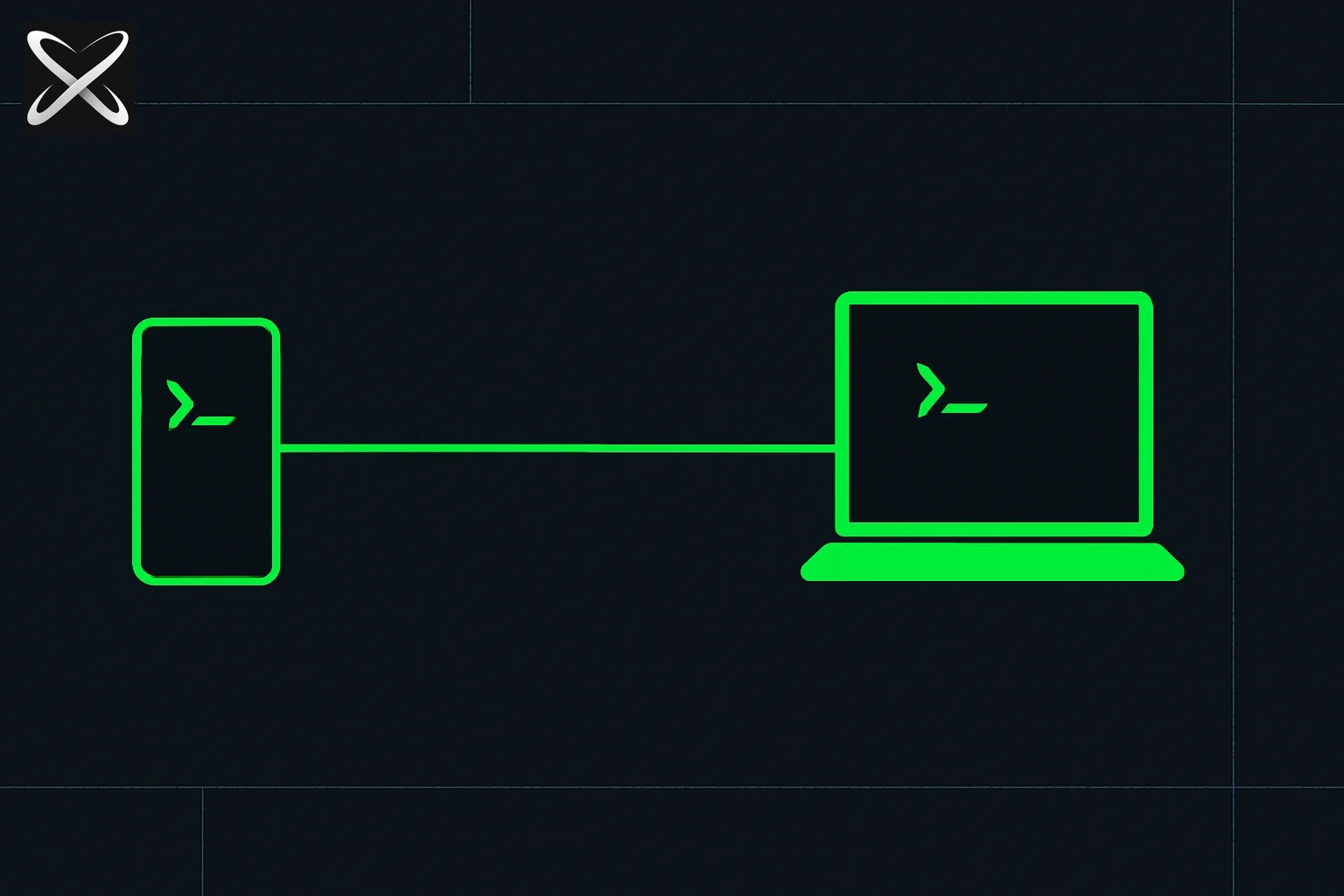 Claude Code mobile remote control diagram showing a phone and laptop synced by one connecting line
Claude Code's power multiplies when you let it run unattended. A typical workflow looks like this: you write a task prompt, grant broad permissions so Claude does not pause to ask for every file write or shell command, then wait while it works through a multi-step problem. The session might run for twenty minutes or an hour.
The problem is that you are rarely at your desk the entire time. You walk away to make coffee, take a meeting, or commute home—and when the session stalls on an ambiguous decision or hits an error it cannot resolve on its own, you have no way to see what happened or give it a nudge without returning to your computer.
Mobile control solves this. It lets you monitor progress, respond to interruptions, or kill a runaway session from wherever you are.
Option 1: Native Claude Code remote control (easiest, zero extra setup)
This is the method most people do not know exists, surfaced in the original thread by @tregoudeau.
How it works
Claude Code has a built-in remote control feature that bridges your desktop sessions to the Claude mobile app. When enabled, every Claude Code session running on your machine appears in the Claude iOS or Android app as a live, interactive session—exactly as if you were at your keyboard.
Setup steps
- Open Claude Code on your desktop machine.
- Type
/configin the chat interface. - Find the Remote Control setting and toggle it on.
- Open the Claude app on your iOS or Android device (sign in with the same Anthropic account).
- Navigate to the Sessions view—your active Claude Code sessions appear here.
That is the entire setup. There are no ports to open, no servers to run, no accounts beyond your existing Anthropic subscription.
What you can do from mobile
- Read the full conversation history and tool outputs
- Send follow-up instructions or clarifications
- Interrupt and redirect the agent mid-run
- See real-time output as Claude executes shell commands and edits files
Trade-offs
- Requires the Claude mobile app (first-party Anthropic)
- Session visibility depends on your Anthropic account tier
- Less useful if you need to run arbitrary terminal commands outside of what Claude Code surfaces
Best for: anyone already using Claude Code and the Claude mobile app who wants the fastest path to mobile monitoring.
The August 2026 reliability update: device cards, faster sync, and still no voice mode
Remote control was already the easiest of the four methods above, but it had two well-known rough edges: you had to start a session at your desk before it would show up on your phone, and the mobile app sometimes lagged behind what was actually happening on your machine—showing a session as still running seconds or minutes after it had actually ended. On August 21-22, 2026, @ClaudeDevs (Anthropic's Claude Code team account) announced a set of reliability fixes that address both, after remote control was named users' top request in July 2026.
What actually changed
"You can now start a Claude Code session directly from your phone. Any machine running
claude remote-controlshows up as a device card at the top of the Code tab. Tap it, pick a directory, and it starts on that machine." — @ClaudeDevs
Three concrete changes, per the announcement:
- Launch from the device card, not just monitor an existing session. Run
claude remote-controlon any machine and it appears as a card—labeled with the machine's hostname, e.g. "Lydias-MacBook-Pro"—at the top of the Code tab in the Claude mobile app, with a live green status dot when it's online. Tap the card, choose a directory, and Claude Code launches a fresh session there. This is new: previously (Option 1 above) you had to already be running Claude Code on your desktop before it would surface on mobile. - Faster, more reliable phone-to-laptop sync. The mobile app and the desktop session now stay on the same live thread more consistently—fixing a class of bugs where the two views could drift out of sync mid-session.
- Session endings reflect in seconds. When a session ends on your machine, the mobile app's Sessions list (visible below the device cards, with an "All" filter) now updates to show that within seconds, rather than continuing to display a finished session as "Connected."
Anthropic also confirmed the connection is local-only: everything runs directly between your phone and the machine running claude remote-control, with no cloud relay shifting the session through Anthropic's infrastructure in between.
Why this was the top request
The pain point wasn't hypothetical. Justin.md (@JustinPerea) described the workaround he'd been using: "I've had to get codex to start terminal runs and activate remote for me when I'm not home"—using a second AI coding agent just to babysit Claude Code's remote setup because he couldn't start a session remotely himself. That workaround is no longer necessary once claude remote-control is running and a device card is visible.
Peter Yang (@petergyang) raised a fair critique of the original design: "i never understood why remote control wasn't default on for desktop threads to use on the phone." The August update doesn't make remote control default-on—you still opt in by running claude remote-control—but it does remove the biggest reason someone would need to be at their desk first.
Robert Bye (@RobertJBye), an Anthropic PM on the Claude team, called them "huge improvements for using Claude Code on the go" in a reply pointing to the update thread.
The unmet ask: voice mode
The most repeated feature request in the replies wasn't about reliability at all—it was pairing remote control with Claude's existing voice mode. Alex Finn (@AlexFinn) put it directly: "Would love if I could start a remote claude code session on the app, then use the voice mode you guys have with it so it can get work done on the go." Yonatan Cale (@YonatanCale) echoed the same ask separately: "How about voice mode? Voice mode would be great!"
The idea is straightforward: tap a device card to start a session, then talk to Claude Code instead of typing on a phone keyboard—genuinely hands-free coding from a phone. As of this update, remote control and voice mode remain separate features with no announced integration timeline.
What this means if you're already using native remote control
If you followed Option 1 above before this update, nothing about your existing /config setup breaks—the toggle still works for monitoring sessions you start at your desk. The device-card flow via claude remote-control is the new addition: it's what lets you skip the desk entirely and launch a session from a directory picker in the mobile app itself. Pablo (@pfernan95dev) summed up the trade-off half-jokingly: "now I'm going to be Claude's prisoner even when I'm not at home." The convenience cuts both ways—easier to check in from anywhere also means easier to feel like you should.
This is part of a broader pattern across Anthropic's tools this month: Claude Code sessions can now message each other across terminals, and Claude in Chrome sessions sync across desktop, web, and mobile. Local-only remote control also sits alongside the DIY paths in this guide and the third-party options covered in running AI coding agents from your phone: pocketdev, Cursor, OpenClaw compared—useful context if claude remote-control doesn't fit your setup (for example, if your machine is asleep or off when you need it).
Option 2: Orca — open-source, multi-agent mobile client
Orca (@orca_build on X) is an open-source iOS and Android app with 5,000+ GitHub stars that was purpose-built for running AI coding agents from mobile.
What makes it different
While the native Claude remote only surfaces Claude Code sessions, Orca treats multiple agents—Claude Code, OpenAI Codex, and Cursor—as equal citizens. If your workflow spans more than one AI agent, Orca gives you a single mobile interface for all of them.
Setup steps
- Install Orca from the App Store or Google Play (or build from source at
github.com/stablyai/orca). - Open Orca and add a new agent connection.
- Select Claude Code from the agent list.
- Follow the in-app prompts to authenticate with your Anthropic account and connect to your running Claude Code instance.
- Your sessions appear in the Orca dashboard, where you can monitor output, send messages, and switch between agent types.
What you get
- Unified view across Claude Code, Codex, and Cursor sessions
- Community-driven release cadence (features ship faster than first-party apps)
- Open source: you can audit the code and self-host if needed
- Available on both iOS and Android
Trade-offs
- Community-maintained, so stability may lag behind a first-party app
- Setup requires connecting each agent type separately
- Slightly more configuration than the native
/configtoggle
Best for: developers who use multiple AI agents and want one mobile app to rule them all, or anyone who prefers open-source tooling over first-party apps.
Option 3: Tailscale + mosh + Termux (full terminal access)
This approach, contributed by @nkeilar in the thread (who reportedly strapped their phone to their arm for around-the-house use), gives you a real Linux terminal to your dev machine from your phone. It is the most powerful option because you are not limited to what a Claude-specific app surfaces—you can read log files, run tests, check git status, or do anything else a terminal allows.
Components
- Tailscale: creates an encrypted WireGuard mesh network so your dev machine is reachable from anywhere without exposing any ports to the internet
- mosh: a mobile shell that handles the intermittent connectivity of mobile networks—if your connection drops (switching from Wi-Fi to LTE, locking your screen), mosh reconnects automatically and preserves your terminal state
- Termux: a terminal emulator and Linux environment for Android; on iOS, use Blink Shell or a-Shell instead
Setup steps
On your dev machine:
- Install Tailscale:
curl -fsSL https://tailscale.com/install.sh | sh - Authenticate:
tailscale up - Note your machine's Tailscale IP (visible at
tailscale ip -4or in the Tailscale dashboard) - Install mosh:
sudo apt install mosh(orbrew install moshon macOS) - Ensure your SSH server is running:
sudo systemctl enable --now ssh
On your phone (Android with Termux):
- Install Termux from F-Droid (not Google Play—the Play version is outdated)
- Open Termux and install mosh:
pkg install mosh - Install Tailscale for Android from the Play Store and authenticate with the same account
- Connect to your dev machine:
mosh <your-tailscale-ip>
On your phone (iOS):
- Install Tailscale for iOS from the App Store
- Install Blink Shell from the App Store (supports mosh natively)
- In Blink, add a new host with your Tailscale IP and configure mosh as the connection type
- Connect
The wrapper script trick
@nkeilar shared a practical refinement: write a small wrapper script on your dev machine that shows all running terminal sessions (tmux windows, Claude Code processes, etc.) in a numbered menu when you connect. That way, you SSH in on your phone and immediately pick up the session you care about rather than hunting for it.
A simple version using tmux:
#!/usr/bin/env bash
# ~/bin/mobile-menu.sh
echo "=== Running sessions ==="
tmux list-sessions 2>/dev/null || echo "No tmux sessions"
echo ""
echo "Attach to session: tmux attach -t <name>"
Add bash ~/bin/mobile-menu.sh to the end of your .bashrc or .zshrc so it runs automatically on login.
Trade-offs
- Most setup effort of any option (Tailscale account, mosh install, Termux/Blink configuration)
- Requires your dev machine to be on and reachable
- Small screen makes complex terminal work awkward, but readable for monitoring
Best for: developers who want full terminal access, not just Claude-specific session views, and are comfortable with SSH-based workflows.
Option 4: tmux over SSH (the classic approach)
Suggested by @matthoneycutt, this is the simplest version of the terminal approach: SSH into your dev machine from your phone and use tmux to manage sessions.
Why tmux is non-negotiable for mobile
Mobile connections are unreliable by nature. Without tmux (or screen), a dropped SSH connection kills every process running in that shell—including your Claude Code session. Tmux decouples your terminal sessions from the SSH connection. Sessions live on the server; you just attach and detach as your connectivity allows.
Setup steps
On your dev machine:
- Install tmux:
sudo apt install tmuxorbrew install tmux - Start a named session before running Claude Code:
tmux new -s claude - Inside the session, launch Claude Code normally
- Detach at any time with
Ctrl-B D—Claude Code keeps running
From your phone:
- Use any SSH client (Termius, Blink Shell on iOS; ConnectBot, Termux on Android)
- SSH into your machine:
ssh user@your-machine-ip - Reattach to the session:
tmux attach -t claude - You are back in the session, with full scroll history, exactly where it left off
Combining with Tailscale
Without Tailscale (or a similar VPN), SSH over the open internet requires port forwarding on your router and exposes your SSH port to the world. Add Tailscale to this setup for the same benefit as Option 3: SSH only over the encrypted Tailscale network, no public port exposure.
Trade-offs
- Requires you to plan ahead and start a tmux session before leaving your desk
- No Claude-specific UI—everything is raw terminal output
- Screen real estate on mobile is the main limitation
Best for: developers who already use tmux daily and want zero new tooling beyond an SSH client on their phone.
Comparison: which method to choose
| Method | Setup effort | What you see | Works offline? | Multi-agent? |
|---|---|---|---|---|
Native /config remote | Low (toggle in Claude Code) | Claude Code sessions only | No | No |
| Orca | Low-medium (app install + auth) | Claude Code, Codex, Cursor | No | Yes |
| Tailscale + mosh + Termux | High (multiple components) | Full terminal | No (needs machine) | Yes (any CLI tool) |
| tmux over SSH | Medium (tmux + SSH client) | Full terminal | No (needs machine) | Yes (any CLI tool) |
Security considerations for dangerous-permissions sessions
All four methods give you remote access to a Claude Code session that may be running with broad system permissions. Here is what that means in practice and how to stay safe.
What dangerous permissions actually enables
When Claude Code runs without permission prompts, it can write to any file your user account can write to, execute arbitrary shell commands, make network requests, and install packages. A misunderstood instruction or a prompt injection through a file Claude reads can cause real damage in this mode.
Mitigations
Isolate the environment. Run Claude Code with dangerous permissions inside a Docker container, a VM, or a cloud sandbox rather than directly on your primary machine. A container limits what a runaway Claude session can reach even if it tries to escape its task scope.
Use a dedicated user account. On your dev machine, create a second Linux user with limited sudo access. Run Claude Code as that user. A mistake cannot affect your main user's files or credentials.
Keep sessions short and scoped. The longer a session runs unattended, the larger the blast radius if something goes wrong. Break large tasks into smaller checkpoints where you review output before continuing.
Rotate credentials after long sessions. If Claude Code had access to environment variables containing API keys or tokens during a long run, consider rotating those keys afterward—especially if the session involved reading unfamiliar files or repositories.
Tailscale over public SSH. Never expose your SSH port directly to the internet for remote Claude Code access. Use Tailscale or a similar zero-trust network so only your authenticated devices can reach the machine.
A note on the other options mentioned
The thread also surfaced two other approaches worth knowing about:
sharemyclau.de creates a shareable web URL for a Claude Code session. It is useful for async handoffs or showing a colleague what you are working on, but creates a publicly reachable endpoint for a session that may have dangerous permissions enabled. Treat any sharemyclau.de link as sensitive.
Dispatch is Anthropic's official product for orchestrating Claude Code tasks. Matt Shumer described it as not meeting his needs for this use case. It may be a better fit for team-level orchestration than for individual developer mobile monitoring.
Practical recommendation
Start with the native /config remote control if you already use the Claude mobile app. It requires no new software and covers the core use case—monitoring and directing an in-progress session—without any added complexity. If you find yourself wanting to run arbitrary terminal commands alongside Claude Code, add Tailscale and tmux to the mix. If you work across multiple agents, give Orca a look.
The right setup is the one you will actually use when you are away from your desk. A simple tmux session you check via SSH beats a more powerful solution that you never configured.
FAQ
Can I send messages to Claude Code from my phone mid-session?
Yes, with all four methods. The native remote and Orca surface a chat interface directly. The terminal methods (Tailscale + mosh, tmux over SSH) let you type into the Claude Code CLI directly, which accepts messages at any point during a running session.
Does the native remote control work when I am on a different Wi-Fi network?
Yes. The native remote control routes through Anthropic's infrastructure, so it works as long as both your desktop and phone have internet access—no direct network link between them is required.
What SSH client should I use on iPhone?
Blink Shell is the most capable option: it supports mosh natively, has a good on-screen keyboard, and is actively maintained. Termius is a good alternative with a more beginner-friendly interface.
Can I start a new Claude Code session from my phone, not just monitor an existing one?
Yes. As of the August 2026 native remote control update, running claude remote-control on a machine makes it appear as a device card in the Claude mobile app—tap it, pick a directory, and a new session launches there. Before that update, the native remote and Orca focused on monitoring and directing sessions you had already started at your desk; the terminal methods (Options 3 and 4) have always supported starting new sessions since you have a full shell to cd and run claude from.
Is mosh required, or can I use plain SSH with Tailscale?
Plain SSH over Tailscale works, but mosh is strongly recommended for mobile use. When your phone switches networks, plain SSH drops and you have to reconnect. Mosh automatically re-establishes the session within a few seconds without losing your place. The difference matters when you are monitoring a long Claude Code run.
Also see: Cursor for iOS — native cloud agents on iPhone (June 29, 2026) · CMF Phone 1 as a Termux home server (Aug 2026) · Google Antigravity Remote Control (Aug 21, 2026)
Update — July 16, 2026: Beyond monitoring existing sessions, Claude Code on the web can author and push new work directly — see how to publish blog posts from Claude Code on the web without a VPS, using GitHub as the deploy trigger instead of a dedicated remote box.
Update — August 13, 2026: The same cross-device pattern now applies to browsing — Claude in Chrome sessions carry over across desktop, web, and mobile, so a browser task started at your desk can be picked up on your phone the same way a Claude Code session can.
Update — August 22, 2026: Native remote control got its biggest reliability pass since launch — see the August 2026 update section above for the claude remote-control device-card flow, faster session-end sync, confirmation there's no cloud relay, and why voice mode is still the top unmet request. Related: Claude Code sessions messaging each other across terminals and /resume pulling CLI sessions into the desktop app.
Methods and app availability reflect the state of tooling as of June 17, 2026, updated August 22, 2026 to cover the native remote control reliability upgrade. Verify current installation steps against the official Orca repository at github.com/stablyai/orca and Tailscale documentation before setting up a new workflow.