



Llama Windows is a free, open-source app that puts llama.cpp in the Windows 11 system tray. Hugging Face announced it on October 13, 2026, written by Morgan Funtowicz, Jeff Boudier and Emanuil Rusev, with the code in the ggml-org organization. It manages llama.cpp for you, downloads models from the Hugging Face Hub in one click, and serves an OpenAI-compatible API on localhost. It also launches with native support for Windows on Arm and NVIDIA's RTX Spark. We covered the hardware side in our post on the RTX Spark launch software; this post is the dedicated look at the app. For the chip, see the RTX Spark power specs.
Quick reference
| Question | Answer | Source |
|---|---|---|
| Cost and license? | Free; repo shows MIT | Hugging Face blog, GitHub |
| OS? | Windows 11, x64 and ARM64 | GitHub README |
| Install? | Download from llama.app, or the .msixbundle on GitHub Releases | Hugging Face, README |
| Admin rights? | Not required | Hugging Face |
| Local API? | http://localhost:9931/v1 (OpenAI-compatible) | Hugging Face |
| Where are models stored? | Shared Hugging Face cache, %USERPROFILE%\.cache\huggingface\hub | Hugging Face |
| Telemetry? | None per README; User-Agent on downloads and update checks | README |
What the app does
The tray icon opens a flyout that lists recommended models with parameter count, disk size and a vision-support flag. You click to download from the Hub. A second panel loads and unloads local models and links to the llama.cpp web UI. Pressing Alt+Space from any app opens an overlay chat for the loaded model, and it hides instead of closing so conversations persist.
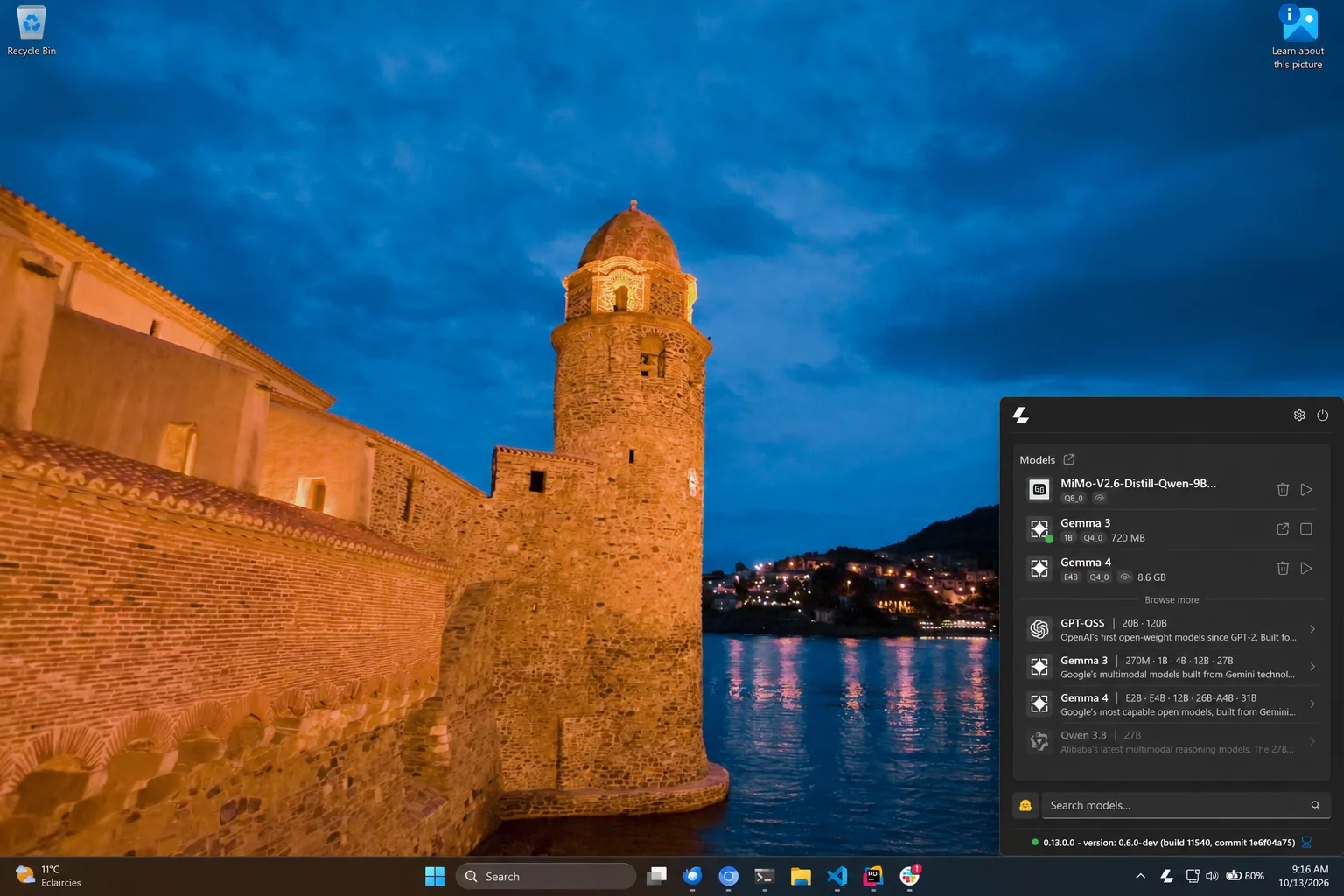 Llama Windows app tray flyout listing recommended models for local llama.cpp on Windows 11
Image: Hugging Face
Llama Windows app tray flyout listing recommended models for local llama.cpp on Windows 11
Image: Hugging Face
The screenshot shows the flyout with a few downloaded models and a browse list that includes OpenAI's GPT-OSS, Google's Gemma 3 and Gemma 4, and Alibaba's Qwen 3.8. The list is Hugging Face's recommendation, not a ranking. Under the hood the app manages a llama serve process and talks to it over its REST API. It can connect to a server you already run, or start its own.
Per the README, a context-length picker shows memory estimates read from the GGUF header and remembers your choice per model, and each model has actions for chat, copying the model ID, a ready-made curl request and a Hub link. Gated or private models work after you add a Hugging Face token in Settings. You can also move the model cache to another drive, which matters because model files are large.
Install and first run
- Download the installer from llama.app, or the
.msixbundlefor x64 or ARM64 from the repo's Releases page, and double-click it. - Launch the app. The llama icon appears in the notification area, possibly inside the overflow menu.
- If llama.cpp is not installed, the app installs it with the official installer. No admin rights are needed.
- Pick a model from Recommended Models and wait for the download.
- Chat from the overlay, or call the API.
A quick test from PowerShell, using the endpoints Hugging Face lists:
curl http://localhost:9931/models
curl http://localhost:9931/v1/chat/completions -H "Content-Type: application/json" -d "{\"model\":\"<model id>\",\"messages\":[{\"role\":\"user\",\"content\":\"Say hello\"}]}"
Replace the model placeholder with an ID from the models list. We have not run this ourselves, so treat the exact payload as a starting point and check the app's copy-curl action, which writes the request for you.
Why this exists: the Mac app, ported
Hugging Face describes Llama Windows as the Windows counterpart to llama.app on macOS, and the repository calls it a WinUI 3 port of Llama for Mac. That lineage explains the design: a small menu-style app that stays out of the way, a curated model list, and a local server other tools can point at. The ggml team maintains llama.cpp itself, so the app tracks the engine closely, and the shared Hub cache means the three layers (engine, app, Hub) use the same files instead of duplicating gigabytes of weights.
For Windows users the gap it fills is real. Until now, the usual path was to download a release zip, add runtime DLLs, pick a GGUF file by hand and start a server from a terminal. NVIDIA's own playbook for RTX Spark still describes that manual route with separate CUDA runtime files, so a tray app that does the same job with one installer removes several steps for beginners.
Three practical uses
- A private local chat. Alt+Space opens the overlay from any window. Good for summarizing a draft or asking a quick coding question without sending text to a hosted service.
- A local backend for agent tools. Point any tool that speaks the OpenAI API at
http://localhost:9931/v1. That includes coding agents and scripts you already have, as long as the model you picked supports the features they expect, such as tool calling. Smaller models vary a lot here, so test before wiring it into a workflow. - Trying models quickly. Download two or three recommended models, switch between them in the panel and compare answers on your own prompts. Context length changes memory use, and the app's per-option estimates help you avoid choosing a setting your hardware cannot hold.
Troubleshooting tips
- No icon in the tray. Windows may hide it in the overflow menu, as Hugging Face notes. Drag it out to pin it.
- Download is slow or fails. Model downloads go through the Hugging Face Hub and need internet access. Gated models need a token set in Settings first.
- Disk fills up. Models share the Hub cache under your user profile. Move it to another drive in Settings, or clear models you no longer use with the trash icon in the flyout.
- Port conflict. The server uses port 9931. If another process holds it, stop that process or check the app's settings before filing an issue.
- Odd behavior on Arm. The README notes a test project pinned to x64 on ARM64 machines. That affects people building from source, not people installing the packaged build.
RTX Spark and Windows on Arm
Hugging Face says it worked with NVIDIA so the app was ready for RTX Spark on day one, with models running on the Spark GPU. NVIDIA's own software roundup lists it among the apps for the laptops that go on sale October 16. The repo builds for both x64 and ARM64, which is the practical point: many local-AI tools lag on Windows on Arm, and a native build avoids emulation overhead. The Hugging Face post gives no performance numbers, so we cannot say how fast it runs on Spark compared with other runners.
How it compares with other ways to run local models
| Option | Strength | Trade-off |
|---|---|---|
| Llama Windows | Free, open source, tray UI, shares the Hub cache, OpenAI-compatible API | Windows 11 only; new project |
| llama.cpp command line | Full control over flags and builds | Requires terminal comfort |
| Other desktop runners | Polished model catalogs | Different licenses; not covered here |
Because the cache is shared with llama.cpp and other Hugging Face tools, a model you download in the app is usable from the command line and vice versa. If you want to go deeper on local setups, see our guides to running open-source models locally with OpenCode and Qwen 3.6 27B with llama.cpp.
Privacy: what the sources say
The Hugging Face post says everything you do through the app stays on your machine and that local use needs no internet connection, though downloading models obviously does. The README is more precise: no telemetry, analytics or install ID, but outbound requests such as model downloads, update checks and calls to the local server send a User-Agent containing the app version, Windows build and architecture. Prompts and inference stay local. Logs are kept for seven days under %LOCALAPPDATA%\LlamaApp\logs per the blog, and the README gives %LOCALAPPDATA%\Llama for settings and logs, so check which path your build uses.
Known limits
- Windows 11 only. There is no Windows 10 support listed.
- Early software. The repository showed 119 stars and 119 commits when we looked, so expect rough edges and read the 7 open issues before relying on it.
- Trimming and ReadyToRun are disabled in official builds because of reflection-based JSON and COM interop, which can mean a larger install.
- No benchmarks. Neither source gives speed figures, memory requirements or a list of unsupported model types beyond the vision flag.
- Hardware limits are yours. A 27B model still needs the memory it needs; the app only makes it easier to start.
What this means for builders
- If you develop on Windows, you now have a local OpenAI-compatible endpoint without a build step, which is handy for testing agents and tools offline.
- If you buy an RTX Spark laptop, this is one of the first sanctioned ways to use the GPU for local models on day one.
- If you worry about data, the local-only design fits sensitive drafts, but verify with your own network monitor before trusting any privacy claim.
- If you are a llama.cpp user, nothing changes for your existing setup; this is a front end over the same engine.
Related reading
-
Magnitude: open-source inference engine claims 2x faster than Ollama
-
RTX Spark launch software: Nemotron 3.5 Bolt, PAIR and Llama Windows
Details are accurate as of October 14, 2026 and come from Hugging Face's announcement and the project README; we have not benchmarked the app.