



Creating professional product demo videos has traditionally required expensive tools, video editing skills, and significant time investment. In 2026, Claude Design has changed the game by enabling AI-powered video generation through HTML/JavaScript animations—eliminating text hallucinations and giving you precise control over every frame.
This comprehensive guide walks through the complete workflow: from generating your demo with Claude Design, to adding AI voiceover with Eleven Labs, to final editing with background music. You'll learn how to create SaaS product demos, feature showcases, and marketing videos in under an hour.
Watch the full tutorial: How to Create Product Demo Videos with Claude Design
Why Claude Design for Product Demos?
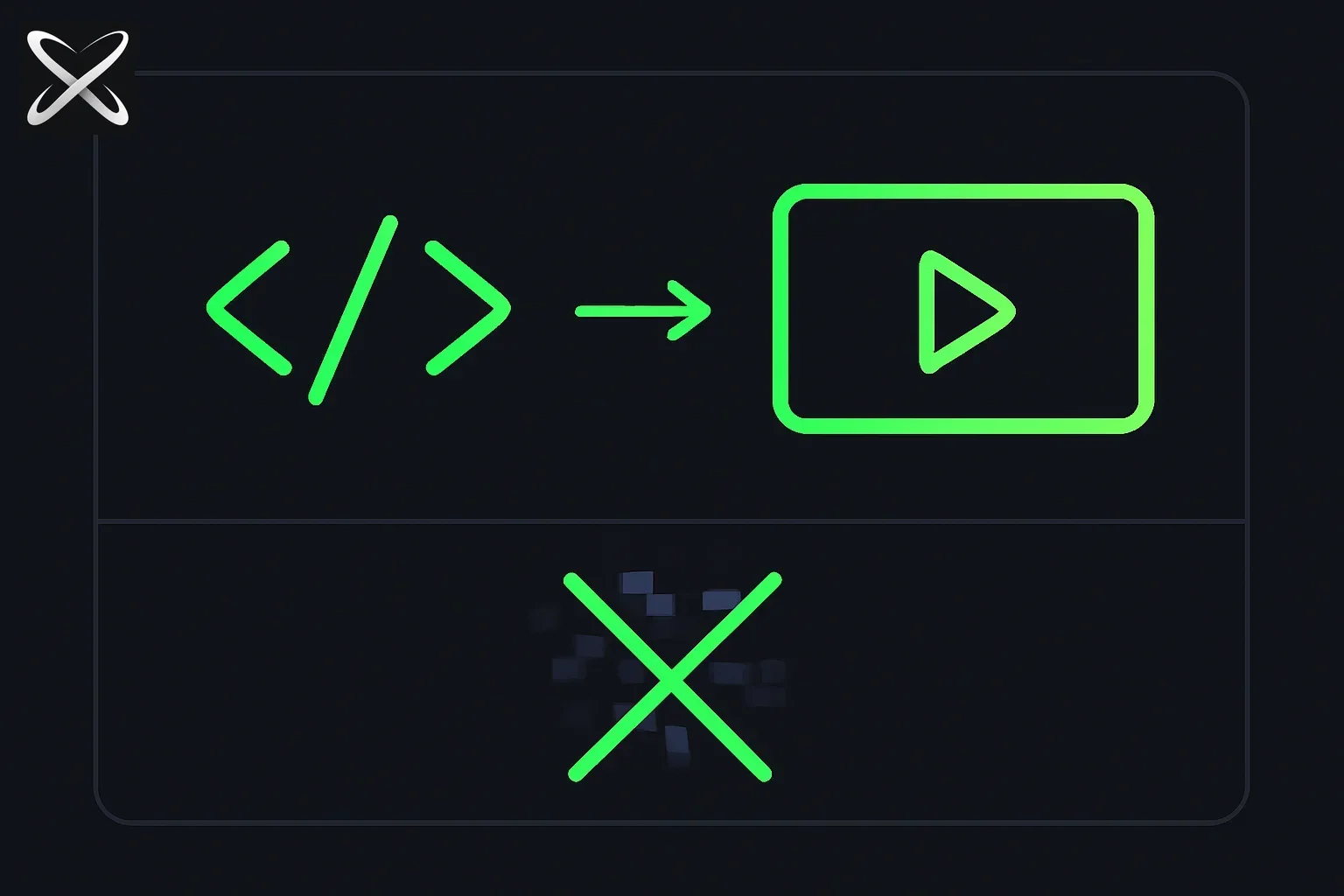 Claude Design product demo videos — code brackets morphing into a clean video frame versus crossed-out blurry pixels
The Problem with Traditional AI Video Tools
Traditional AI video generators like Sora or Gemini Video generate videos pixel-by-pixel:
Problems:
- ❌ Text hallucinations — garbled or incorrect text
- ❌ No UI control — can't precisely render product interfaces
- ❌ Inconsistent branding — colors, fonts vary unpredictably
- ❌ Limited editability — can't fix small errors without regenerating
Claude Design's Approach: Code-Based Animation
Claude Design generates HTML/JavaScript with CSS animations:
Benefits:
- ✅ Perfect text rendering — no hallucinations
- ✅ Precise UI control — matches your product exactly
- ✅ Brand consistency — uses your colors, fonts, style
- ✅ Fully editable — modify code to tweak animations
Comparison:
| Factor | Traditional AI Video (Sora) | Claude Design |
|---|---|---|
| Text accuracy | Poor (hallucinations) | Perfect (code-based) |
| UI rendering | Approximate | Exact match to screenshots |
| Editability | Regenerate entire video | Edit code directly |
| Export format | Video file | HTML → Record → Video |
| Brand control | Limited | Full control |
| Best for | Live-action, artistic | Product demos, UI showcases |
Step-by-Step: Creating Your Product Demo
Step 1: Access Claude Design
Navigate to: claude.ai/design
Select: Prototype option
Name your project: e.g., "Product Demo Video"
Step 2: Craft Your Prompt
The quality of your video depends on the information you provide. Include:
2.1 Key Features
List the main features to highlight:
Key Features:
1. High-intent leads discovery on LinkedIn
2. Autonomous outreach with human approval layer
3. Real-time signal monitoring (job changes, hiring, funding)
2.2 Context and Details
Provide comprehensive context:
Context:
- Core Value Proposition: Turn LinkedIn into a warm lead pipeline
- Key Products/Services: AI-powered LinkedIn prospecting and outreach
- Pricing: Starting at $99/month, 7-day free trial
- Expected Performance: 3x more meetings, 50% less time on prospecting
- Target Audience: B2B founders and sales teams (1-50 employees)
Pro tip: More context = better results. Include your value proposition, pricing, target audience, and expected outcomes.
2.3 Upload Screenshots
Critical step: Upload 5-10 screenshots of your product:
Example screenshots to include:
- Dashboard/Overview — main interface
- Key Feature 1 — e.g., campaign setup screen
- Key Feature 2 — e.g., lead scoring interface
- Key Feature 3 — e.g., analytics dashboard
- Results/Outcomes — e.g., performance metrics
Why screenshots matter:
- Claude matches your visual style (colors, fonts, layout)
- Ensures brand consistency
- Creates realistic UI mockups in the video
Example prompt:
Create a 60-second product demo video for our LinkedIn prospecting tool.

KEY FEATURES:
1. High-intent signal detection (job changes, hiring, funding rounds)
2. Autonomous LinkedIn outreach with human approval
3. Real-time lead scoring and prioritization

CONTEXT:
- Product: AI-powered LinkedIn sales agent
- Value Prop: Wake up to warm, responsive leads every day
- Target: B2B founders and SDRs at small teams (1-50 people)
- Pricing: $99/mo, 7-day free trial
- Performance: 3x more meetings, 50% less prospecting time

SCREENSHOTS ATTACHED:
1. Campaign setup interface
2. LinkedIn profile integration
3. Signal monitoring dashboard (job change, hiring, funding)
4. ICP analysis screen
5. Social listening feed (past 24 hours)

Please create a video that:
- Shows the user journey from setup to results
- Highlights the autonomous nature with human oversight
- Emphasizes warm leads and time savings
- Ends with a strong CTA for the free trial
Step 3: Answer Claude's Questions
Claude Design will ask clarification questions:
Typical questions:
| Question | Example Answer |
|---|---|
| Video duration? | 60 seconds |
| Tone and vibe? | Energetic, professional SaaS |
| Visual aesthetic? | Dark mode, modern |
| Color palette? | Purple/blue gradient with white accents |
| Core narrative? | Problem → Solution → Results → CTA |
| Features to highlight? | (1) High-intent signals, (2) Human approval layer |
| Target audience? | Founders at small B2B companies |
| Mock product UI? | Yes, based on screenshots |
| End card CTA? | "Start your 7-day free trial today" |
| Music style? | Slow, cinematic background music |
| Variations? | 1 (you can request more) |
Pro tip: Be specific about your CTA (call-to-action). Common options:
- "Start your free trial"
- "Book a demo"
- "Sign up today"
- "Learn more at [yoursite.com]"
Step 4: Generate the Video
Click "Start" and Claude will:
- Generate JavaScript/HTML for the animation
- Create scenes based on your screenshots and features
- Add transitions and animations
- Render the prototype in your browser
What you'll see:
- A web-based animation playing in your browser
- Smooth transitions between product screens
- Perfect text rendering (no hallucinations)
- Your brand colors and style throughout
Generation time: Typically 2-5 minutes depending on complexity.
Step 5: Record the Screen
Claude Design does not export video files—you need to record the animation.
Mac: QuickTime Player (Free)
# Open QuickTime Player
# File → New Screen Recording
# Select area or full screen
# Click record
# Play the Claude Design animation
# Stop recording when done
# File → Export → 1080p or 4K
Windows: OBS Studio (Free)
1. Download OBS Studio (obsproject.com)
2. Sources → Display Capture (or Window Capture)
3. Start Recording
4. Play the Claude Design animation
5. Stop Recording
6. File saved to ~/Videos
Browser Extension: Loom or Screencastify
- Loom — Free for videos up to 5 minutes
- Screencastify — Free tier available
- Chrome extension → Record tab → Export video
Export settings:
- Resolution: 1080p minimum (4K if possible)
- Frame rate: 30 FPS or 60 FPS
- Format: MP4 (most compatible)
Step 6: Generate Voiceover Script with Gemini
Why use Gemini: AI can analyze your video and create a perfectly timed script.
Upload Video to Gemini
- Go to gemini.google.com
- Upload your recorded video
- Use this prompt:
Analyze this product demo video scene by scene.

For each scene, provide:
1. Timestamp (start-end)
2. Visual description (what's shown)
3. Suggested voiceover script (2-3 sentences)

Make sure the script timing matches the visual exactly.
The tone should be energetic, professional, and benefit-focused.

Output format:
[0:00-0:05]
Visual: Logo animation and tagline
Script: "Imagine waking up every day to an inbox full of warm, responsive leads."

[0:06-0:12]
Visual: ICP definition screen
Script: "First, our AI agent defines your ideal customer profile based on your best customers."

...
Gemini will output:
[0:00-0:05]
Visual: Opening with logo and tagline
Script: "Imagine waking up every day to an inbox full of warm, responsive leads."

[0:06-0:12]
Visual: ICP analysis interface showing target criteria
Script: "First, our AI agent defines your ideal customer based on firmographics, role, and buying signals."

[0:13-0:20]
Visual: Signal agents dashboard (job change, hiring, funding)
Script: "Next, deploy signal agents. Choose specific buying triggers to catch leads the exact moment they're ready."

[0:21-0:28]
Visual: Lead scoring interface with ranked prospects
Script: "Instantly view your ranked leads to see exactly who is most ready to buy right now."

[0:29-0:36]
Visual: AI-generated message draft with personalization
Script: "Our AI then steps in, drafting highly personalized outreach based on the exact signal triggered."

[0:37-0:45]
Visual: Approval queue with one-click send
Script: "But you stay in control. Simply review your queue, approve with one click, and send."

[0:46-0:55]
Visual: Results dashboard showing meetings booked
Script: "Get more meetings and less noise. Start your free 7-day trial today."

[0:56-1:00]
Visual: End card with CTA and website
Script: [Background music only, no voice]
Key insight: Make sure script timing matches visual exactly—this saves massive editing time later.
Step 7: Create Voiceover with Eleven Labs
Eleven Labs creates natural-sounding AI voices for voiceovers.
Setup Eleven Labs
- Go to elevenlabs.io
- Sign up (free tier: 10,000 characters/month)
- Select Voice Library → Browse voices
Choose a Voice
Popular voices for product demos:
| Voice | Characteristics | Best For |
|---|---|---|
| Cody | Energetic, charismatic | Fast-paced SaaS demos |
| Adam | Professional, authoritative | Enterprise products |
| Bella | Warm, friendly | Consumer products |
| Rachel | Clear, versatile | General product demos |
Voice settings:
- Stability: 50-60% (natural variation)
- Clarity: 70-80% (crisp articulation)
- Speed: 1.1-1.2x (slightly faster than default)
Generate Audio
1. Paste your script (from Gemini)
2. Select voice (e.g., Cody)
3. Adjust settings:
   - Stability: 55%
   - Clarity: 75%
   - Speed: 1.15x
4. Click "Generate"
5. Download MP3 file
Pro tip: Generate scene-by-scene rather than the entire script at once—easier to edit if you need to adjust timing.
Step 8: Add Background Music and Sound Effects
Find Royalty-Free Music
Sources for product demo music:
| Source | Cost | Best For |
|---|---|---|
| Epidemic Sound | $15/mo | Professional, vast library |
| Artlist | $9/mo | High-quality, curated |
| YouTube Audio Library | Free | Basic, limited selection |
| Uppbeat | Free + Pro | Good free tier |
| Pixabay Music | Free | Decent variety |
Search terms:
- "Corporate upbeat"
- "Tech product demo"
- "Energetic background"
- "Inspiring corporate"
Music style for SaaS demos:
- Tempo: 120-140 BPM (energetic but not frantic)
- Mood: Uplifting, modern, professional
- Instruments: Electronic, piano, light percussion
- Volume: -18 to -24 dB (background, not overpowering)
Sound Effects (Optional)
Add subtle UI sound effects for transitions:
Common sound effects:
- Whoosh — scene transitions
- Pop — buttons appearing
- Notification — success states
- Typing — text appearing
Sources:
- Freesound.org — Free sound effects
- Zapsplat — Free with attribution
- Epidemic Sound — Includes SFX
Step 9: Final Editing and Export
Video Editing Software
| Tool | Cost | Platform | Best For |
|---|---|---|---|
| DaVinci Resolve | Free | Mac/Win/Linux | Professional, full-featured |
| iMovie | Free | Mac | Simple, fast edits |
| CapCut | Free | Mac/Win/Mobile | Easy to use, modern UI |
| Adobe Premiere Pro | $22/mo | Mac/Win | Professional, industry standard |
| Final Cut Pro | $300 one-time | Mac | Professional, Mac-optimized |
Editing Workflow
1. Import assets:
- Video recording (from QuickTime/OBS)
- Voiceover audio (from Eleven Labs)
- Background music (royalty-free)
- Sound effects (optional)
2. Sync voiceover:
- Place voiceover track on timeline
- Align with video scenes (using Gemini's timestamps)
- Adjust timing if needed (trim/extend video clips)
3. Add background music:
- Place music track below voiceover
- Reduce volume to -18 to -24 dB (background level)
- Fade in at start (1-2 seconds)
- Fade out at end (2-3 seconds)
- Duck music during voiceover (automated ducking or manual keyframes)
4. Add sound effects (optional):
- Place SFX at transition points
- Keep volume subtle (-12 to -18 dB)
- Align with visual transitions
5. Color correction (if needed):
- Adjust brightness/contrast
- Ensure brand colors are accurate
- Add subtle vignette for focus
6. Export settings:
Format: MP4 (H.264)
Resolution: 1920×1080 (1080p) or 3840×2160 (4K)
Frame Rate: 30 FPS or 60 FPS
Bitrate: 8-12 Mbps (1080p) or 20-30 Mbps (4K)
Audio: AAC, 192 kbps, 48 kHz
Complete Workflow Example
Timeline: 1 Hour Total
| Step | Time | Tools |
|---|---|---|
| 1. Prepare screenshots and info | 10 min | Product screenshots |
| 2. Generate with Claude Design | 5 min | claude.ai/design |
| 3. Record screen | 5 min | QuickTime/OBS |
| 4. Generate script | 5 min | Gemini |
| 5. Create voiceover | 10 min | Eleven Labs |
| 6. Find music | 5 min | Epidemic Sound |
| 7. Edit and sync | 15 min | DaVinci Resolve |
| 8. Export | 5 min | Video editor |
Example Prompt Template
Create a [DURATION] product demo video for [PRODUCT NAME].

KEY FEATURES:
1. [Feature 1 with brief description]
2. [Feature 2 with brief description]
3. [Feature 3 with brief description]

CONTEXT:
- Product: [One-sentence description]
- Value Prop: [Main benefit]
- Target: [Ideal customer profile]
- Pricing: [Price and trial info]
- Performance: [Expected results]

SCREENSHOTS ATTACHED:
[List 5-10 screenshots with brief descriptions]

VIDEO SPECS:
- Duration: [60 seconds]
- Tone: [Energetic, professional, friendly, etc.]
- Visual Style: [Dark mode, light mode, colorful, minimal]
- Color Palette: [Primary colors]
- Narrative: [Problem → Solution → Results → CTA]
- End CTA: "[Your call-to-action]"

SPECIAL REQUESTS:
- [Any specific animations, transitions, or emphasis]
Example Output: Final Video Structure
[0:00-0:05] Opening Hook
Visual: Logo animation, tagline
Audio: Energetic music intro
Voice: "Imagine waking up to warm, responsive leads."

[0:06-0:15] Problem Setup
Visual: Traditional prospecting pain points
Audio: Music continues, subtle whoosh transition
Voice: "No more cold outreach. No more unresponsive prospects."

[0:16-0:25] Solution: Feature 1
Visual: ICP definition interface
Audio: Pop sound as UI elements appear
Voice: "Our AI defines your ideal customer based on your best deals."

[0:26-0:35] Solution: Feature 2
Visual: Signal monitoring dashboard
Audio: Notification sound for new signal
Voice: "Deploy signal agents to catch leads when they're ready to buy."

[0:36-0:45] Solution: Feature 3
Visual: Lead scoring and personalized outreach
Audio: Typing sound effect
Voice: "AI drafts personalized messages. You approve and send."

[0:46-0:55] Results and Proof
Visual: Results dashboard (meetings booked, response rates)
Audio: Success sound, music builds
Voice: "3x more meetings. 50% less time. Real results."

[0:56-1:00] CTA
Visual: End card with website and offer
Audio: Music outro, fade out
Voice: "Start your 7-day free trial today."
Advanced Tips and Tricks
1. Iterate on Claude's Output
You can edit the generated code:
// Claude generates HTML/JS
// You can modify:
- Colors: Change CSS variables
- Timing: Adjust animation durations
- Text: Edit content directly
- Layout: Modify positioning
Example modification:
/* Original (Claude-generated) */
.feature-card {
  animation: slideIn 1s ease-out;
}

/* Modified (faster) */
.feature-card {
  animation: slideIn 0.6s ease-out;
}
2. Create Multiple Versions
Generate variations for A/B testing:
- Version A: Feature-focused (highlights capabilities)
- Version B: Benefit-focused (emphasizes outcomes)
- Version C: Story-driven (customer journey)
Test which converts better on landing pages or ads.
3. Localization
Create multilingual versions:
- Export the HTML/JS from Claude Design
- Translate text elements
- Re-record voiceover in target language (Eleven Labs supports 29 languages)
- Keep visuals the same
Supported languages (Eleven Labs):
- English, Spanish, French, German, Italian
- Portuguese, Polish, Dutch, Hindi, Japanese
- Korean, Chinese (Mandarin), and 17 more
4. Brand Consistency Checklist
Before generating, ensure:
- ✅ Screenshots match your current product version
- ✅ Colors match your brand guidelines
- ✅ Fonts are consistent with your website
- ✅ Terminology matches your marketing copy
- ✅ CTA aligns with your current campaigns
5. Optimize for Different Platforms
| Platform | Aspect Ratio | Duration | Export Settings |
|---|---|---|---|
| 16:9 or 1:1 | 30-90s | 1080p, subtitles recommended | |
| Twitter/X | 16:9 or 1:1 | 30-60s | 1080p, auto-play friendly |
| Instagram Feed | 1:1 or 4:5 | 30-60s | 1080×1080 or 1080×1350 |
| Instagram Stories | 9:16 | 15s clips | 1080×1920 |
| YouTube | 16:9 | 60-120s | 1080p or 4K |
| Website | 16:9 | 45-90s | 1080p, optimize for web |
Pro tip: Record in 4K (if possible) so you can crop to different aspect ratios without quality loss.
Common Pitfalls and Solutions
| Problem | Cause | Solution |
|---|---|---|
| Text too small | Claude scaled UI down | Request "larger text, readable at small sizes" |
| Animation too fast | Default timing | Specify "slower, deliberate pacing" |
| Music overpowers voice | Volume too high | Set music to -20 dB, duck during voiceover |
| Voiceover doesn't match | Script timing off | Use Gemini for precise timestamps |
| Brand colors wrong | Screenshots unclear | Provide hex codes in prompt |
| Low quality export | Wrong settings | Export 1080p minimum, H.264, 8+ Mbps |
Cost Breakdown (2026)
| Tool | Cost | Free Tier |
|---|---|---|
| Claude (Design) | $0 on Free; paid plans optional | Design is on every plan |
| Eleven Labs | $0-$22/mo | 10K chars/month free |
| Gemini | Free | Generous free tier |
| Screen recording | Free | QuickTime (Mac), OBS (Win) |
| Music (Epidemic Sound) | $15/mo | Free alternatives exist |
| Video editing (DaVinci) | Free | Full-featured |
| Total (with free tools) | $0-$35/mo | Using free music and Gemini |
One-time cost: Can create unlimited videos with the same subscriptions.
Real-World Use Cases
1. SaaS Product Launches
Scenario: Launching new feature
Video type: 45-second feature highlight
Distribution:
- Product Hunt launch video
- LinkedIn announcement
- Email to existing customers
- Website feature page
2. Sales Enablement
Scenario: Equip sales team with demo videos
Video type: 2-minute full product walkthrough
Usage:
- Outbound email sequences
- Follow-up after discovery calls
- Leave-behind after meetings
- Sales deck embeds
3. Landing Page Conversion
Scenario: Increase trial signups
Video type: 60-second hero video
Placement:
- Above the fold on homepage
- Pricing page
- Free trial signup page
Results: Typical 20-40% increase in conversion when adding quality demo video.
4. Paid Advertising
Scenario: LinkedIn/Facebook video ads
Video type: 30-second hook + demo + CTA
Format:
- Square (1:1) for feed ads
- Vertical (9:16) for stories
- Captions/subtitles required (80% watch muted)
5. Customer Onboarding
Scenario: Reduce time to first value
Video type: Series of 30-60s feature walkthroughs
Topics:
- Setup and integration
- Core features overview
- Advanced tips and tricks
- Best practices
Measuring Success
Key Metrics to Track
| Metric | Good Target | How to Measure |
|---|---|---|
| View rate | 50%+ | Video hosting platform |
| Completion rate | 40%+ | YouTube Analytics, Wistia |
| Click-through rate | 3-8% | Landing page analytics |
| Trial signups (from video) | 5-15% | UTM parameters, conversion tracking |
| Engagement (likes, shares) | 2-5% | Social media analytics |
A/B Testing
Test variations:
- Opening hook (different pain points)
- Feature order (which to show first)
- CTA ("Start free trial" vs "Book demo")
- Duration (30s vs 60s vs 90s)
- Voiceover style (energetic vs calm)
Tools:
- Wistia — A/B testing for video
- Vidyard — Video analytics and testing
- Google Optimize — Landing page A/B tests
Conclusion
Creating professional product demo videos with Claude Design is now accessible, fast, and cost-effective. By leveraging AI for video generation (Claude Design), script writing (Gemini), and voiceover (Eleven Labs), you can produce high-quality demos in under an hour—without expensive video production teams or complex software.
Key takeaways:
- Claude Design eliminates text hallucinations through code-based animation
- Screenshots are critical for brand consistency and style matching
- Gemini creates perfectly timed scripts from your video
- Eleven Labs provides natural-sounding voiceovers
- Total workflow: ~1 hour from start to finished video
- Cost: $0-$35/month for all tools (using free tiers where possible)
Start creating today:
- Visit claude.ai/design
- Gather 5-10 product screenshots
- Follow the step-by-step workflow above
- Share your demo video and measure results
For AI-powered video creation workflows, explore the MCP ecosystem and agent skills for automated video generation and editing pipelines.
Resources
- Claude Design — AI prototype and video generation
- Eleven Labs — AI voiceover
- Gemini — Script generation from video
- DaVinci Resolve — Free video editing
- Epidemic Sound — Royalty-free music
- OBS Studio — Free screen recording
Tutorial video: Watch: How to Create Product Demo Videos with Claude Design
Happy creating!
Update (October 10, 2026): what's changed since we first published
- Plans: Docs, Slides and Design left beta and are available on every Claude plan, including Free, so the Claude Pro requirement in this guide no longer applies (Anthropic via our coverage).
- Standalone site closing: the claude.ai/design link in Step 1 stays available until December 14, 2026. Since September 16, Design also works inside any Claude conversation, so you can start there instead.
- Motion: Claude Motion (beta on Team and Enterprise) writes animation code and lets you download an MP4, which can replace the screen-recording step in Step 5 for those plans. Full details and the migration steps are in our Dashboards and Motion guide, based on Anthropic's official announcement.