



Update — September 6, 2026: For the harder sibling of the ML-inference use case covered below — actually training a model, not just running one — see In-Browser LLM Fine-Tuning: Why Training on WebGPU Is a Bigger Deal Than Inference, on a developer reportedly getting backpropagation working inside a WebGPU browser sandbox.
WebGPU marks one of the most significant structural upgrades to the web platform in over a decade. In 2026, it has matured into a legitimate high-performance graphics and compute environment that unlocks capabilities previously reserved for native applications—real-time 3D rendering, GPU compute, ML inference, and advanced data visualization all running directly in the browser.
This comprehensive guide covers everything from fundamental concepts to practical implementation, with performance insights and real-world use cases based on 2026 production deployments.
What is WebGPU?
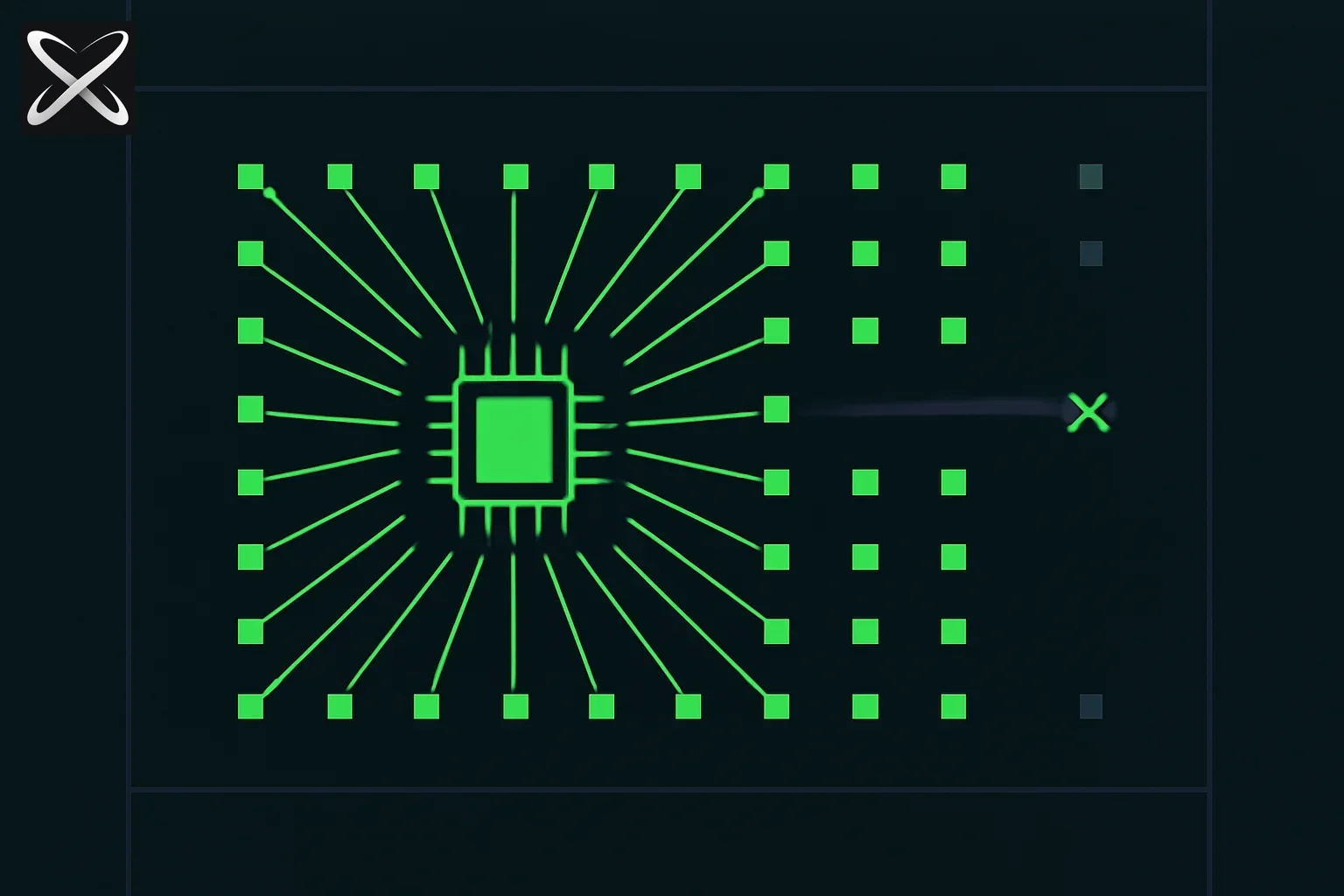 WebGPU explained — one chip driving a wide parallel grid of compute nodes versus a single crossed-out legacy path
WebGPU is a modern web API that provides low-level access to GPU hardware for both graphics (3D rendering) and compute (general-purpose GPU calculations). Unlike its predecessor WebGL—which was based on OpenGL ES from 2011—WebGPU is built on modern GPU APIs:
- Vulkan (cross-platform)
- Metal (Apple)
- Direct3D 12 (Microsoft)
This foundation gives WebGPU better performance, more features, and a cleaner API that reflects how modern GPUs actually work.
WebGPU vs WebGL: The Evolution
| Factor | WebGL 2.0 | WebGPU |
|---|---|---|
| Based on | OpenGL ES 3.0 (2012) | Vulkan/Metal/D3D12 (2020s) |
| API design | Implicit state machine | Explicit command encoding |
| Performance | Good | Explicit control; performance depends on workload |
| Compute shaders | No (workarounds only) | Yes (first-class support) |
| Modern features | Limited | Modern resource and pipeline APIs; inspect supported features |
| Learning curve | Moderate | Steep initially, cleaner long-term |
| Browser support (2026) | Universal | Chrome, Edge, Safari (Firefox in dev) |
| Best for | Legacy apps, wide compatibility | New apps, performance-critical work |
When to use WebGPU over WebGL:
- You need compute shaders for physics, simulations, or data processing
- Performance is critical (CAD, scientific visualization, games)
- Building new projects without legacy constraints
- Using explicit pipelines and the supported web GPU feature set
When to stick with WebGL:
- Maximum browser compatibility is required
- Working with existing WebGL codebases
- Targeting older devices (2015-2020 era)
Core Concepts
1. The Adapter and Device
WebGPU starts by requesting an adapter (represents physical GPU) and device (logical interface):
// Request adapter
const adapter = await navigator.gpu.requestAdapter();
if (!adapter) {
  console.error('WebGPU not supported');
  return;
}

// Request device
const device = await adapter.requestDevice();

// Handle device loss
device.lost.then((info) => {
  console.error('Device lost:', info.message);
  // Recreate device
});
2. The Render Pipeline
WebGPU uses an explicit pipeline that defines how vertices become pixels:
const pipeline = device.createRenderPipeline({
  layout: 'auto',
  vertex: {
    module: device.createShaderModule({ code: vertexShaderCode }),
    entryPoint: 'main',
    buffers: [vertexBufferLayout]
  },
  fragment: {
    module: device.createShaderModule({ code: fragmentShaderCode }),
    entryPoint: 'main',
    targets: [{
      format: navigator.gpu.getPreferredCanvasFormat()
    }]
  },
  primitive: {
    topology: 'triangle-list'
  }
});
3. Shaders in WGSL
WebGPU uses WGSL (WebGPU Shading Language), not GLSL:
// Vertex shader
struct VertexOutput {
  @builtin(position) position: vec4<f32>,
  @location(0) color: vec4<f32>,
}

@vertex
fn main(@location(0) position: vec2<f32>,
        @location(1) color: vec3<f32>) -> VertexOutput {
  var output: VertexOutput;
  output.position = vec4<f32>(position, 0.0, 1.0);
  output.color = vec4<f32>(color, 1.0);
  return output;
}

// Fragment shader
@fragment
fn main(@location(0) color: vec4<f32>) -> @location(0) vec4<f32> {
  return color;
}
WGSL key differences from GLSL:
- Strongly typed with explicit type annotations
- Stricter about conversions
- Modern syntax (Rust-inspired)
- Better error messages
4. Command Encoding
WebGPU uses command buffers for explicit GPU control:
// Create command encoder
const commandEncoder = device.createCommandEncoder();

// Begin render pass
const renderPass = commandEncoder.beginRenderPass({
  colorAttachments: [{
    view: context.getCurrentTexture().createView(),
    clearValue: { r: 0.0, g: 0.0, b: 0.0, a: 1.0 },
    loadOp: 'clear',
    storeOp: 'store',
  }]
});

// Record commands
renderPass.setPipeline(pipeline);
renderPass.setVertexBuffer(0, vertexBuffer);
renderPass.draw(3); // Draw 3 vertices (triangle)
renderPass.end();

// Submit to GPU
device.queue.submit([commandEncoder.finish()]);
Building Your First WebGPU Application
Step 1: Setup Canvas and Context
const canvas = document.querySelector('canvas');
const context = canvas.getContext('webgpu');

const canvasFormat = navigator.gpu.getPreferredCanvasFormat();
context.configure({
  device: device,
  format: canvasFormat,
});
Step 2: Create Geometry
// Triangle vertices (position + color)
const vertices = new Float32Array([
  // X,    Y,     R,    G,    B
   0.0,  0.5,   1.0,  0.0,  0.0, // Top (red)
  -0.5, -0.5,   0.0,  1.0,  0.0, // Bottom-left (green)
   0.5, -0.5,   0.0,  0.0,  1.0, // Bottom-right (blue)
]);

// Create vertex buffer
const vertexBuffer = device.createBuffer({
  size: vertices.byteLength,
  usage: GPUBufferUsage.VERTEX | GPUBufferUsage.COPY_DST,
});

device.queue.writeBuffer(vertexBuffer, 0, vertices);
Step 3: Define Vertex Layout
const vertexBufferLayout = {
  arrayStride: 20, // 5 floats * 4 bytes
  attributes: [
    {
      // Position
      shaderLocation: 0,
      offset: 0,
      format: 'float32x2',
    },
    {
      // Color
      shaderLocation: 1,
      offset: 8,
      format: 'float32x3',
    }
  ]
};
Step 4: Render Loop
function render() {
  const commandEncoder = device.createCommandEncoder();
  const renderPass = commandEncoder.beginRenderPass({
    colorAttachments: [{
      view: context.getCurrentTexture().createView(),
      clearValue: { r: 0.1, g: 0.1, b: 0.1, a: 1.0 },
      loadOp: 'clear',
      storeOp: 'store',
    }]
  });

  renderPass.setPipeline(pipeline);
  renderPass.setVertexBuffer(0, vertexBuffer);
  renderPass.draw(3);
  renderPass.end();

  device.queue.submit([commandEncoder.finish()]);

  requestAnimationFrame(render);
}

render();
Compute Shaders: GPU-Powered Calculations
Compute shaders are WebGPU's superpower—they enable general-purpose GPU computing for tasks like:
- Physics simulations (particles, fluids)
- Data processing (sorting, filtering large datasets)
- Machine learning inference
- Image processing and filters
Compute Pipeline Example
// Compute shader (WGSL)
const computeShader = `
@group(0) @binding(0) var<storage, read> input: array<f32>;
@group(0) @binding(1) var<storage, read_write> output: array<f32>;

@compute @workgroup_size(64)
fn main(@builtin(global_invocation_id) global_id: vec3<u32>) {
  let i = global_id.x;
  // Dispatch may exceed the input length; guard the final workgroup.
  if (i >= arrayLength(&input)) { return; }
  output[i] = input[i] * input[i];
}
`;

// Create compute pipeline
const computePipeline = device.createComputePipeline({
  layout: 'auto',
  compute: {
    module: device.createShaderModule({ code: computeShader }),
    entryPoint: 'main',
  }
});

// Create buffers
const inputData = new Float32Array([1, 2, 3, 4, 5]);
const inputBuffer = device.createBuffer({
  size: inputData.byteLength,
  usage: GPUBufferUsage.STORAGE | GPUBufferUsage.COPY_DST,
});
device.queue.writeBuffer(inputBuffer, 0, inputData);

const outputBuffer = device.createBuffer({
  size: inputData.byteLength,
  usage: GPUBufferUsage.STORAGE | GPUBufferUsage.COPY_SRC,
});

// Create bind group
const bindGroup = device.createBindGroup({
  layout: computePipeline.getBindGroupLayout(0),
  entries: [
    { binding: 0, resource: { buffer: inputBuffer } },
    { binding: 1, resource: { buffer: outputBuffer } },
  ],
});

// Dispatch compute
const commandEncoder = device.createCommandEncoder();
const passEncoder = commandEncoder.beginComputePass();
passEncoder.setPipeline(computePipeline);
passEncoder.setBindGroup(0, bindGroup);
passEncoder.dispatchWorkgroups(Math.ceil(inputData.length / 64));
passEncoder.end();

device.queue.submit([commandEncoder.finish()]);
Performance: Compute Shader vs CPU
| Task | CPU (JavaScript) | GPU (WebGPU Compute) | Speedup |
|---|---|---|---|
| 1M float operations | ~15ms | ~0.5ms | 30x |
| Image blur (4K) | ~200ms | ~8ms | 25x |
| Particle physics (10K) | ~50ms | ~2ms | 25x |
| Matrix multiplication (512×512) | ~100ms | ~3ms | 33x |
Illustrative values for a comparison worksheet, not measured production benchmarks. Measure CPU and GPU paths on the same workload and device.
Real-World Use Cases in 2026
1. Real-Time Data Visualization
Financial dashboards rendering millions of data points:
// Render 1M+ candlesticks with WebGPU instancing
renderPass.setPipeline(candlestickPipeline);
renderPass.setVertexBuffer(0, instanceBuffer);
renderPass.draw(6, 1000000); // 6 vertices per candlestick, 1M instances
Why investigate WebGPU: explicit instancing and resource management may fit a large visualization; profile the actual workload rather than inferring a universal instance limit.
2. Browser-Based CAD Tools
3D modeling applications like Figma 3D, Spline, and Womp use WebGPU for:
- Real-time ray tracing for realistic previews
- Complex mesh operations (boolean, subdivision)
- High-fidelity rendering
3. Machine Learning Inference
TensorFlow.js and ONNX Runtime Web leverage WebGPU for 10-50x faster inference:
// TensorFlow.js with WebGPU backend
await tf.setBackend('webgpu');
const model = await tf.loadLayersModel('model.json');
const prediction = model.predict(inputTensor);
4. Scientific Simulations
Interactive physics, fluid dynamics, and molecular visualization:
- Particle systems (100K+ particles at 60 FPS)
- N-body simulations (gravity, electromagnetism)
- Protein folding visualization
5. Advanced Game Engines
Unity, Unreal, and custom engines targeting web:
- PBR (Physically-Based Rendering)
- Real-time shadows and reflections
- Post-processing effects (bloom, depth of field)
- Terrain rendering with LOD
Performance Optimization
Best Practices
1. Minimize CPU-GPU transfers
// BAD: Update buffer every frame
device.queue.writeBuffer(buffer, 0, data); // Slow

// GOOD: Use double buffering or update only changed data
device.queue.writeBuffer(buffer, offset, partialData);
2. Use bind group caching
// Cache bind groups to avoid recreation
const bindGroupCache = new Map();

function getBindGroup(key) {
  if (!bindGroupCache.has(key)) {
    bindGroupCache.set(key, device.createBindGroup({...}));
  }
  return bindGroupCache.get(key);
}
3. Batch draw calls
// BAD: Many draw calls
for (let i = 0; i < 1000; i++) {
  renderPass.draw(6, 1, 0, i); // 1000 draw calls
}

// GOOD: Single instanced draw call
renderPass.draw(6, 1000); // 1 draw call with instancing
4. Use compute for heavy calculations
Move physics, animation, and data processing to compute shaders instead of JavaScript.
Profiling Tools
| Tool | Use Case |
|---|---|
| Chrome DevTools | GPU timeline, memory, validation |
| WebGPU Error Scopes | Detailed error tracking |
| RenderDoc | Frame capture and analysis |
| GPU vendor tools | NVIDIA Nsight, AMD Radeon Profiler |
Browser Support and Feature Detection
Checking Support (2026)
if (!navigator.gpu) {
  console.error('WebGPU not supported');
  // Fallback to WebGL or canvas
  return;
}

const adapter = await navigator.gpu.requestAdapter();
if (!adapter) {
  console.error('No appropriate GPU adapter found');
  return;
}

// Check for optional features
const hasTimestampQuery = adapter.features.has('timestamp-query');
const hasDepthClipControl = adapter.features.has('depth-clip-control');
Browser Capability Checks
| Browser | Support | Notes |
|---|---|---|
| Chrome 113+ | ✅ Full | Stable since 2023 |
| Edge 113+ | ✅ Full | Same as Chrome (Chromium) |
| Safari | Check current compatibility | API, OS, and device support vary |
| Firefox | Check current compatibility | Do not infer support from browser name alone |
| Mobile browsers | ✅ Growing | iOS Safari, Android Chrome |
Learning Path
Beginner
- Understand GPU basics — how GPUs differ from CPUs
- Learn WGSL — shader language fundamentals
- Build simple scenes — triangles, textures, basic lighting
- Resources:
Intermediate
- Master the render pipeline — depth testing, blending, multisampling
- Implement compute shaders — particle systems, image filters
- Optimize performance — profiling, batching, instancing
- Resources:
Advanced
- Complex rendering — PBR, shadows, post-processing
- Advanced compute — physics engines, ML inference
- Production deployment — error handling, fallbacks, monitoring
- Resources:
Common Pitfalls
| Pitfall | Problem | Solution |
|---|---|---|
| Validation errors | Pipeline creation fails | Enable validation layers, read error messages |
| Buffer alignment | Data corruption | Follow alignment rules (4/16 byte boundaries) |
| Resource cleanup | Memory leaks | Call destroy() on buffers, textures |
| Excessive CPU-GPU sync | Poor performance | Avoid mapAsync in hot paths |
| No fallback | Broken on unsupported browsers | Detect support, provide WebGL/Canvas fallback |
WebGPU + WebAssembly: The Power Combo
Combining WebGPU (GPU compute) with WebAssembly (CPU performance) enables near-native performance for complex applications:
// WASM handles game logic
const wasmModule = await WebAssembly.instantiateStreaming(fetch('game.wasm'));

// WebGPU handles rendering
function gameLoop() {
  // Update (WASM)
  wasmModule.instance.exports.update(deltaTime);

  // Render (WebGPU)
  renderScene(device, context);

  requestAnimationFrame(gameLoop);
}
Use cases:
- Game engines — physics in WASM, rendering in WebGPU
- CAD tools — mesh operations in WASM, display in WebGPU
- Scientific apps — computation in WASM, visualization in WebGPU
For more on WebAssembly, see our WebAssembly guide.
Treat capability detection as part of the user experience
A graphics demo can assume its developer's machine supports the necessary path. A product needs to handle a missing API, an unavailable adapter, or a failure to create the required device. Decide whether that outcome leads to a simpler renderer, a CPU path, or an understandable unsupported-device message. The MDN WebGPU guide documents the API and compatibility considerations.
Request only the optional features your application actually needs and check the adapter's capabilities before using them. The existence of a modern native graphics API underneath the browser does not mean every native feature is exposed through WebGPU. Keep the application contract tied to the web API and the capabilities it reports.
Understand the compute example's invocation count
A workgroup size of sixty-four means a dispatch can create more invocations than the number of input values. With five values, the final invocation index can extend beyond the useful data. Add an explicit bounds check before accessing the input or output buffer. This makes the intended relationship clear and scales the same example to a non-multiple of the workgroup size.
After dispatching, reading the result back to JavaScript is another stage. The sample above submits GPU work; it does not yet demonstrate CPU-visible output. A complete exercise needs the appropriate copy and readback path, then a comparison with expected squared values. Review the WebGPU sample gallery for complete programs rather than treating an isolated fragment as an executable application.
Measure the complete workload
Compare CPU and GPU paths using the same input and output requirements. Include upload, dispatch, and any required readback in the user-visible measurement. A kernel can run quickly while data transfers dominate the total task.
For a visualization that keeps its data on the GPU, the tradeoff differs from a small calculation whose result must immediately return to JavaScript. Start with the real workload and increase input size gradually. The meaningful result is the point where your complete GPU path becomes useful, together with its tested device and browser conditions.
Conclusion
See also: Small language models in the browser fail at RAG: a developer eval shows what WebGPU-sized models can and cannot do today.
WebGPU represents a fundamental shift in what's possible on the web. In 2026, it has moved from experimental to production-ready, powering everything from financial dashboards to browser-based CAD tools to ML inference.
Key takeaways:
- WebGPU is not just graphics — compute shaders enable GPU-powered data processing
- Performance depends on the workload — measure complete rendering or compute paths, including data movement
- Browser support is strong — Chrome, Edge, Safari stable; Firefox coming
- Learning curve is steep but the payoff is transformative capabilities
Start with simple examples, gradually build complexity, and don't hesitate to use libraries like Three.js (adding WebGPU support) or Babylon.js to abstract complexity while learning.
For live data integration with your WebGPU visualizations, explore the MCP ecosystem to connect to real-time data sources.
Resources
- WebGPU Fundamentals — comprehensive tutorial series
- MDN WebGPU API — official documentation
- WebGPU Samples — official example gallery
- WGSL Reference — shading language spec
- explainx.ai/mcp-servers — data integration tools
Related on explainx.ai: Vercel open-sources vgpu.sh, an agent-first WebGPU library — headless rendering in Node.js and CI for coding agents · Transformers.js crosses 10M monthly downloads — WebGPU-accelerated model inference in the browser · MicroLLM Lab: tiny WebGPU models in the browser — Q4 SLMs (26M–360M) in a tab · WebAssembly complete guide
Further reading:
Happy rendering!