



HTML Canvas is one of the most powerful features in modern web development, enabling developers to create dynamic graphics, animations, games, and data visualizations directly in the browser without plugins. In 2026, Canvas remains the go-to API for performance-critical 2D graphics and pixel-level image manipulation.
This comprehensive guide covers everything from basic drawing to advanced techniques, with practical examples and performance tips you can use today.
What is HTML Canvas?
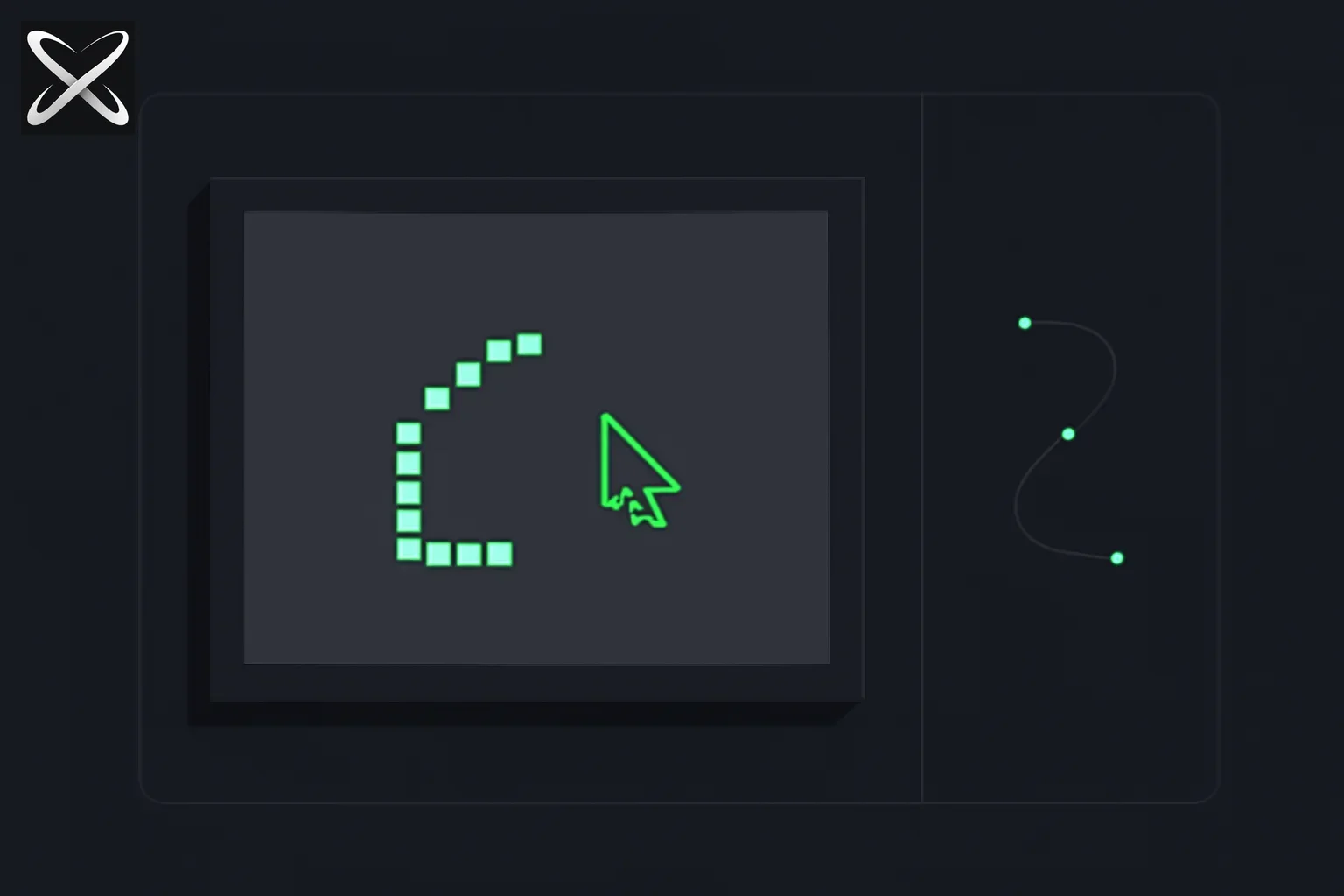 HTML Canvas explained — pixels being placed one at a time into a shape versus a separate vector anchor-point path
The <canvas> element is an HTML5 feature that provides a drawable region on a web page. Unlike SVG (Scalable Vector Graphics), which uses declarative markup, Canvas uses imperative JavaScript commands to draw shapes, text, and images pixel by pixel.
<canvas id="myCanvas" width="800" height="600"></canvas>
Canvas vs SVG: the decision matrix
| Factor | Canvas | SVG |
|---|---|---|
| Rendering model | Pixel-based (raster) | Vector-based |
| Performance with many objects | Excellent (thousands) | Degrades (hundreds) |
| Scalability | Pixelated when scaled | Perfect at any size |
| Event handling | Manual hit detection | DOM events per shape |
| Memory usage | Single bitmap | DOM nodes per element |
| Best for | Games, animations, pixel manipulation | Interactive graphics, icons, charts |
| Accessibility | Requires ARIA annotations | Built-in DOM semantics |
When to choose Canvas:
- Games and animations with many moving objects
- Pixel-level image manipulation and filters
- Real-time data visualization (thousands of data points)
- Performance-critical rendering
When to choose SVG:
- Scalable graphics (logos, icons, illustrations)
- Interactive diagrams with individual element events
- Accessibility is a priority
- Static or moderately animated graphics
Getting Started with Canvas
Basic setup
To start drawing on a canvas, you need to get its rendering context:
const canvas = document.getElementById('myCanvas');
const ctx = canvas.getContext('2d');

// Now you can draw
ctx.fillStyle = 'blue';
ctx.fillRect(10, 10, 100, 100);
The coordinate system
Canvas uses a coordinate system where:
- The origin (0, 0) is at the top-left corner
- X-axis increases to the right
- Y-axis increases downward
Understanding this is critical for positioning—it differs from traditional math coordinates where Y increases upward.
Drawing Shapes
Rectangles
Canvas provides three methods for rectangles:
// Filled rectangle
ctx.fillRect(x, y, width, height);

// Outlined rectangle
ctx.strokeRect(x, y, width, height);

// Clear rectangle (makes it transparent)
ctx.clearRect(x, y, width, height);
Paths and complex shapes
For more complex shapes, use paths:
// Draw a triangle
ctx.beginPath();
ctx.moveTo(75, 50);
ctx.lineTo(100, 75);
ctx.lineTo(50, 75);
ctx.closePath();
ctx.fill();

// Draw a circle
ctx.beginPath();
ctx.arc(100, 100, 50, 0, Math.PI * 2);
ctx.stroke();
Path workflow:
beginPath()— start a new pathmoveTo()/lineTo()/arc()— define the pathclosePath()— (optional) close the pathfill()orstroke()— render the path
Common path methods
| Method | Purpose | Example |
|---|---|---|
moveTo(x, y) | Move pen to position | ctx.moveTo(10, 10) |
lineTo(x, y) | Draw line to position | ctx.lineTo(100, 100) |
arc(x, y, r, start, end) | Draw arc/circle | ctx.arc(50, 50, 30, 0, Math.PI * 2) |
arcTo(x1, y1, x2, y2, r) | Draw arc with control points | ctx.arcTo(100, 50, 100, 100, 20) |
bezierCurveTo() | Cubic Bézier curve | ctx.bezierCurveTo(20, 100, 200, 100, 200, 20) |
quadraticCurveTo() | Quadratic curve | ctx.quadraticCurveTo(100, 10, 200, 100) |
Working with Colors and Styles
Fill and stroke styles
// Solid colors
ctx.fillStyle = '#FF6B6B';
ctx.strokeStyle = 'rgb(76, 175, 80)';

// Linear gradients
const gradient = ctx.createLinearGradient(0, 0, 200, 0);
gradient.addColorStop(0, 'red');
gradient.addColorStop(0.5, 'yellow');
gradient.addColorStop(1, 'blue');
ctx.fillStyle = gradient;
ctx.fillRect(0, 0, 200, 100);

// Radial gradients
const radial = ctx.createRadialGradient(100, 100, 10, 100, 100, 50);
radial.addColorStop(0, 'white');
radial.addColorStop(1, 'black');
ctx.fillStyle = radial;

// Patterns
const img = new Image();
img.src = 'pattern.png';
img.onload = () => {
  const pattern = ctx.createPattern(img, 'repeat');
  ctx.fillStyle = pattern;
  ctx.fillRect(0, 0, 300, 300);
};
Line styles
ctx.lineWidth = 5;
ctx.lineCap = 'round'; // 'butt', 'round', 'square'
ctx.lineJoin = 'round'; // 'miter', 'round', 'bevel'
ctx.setLineDash([5, 10]); // Creates dashed lines
ctx.lineDashOffset = 0; // Offset for dash pattern
Drawing Text
Canvas can render text with extensive styling options:
ctx.font = '48px serif';
ctx.fillStyle = 'black';
ctx.fillText('Hello Canvas', 10, 50);

// Outlined text
ctx.strokeText('Hello Canvas', 10, 100);

// Text alignment
ctx.textAlign = 'center'; // 'left', 'right', 'center', 'start', 'end'
ctx.textBaseline = 'middle'; // 'top', 'hanging', 'middle', 'alphabetic', 'bottom'

// Measure text
const metrics = ctx.measureText('Hello');
console.log(metrics.width); // Text width in pixels
Text rendering tips:
- Use web fonts loaded via CSS for consistency
measureText()returns TextMetrics; inspect supported bounding-box metrics when precise text bounds matter- Text rendering is not sub-pixel antialiased on all browsers
- For complex text layout, consider using DOM elements overlaid on canvas
Working with Images
Drawing images
const image = new Image();
image.src = 'photo.jpg';
image.onload = () => {
  // Draw entire image at (0,0)
  ctx.drawImage(image, 0, 0);

  // Draw with scaling
  ctx.drawImage(image, 0, 0, 200, 150);

  // Draw portion of image (sprite sheets)
  ctx.drawImage(
    image,
    sx, sy, sWidth, sHeight, // Source rectangle
    dx, dy, dWidth, dHeight  // Destination rectangle
  );
};
Pixel-level manipulation
Canvas enables direct pixel access for filters and effects:
// Get pixel data
const imageData = ctx.getImageData(0, 0, canvas.width, canvas.height);
const pixels = imageData.data; // Uint8ClampedArray [R, G, B, A, R, G, B, A, ...]

// Invert colors
for (let i = 0; i < pixels.length; i += 4) {
  pixels[i] = 255 - pixels[i];       // Red
  pixels[i + 1] = 255 - pixels[i + 1]; // Green
  pixels[i + 2] = 255 - pixels[i + 2]; // Blue
  // pixels[i + 3] is alpha (0-255)
}

// Grayscale conversion
for (let i = 0; i < pixels.length; i += 4) {
  const avg = (pixels[i] + pixels[i + 1] + pixels[i + 2]) / 3;
  pixels[i] = pixels[i + 1] = pixels[i + 2] = avg;
}

// Put modified data back
ctx.putImageData(imageData, 0, 0);
Performance note: getImageData and putImageData are expensive operations—minimize calls and batch pixel processing.
Transformations
Canvas supports powerful transformation operations that affect all subsequent drawing:
// Translation (move origin)
ctx.translate(50, 50);

// Rotation (in radians)
ctx.rotate(Math.PI / 4); // 45 degrees

// Scaling
ctx.scale(2, 2); // Double size (2x horizontal, 2x vertical)

// Save and restore state
ctx.save(); // Push current state to stack
ctx.translate(100, 100);
ctx.rotate(Math.PI / 2);
ctx.fillRect(0, 0, 50, 50); // Draw rotated rectangle
ctx.restore(); // Pop state from stack
Transformation matrix
For advanced control, use the transformation matrix directly:
// setTransform(a, b, c, d, e, f)
// a = horizontal scaling
// b = horizontal skewing
// c = vertical skewing
// d = vertical scaling
// e = horizontal translation
// f = vertical translation
ctx.setTransform(1, 0.5, -0.5, 1, 100, 50);
Animation with Canvas
Creating smooth animations using requestAnimationFrame:
let x = 0;
let lastTime = 0;

function animate(currentTime) {
  // Calculate delta time
  const deltaTime = currentTime - lastTime;
  lastTime = currentTime;

  // Clear canvas
  ctx.clearRect(0, 0, canvas.width, canvas.height);

  // Draw moving object
  ctx.fillStyle = 'red';
  ctx.fillRect(x, 50, 50, 50);

  // Update position (frame-rate independent)
  x += 0.1 * deltaTime;
  if (x > canvas.width) x = -50;

  // Continue animation
  requestAnimationFrame(animate);
}

requestAnimationFrame(animate);
Animation best practices:
- Use
requestAnimationFrame(syncs with display refresh, ~60 FPS) - Calculate delta time for frame-rate independence
- Clear canvas each frame (or use compositing tricks)
- Batch drawing operations
- Profile and optimize hot paths
Performance Optimization
Techniques that matter
1. Layering with multiple canvases
// Background canvas (static)
const bgCanvas = document.getElementById('background');
const bgCtx = bgCanvas.getContext('2d');

// Foreground canvas (animated)
const fgCanvas = document.getElementById('foreground');
const fgCtx = fgCanvas.getContext('2d');

// Draw background once
bgCtx.fillRect(0, 0, 800, 600);

// Animate only foreground
function animate() {
  fgCtx.clearRect(0, 0, 800, 600);
  // ... draw moving objects
  requestAnimationFrame(animate);
}
2. Off-screen canvas for pre-rendering
const offscreen = document.createElement('canvas');
offscreen.width = 100;
offscreen.height = 100;
const offCtx = offscreen.getContext('2d');

// Draw complex shape once to offscreen canvas
offCtx.fillStyle = 'blue';
offCtx.arc(50, 50, 40, 0, Math.PI * 2);
offCtx.fill();

// Copy to visible canvas (fast)
function draw() {
  ctx.drawImage(offscreen, x, y);
}
3. Avoid unnecessary state changes
// BAD: state changes between each draw
for (let i = 0; i < 100; i++) {
  ctx.fillStyle = 'red';
  ctx.fillRect(i * 10, 0, 8, 8);
}

// GOOD: batch similar operations
ctx.fillStyle = 'red';
for (let i = 0; i < 100; i++) {
  ctx.fillRect(i * 10, 0, 8, 8);
}
4. Clear only dirty regions
// Instead of clearing entire canvas
ctx.clearRect(0, 0, canvas.width, canvas.height);

// Clear only changed areas
ctx.clearRect(oldX, oldY, width, height);
ctx.clearRect(newX, newY, width, height);
Performance measurement
| Technique | Use case | Performance impact |
|---|---|---|
| Off-screen canvas | Pre-render complex shapes | Workload-dependent; measure repeated draws |
| Layering | Separate static/dynamic content | High (avoid redrawing static content) |
| Batch operations | Group similar drawing calls | Medium (reduce state changes) |
| Dirty rectangle | Clear only changed areas | Medium (reduce pixel operations) |
| Object pooling | Reuse objects in animations | Medium (reduce GC pressure) |
| Web Workers | Pixel processing off main thread | High (keep UI responsive) |
Advanced Techniques
Compositing and blending
ctx.globalAlpha = 0.5; // Set transparency (0-1)
ctx.globalCompositeOperation = 'multiply'; // Blend mode

// Common composite operations:
// 'source-over' (default), 'multiply', 'screen',
// 'overlay', 'darken', 'lighten', 'color-dodge',
// 'color-burn', 'hard-light', 'soft-light',
// 'difference', 'exclusion', 'hue', 'saturation',
// 'color', 'luminosity'
Shadows
ctx.shadowColor = 'rgba(0, 0, 0, 0.5)';
ctx.shadowBlur = 10;
ctx.shadowOffsetX = 5;
ctx.shadowOffsetY = 5;
ctx.fillRect(50, 50, 100, 100);

// Turn off shadows (expensive)
ctx.shadowColor = 'transparent';
Shadow performance: Shadows are computationally expensive—disable when not needed.
Clipping regions
// Define clipping region
ctx.save();
ctx.beginPath();
ctx.arc(100, 100, 50, 0, Math.PI * 2);
ctx.clip();

// All subsequent drawing is clipped to the circle
ctx.fillRect(0, 0, 200, 200); // Only visible inside circle

// Restore to remove clip
ctx.restore();
Real-World Use Cases
1. Data Visualization
Canvas excels at:
- High-frequency financial charts (thousands of data points)
- Real-time monitoring dashboards
- Heatmaps and density plots
- Network graphs with many nodes
Popular libraries:
- Chart.js — simple charts with Canvas backend
- D3.js — powerful visualizations (SVG or Canvas)
- Plotly.js — scientific and statistical charts
2. Games
2D game types:
- Platformers (physics-based movement)
- Puzzle games (Tetris, match-3)
- Arcade games (shooter, snake)
- Particle effects and simulations
Game frameworks:
- Phaser — comprehensive 2D game framework
- PixiJS — WebGL renderer with Canvas fallback
- Konva — high-performance 2D graphics
3. Image Editing
Canvas capabilities:
- Filters (blur, sharpen, brightness, contrast)
- Cropping and resizing
- Layer compositing
- Drawing tools (brush, eraser, shapes)
Example filter:
// Brightness adjustment
function adjustBrightness(imageData, amount) {
  const data = imageData.data;
  for (let i = 0; i < data.length; i += 4) {
    data[i] += amount;     // R
    data[i + 1] += amount; // G
    data[i + 2] += amount; // B
  }
  return imageData;
}
4. Generative Art
Creative coding with Canvas:
- Procedural patterns
- Flow fields and particle systems
- Fractal rendering
- Interactive installations
Frameworks:
- p5.js — Processing for the web
- Three.js — 3D graphics (WebGL)
- Canvas Sketch — generative art toolkit
Browser Support and Compatibility
Canvas is supported in all modern browsers (Chrome, Firefox, Safari, Edge). For legacy support:
const canvas = document.getElementById('myCanvas');
if (canvas.getContext) {
  const ctx = canvas.getContext('2d');
  // Canvas is supported
} else {
  // Fallback for IE8 and below (rare in 2026)
  document.getElementById('fallback').style.display = 'block';
}
Feature detection
Some advanced features may need detection:
// Check for WebGL support
const hasWebGL = !!canvas.getContext('webgl');

// Check for OffscreenCanvas (for Web Workers)
const hasOffscreenCanvas = typeof OffscreenCanvas !== 'undefined';
Common Pitfalls
| Pitfall | Problem | Solution |
|---|---|---|
| Canvas sizing | CSS size ≠ canvas resolution | Set width/height attributes, not CSS |
| Image loading | Drawing before onload | Always use image.onload callback |
| Memory leaks | Not clearing intervals/listeners | Call cancelAnimationFrame, remove listeners |
| Pixelated text | Low-resolution canvas | Use 2× resolution and scale down with CSS |
| Performance | Drawing too much each frame | Profile, use layers, dirty rectangles |
| CORS errors | Drawing cross-origin images | Serve images with CORS headers |
Conclusion
HTML Canvas is a powerful, versatile API for creating dynamic graphics on the web. Whether you're building data visualizations, games, image editors, or generative art, understanding Canvas fundamentals opens endless possibilities.
Key takeaways:
- Canvas is pixel-based — fast for many objects, but doesn't scale like SVG
- Use requestAnimationFrame for smooth animations
- Profile and optimize—off-screen rendering, layering, and batching make a difference
- For live integrations and external data, explore the MCP ecosystem to connect Canvas visualizations to real-time sources
Start with simple shapes and gradually explore advanced features like transformations, animations, and pixel manipulation. The key to mastering Canvas is practice—experiment with different techniques and build projects that challenge your understanding.
Update — September 27, 2026: The production method behind those clips — each frame a function of time, captured in headless Chrome — is in how the viral Opus 5.5 videos are made. The Western civilization clip itself is here.
Resources
- MDN Canvas API Documentation — comprehensive reference
- Canvas Tutorial — official tutorial
- HTML5 Canvas Deep Dive — free book
- explainx.ai/mcp-servers — discover tools for live data integration
Happy coding!
Why does a responsive canvas look blurry or behave strangely?
The display size and bitmap size are separate. CSS can make the canvas fill a container while its drawing buffer remains small. Match the buffer to the intended display size and device pixel ratio, then draw in a consistent logical coordinate system. MDN's Canvas tutorial covers the underlying drawing model.
Keep resizing in one place. Changing canvas width or height resets drawing state, so rebuild the transform and redraw after a resize. Repeatedly multiplying the existing scale can accidentally compound it. A chart that looks correct initially but grows or shrinks after several resizes often has a state-management problem rather than a drawing primitive problem.
Pointer coordinates need the same discipline. Browser events describe positions in the viewport, while your drawing uses canvas coordinates. Account for the element's bounding rectangle and any display scaling before hit testing. Test a click near each corner after resizing; the visible shape and its interactive region should stay aligned.
How do you make a canvas usable beyond the pixels?
Keep buttons, labels, form fields, and status messages in HTML wherever possible. A bitmap does not automatically expose the meaning of its shapes to assistive technology. For a chart, provide a text summary or data table. For a drawing editor, give tools descriptive labels and keyboard access.
Separate the application's state from rendering. Store objects, selection, and undo history in data structures, then redraw from that state. If the bitmap itself becomes the only record of what exists, editing, hit testing, and accessibility become much harder. This also makes an AI-generated effect easier to inspect and revise.
A useful practice project
Build a small scene with two rectangles, one circle, and a selected-object outline. Add resize handling and pointer selection before animation. Then add a play/pause button and move one object using elapsed time. This sequence teaches coordinate mapping, state, rendering, and timing without hiding the mechanics behind a large library.
When debugging, freeze animation and draw temporary bounds for the objects. If the bounds are wrong, inspect state and coordinate conversion. If the bounds are right but the shape is wrong, inspect drawing state and transforms. Dividing the problem this way keeps visual debugging concrete.