



If you have been running Claude Code purely from an external terminal, you are missing half of what the tool can do. Anthropic ships an official VS Code extension that bridges the CLI with your IDE — giving you inline diff previews, automatic reading of your TypeScript and ESLint errors, and one-click file navigation when Claude references a specific line. This guide walks through every step from a clean machine to a fully connected IDE workflow.
What's changed since we first published
Anthropic's VS Code documentation now describes the extension as a native graphical chat panel and calls it the recommended way to use Claude Code in VS Code. The steps below still work, with these updates:
- The extension bundles its own CLI. Its version number is the Claude Code version it bundles, and it needs VS Code 1.94.0 or later. Installing it does not put
claudeon your shell PATH, so the terminal workflow below still needs the standalone CLI (VS Code docs). - Native installer is now recommended. Anthropic's setup guide lists
curl -fsSL https://claude.ai/install.sh | bash(macOS, Linux, WSL) andirm https://claude.ai/install.ps1 | iex(Windows PowerShell) first. The npm install in Step 1 is still supported but needs Node.js 22 or later, andclaude --versionnow prints 2.x versions such as2.1.211. - Connecting from an external terminal: run
/ideinside Claude Code (VS Code docs). - Diagnostics in the chat panel are read through a built-in
claude-vscodeserver on Claude Code v2.1.285 or later; hooks and permission rules see it asmcp__claude-vscode__getDiagnostics(VS Code docs). - Other editors: the extension also installs in Cursor and other VS Code forks, and from the Open VSX registry (VS Code docs).
What the VS Code Extension Actually Adds
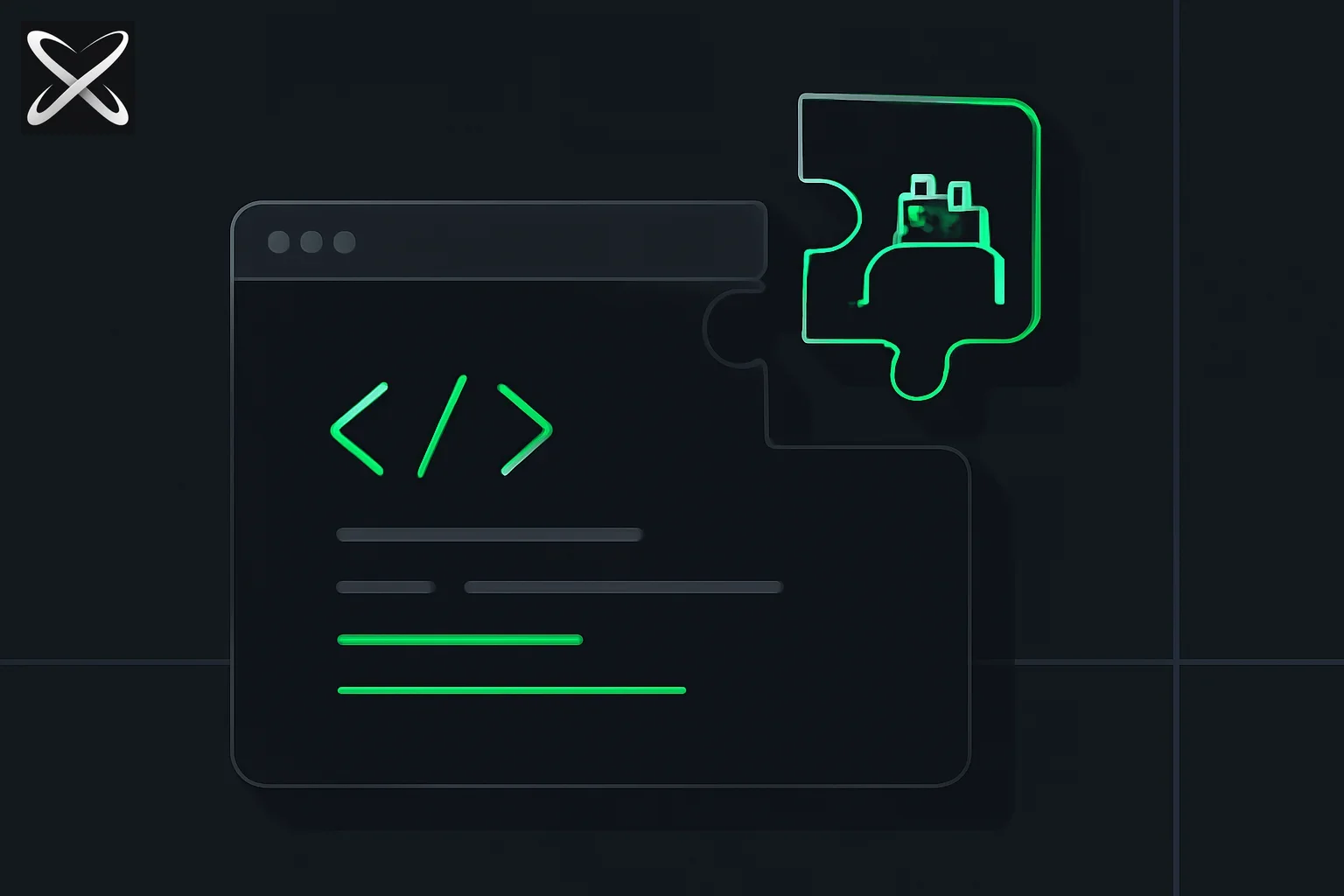 Claude Code VS Code extension diagram showing a robot-shaped puzzle piece sliding into an editor window notch
Running claude in a standalone terminal already works. The extension layers four concrete improvements on top of that baseline.
1. Inline Diff Views
When Claude edits a file, VS Code opens a diff panel showing exactly what changed — highlighted additions in green, removals in red — before anything is written to disk. You can accept the entire diff, reject it, or accept individual hunks. This prevents the classic surprise of Claude silently rewriting a file you were not expecting it to touch.
2. Diagnostic Integration (LSP Read)
The extension connects Claude to VS Code's Problems panel. Every TypeScript error, ESLint warning, and language-server diagnostic is visible to Claude without any copy-pasting. You open the file that has errors, ask Claude to fix them, and it already knows what they are. This matters most on large codebases where the Problems panel has dozens of entries across multiple files.
3. Click-to-Navigate File References
When Claude mentions a file location — for example, src/app/page.tsx:42 — the reference appears as a clickable link in the terminal output. Click it and VS Code jumps to that exact line. Without the extension, you read the path, manually open the file, and scroll to the right line. It is a small thing, but it compounds across a long session.
4. Terminal Panel Integration
Claude Code runs inside VS Code's integrated terminal, which means it shares the same workspace root as your editor. You can have one terminal panel running Claude and a second running your dev server. Both see the same file tree. There is no friction from working in a separate window.
Installation: Step by Step
Follow these steps in order. Each one is required.
Step 1 — Install the Claude Code CLI
Open any terminal and run:
npm install -g @anthropic-ai/claude-code
(Anthropic now recommends the native installer instead: curl -fsSL https://claude.ai/install.sh | bash on macOS, Linux, and WSL, per its setup guide.)
Verify the installation:
claude --version
You should see a version string like 2.x.x. If the command is not found, check that your npm global bin directory is on your PATH.
Step 2 — Install the VS Code Extension
- Open VS Code.
- Press
Ctrl+Shift+X(Windows/Linux) orCmd+Shift+X(macOS) to open the Extensions panel. - Search for Claude Code.
- Find the extension published by Anthropic and click Install.
Alternatively, open the VS Code Quick Open (Ctrl+P / Cmd+P) and paste:
ext install anthropic.claude-code
Step 3 — Open a Project Folder
Claude Code operates on a workspace, not on loose files. Use File > Open Folder to open your project root. This is the directory Claude will treat as its working context.
Step 4 — Open the Integrated Terminal
Press Ctrl+` (Windows/Linux) or Cmd+` (macOS) to open VS Code's integrated terminal. Make sure the terminal's current directory is your project root (it should be by default when a folder is open).
Step 5 — Start Claude Code
Run:
claude
Claude Code detects that it is running inside a VS Code instance with the extension installed and connects automatically. You will see a confirmation message in the terminal.
If auto-detection does not work — for example after restarting VS Code — use the explicit flag:
claude --ide
That is it. The integration is live.
JetBrains Support
If you work in IntelliJ IDEA, WebStorm, PyCharm, or any other JetBrains IDE, Claude Code has you covered with an official plugin.
- Open your JetBrains IDE.
- Go to Settings > Plugins > Marketplace.
- Search for Claude Code and install the plugin published by Anthropic.
- Restart the IDE if prompted.
- Open your project, open the built-in terminal, and run
claude.
The feature set is the same as the VS Code extension: inline diffs, diagnostic reading, and file navigation links. The exact keyboard shortcuts for accepting diffs differ per IDE but the workflow is identical.
Key Features in Depth
Diff View: Accept, Reject, or Hunk-by-Hunk
When Claude proposes changes to a file, VS Code shows the standard three-way diff editor. The toolbar gives you three options:
- Accept All — write every change to disk.
- Reject All — discard all changes and keep the original file.
- Accept Hunk — accept one block of changes at a time (available by hovering over individual hunks in the diff editor).
The diff view appears automatically; you do not need to trigger it manually. If you want Claude to make a second attempt at a file, reject the changes and give it a more specific instruction.
Diagnostics: No More Copy-Pasting Errors
The workflow that no longer works well is:
- See a TypeScript error in the terminal.
- Copy the full error message.
- Paste it into the Claude Code chat.
- Ask Claude to fix it.
With the extension, the workflow becomes:
- See a TypeScript error in the Problems panel.
- Ask Claude: "Fix all the errors in the Problems panel."
Claude reads the diagnostics directly. One caveat: the file with the errors must be open in the editor before you ask. If a file is listed in the Problems panel but not open in a tab, Claude may not see its diagnostics yet. Open the file first, then ask.
File Navigation Links
Claude Code wraps file references in the terminal output as clickable hyperlinks. The format is filepath:line. Click the link; VS Code focuses the file at that line. This is especially useful when Claude explains a bug across multiple files — you can navigate quickly without manually opening the Explorer sidebar.
Running Two Terminals in Parallel
A common and productive setup:
- Left terminal panel:
clauderunning for your AI coding session. - Right terminal panel:
npm run devor your equivalent dev server.
Both share the same workspace. When Claude edits a file, your dev server hot-reloads automatically in the other panel. You see the result without switching windows.
Workflow Tips
Tip 1 — Use a Split-Panel Layout
Split your VS Code layout so the integrated terminal sits on the left half and your editor on the right. That way the diff view and your file are visible simultaneously when Claude makes changes.
Tip 2 — Resume Sessions with --continue
Claude Code saves conversation history per project. When you close and reopen VS Code, run:
claude --continue
This resumes your last session in that project directory, with full context about what you were working on. You do not need to re-explain the task from scratch.
Tip 3 — Review the Diff Before Moving On
Resist the habit of immediately accepting every diff. Read the diff view before clicking Accept. Claude occasionally changes something adjacent to what you asked for — a small refactor it thought was helpful. Reviewing diffs keeps you in control of the codebase.
Tip 4 — Let Claude Work Through the Problems Panel
The Problems panel accumulates errors and warnings as you code. Instead of fixing each one individually, you can batch-process them:
Fix every error currently shown in the Problems panel. Start with errors in src/app.
Claude reads all the diagnostics, prioritizes them, and works through the list. This is one of the clearest productivity wins the extension enables.
Work through a few everyday moments with the extension:
Common Issues and Fixes
Extension Not Connecting
Symptom: Running claude in the terminal does not show an IDE connection message; the diff view never appears.
Fix:
- Restart VS Code completely (not just a window reload).
- Make sure the Claude Code extension is enabled — go to the Extensions panel and confirm there is no "Disable" button visible (meaning it is already enabled).
- Run
claude --ideto force an explicit connection attempt. - Confirm your CLI is current:
claude --version(runclaude updateif it is old).
Diff View Not Appearing
Symptom: Claude edits files but no diff panel opens; changes are applied silently.
Fix:
- Confirm the Anthropic "Claude Code" extension is installed (not a community extension with a similar name).
- Confirm the CLI is current (
claude update). - Try reloading the VS Code window (
Ctrl+Shift+P> "Developer: Reload Window") and runningclaude --ideagain.
Diagnostics Not Being Read
Symptom: You ask Claude to fix errors but it asks you to describe them manually.
Fix:
- Open the specific file that has the errors in an editor tab. The diagnostic data is attached to the open document, not just the Problems panel listing.
- Wait a moment after opening the file for the language server to finish analyzing it (watch the spinner in the status bar).
- Then ask Claude again.
Claude Code vs. Cursor: What Is the Difference?
Both tools bring AI into a coding environment, but they are architecturally different.
Cursor is a fork of VS Code. It replaces VS Code entirely. You install Cursor as your editor, and the AI features are baked into the editor's core. Deep integration, but you are running a different application than VS Code.
Claude Code + VS Code extension is Anthropic's official path. You keep your existing VS Code installation — all your settings, keybindings, themes, and extensions stay exactly as they are. Claude Code runs as a CLI tool in the terminal panel, and the extension adds the IDE bridge features described above. Updates to the CLI and extension come from Anthropic independently of VS Code's release cycle.
If you are already invested in a VS Code configuration and want to add Claude without disrupting anything, the extension is the right approach. If you want the deepest possible AI-editor fusion and are open to switching your editor application, Cursor is worth evaluating. The two are not mutually exclusive — some developers use Claude Code + VS Code for its stability and Cursor for experimental projects.
Putting It Together
The minimum setup takes under five minutes:
# 1. Install the CLI
npm install -g @anthropic-ai/claude-code

# 2. Install the extension (from VS Code Marketplace: search "Claude Code" by Anthropic)

# 3. Open your project folder in VS Code

# 4. Open the integrated terminal (Ctrl+` or Cmd+`)

# 5. Start Claude
claude

# Or explicitly connect to the IDE
claude --ide

# Resume a previous session
claude --continue
From that point, Claude Code runs inside your editor with full access to your workspace, your open files, your LSP diagnostics, and a diff view for every proposed change. The workflow feels less like switching to a separate AI tool and more like having a collaborator who can already see your screen.
Resources
- Claude Code Documentation — official Anthropic docs
- VS Code Marketplace: Claude Code — install page
- JetBrains Marketplace: Claude Code — JetBrains plugin page
- Claude Code CLI Reference — commands and flags guide
- explainx.ai AI Tools Directory — find more AI developer tools