



You started a long Claude Code run, tabbed away, and came back to find Claude blocked on "Allow this Bash command?" — or sitting idle after finishing, with no idea anything happened. You do not need to watch the terminal the whole time.
Claude Code can ding when it needs approval, chime when a task completes, or — if you have seen the viral r/ClaudeCode builds — show a physical traffic light on the edge of your monitor. Same hook system, different output: ears or eyes.
This is a step-by-step how-to for audio alerts first, then traffic-light status lights for developers who want glanceable feedback during long agent sessions.
Update — June 25, 2026 (v2.1.191): Long unattended sessions benefit from ~37% lower streaming CPU and scroll that no longer jumps to the bottom mid-stream — less jitter when you glance back at the terminal. Comma-separated hook matchers (used by some traffic-light scripts) also work again after the 2.1.191 fix. Changelog: Claude Code 2.1.191.
What's changed since we first published
Update (October 16, 2026): The current docs differ from this guide in a few ways that affect timing and setup:
idle_promptis not instant. It fires when Claude finished responding about 60 seconds ago and you haven't typed since, andpermission_promptfires once the prompt has waited about six seconds (Hooks guide). For an immediate "done" sound, add aStophook, which fires when Claude finishes responding.- The bell is now documented as a settings entry. The terminal docs show
"preferredNotifChannel": "terminal_bell"in~/.claude/settings.json. Theclaude config set --globalcommand below sets the same key but is no longer what the docs show (Terminal config). - Desktop notifications are default only in Ghostty, Kitty and iTerm2. Other terminals (including Warp and the VS Code terminal) need
terminal_bellor a hook. Hooks run alongside the built-in notification rather than replacing it (Terminal config). - Apple Terminal: the first-run
/terminal-setupturns off the audible bell in your profile (it leaves it on in screen reader mode). If you hear nothing, re-enable it under Settings → Profiles → Advanced → Audible bell (Terminal config). - More matchers exist (for example
elicitation_url_dialog,agent_needs_input,agent_completed,quota_auto_resume_fired); see the reference table below. Terminals that implement the OSC 7501 Program Status Protocol can also show working, waiting and done status per session on Claude Code v2.1.295 or later, with nothing to configure.
Official references: Terminal config · Hooks guide · Settings
What you'll set up
 Claude Code sound notification hook diagram showing sound rings expanding at the moment of approval
Claude Code fires lifecycle and Notification events you can route to sounds, desktop alerts, or lights:
| Feedback | Best for | Trigger examples |
|---|---|---|
| Sound (bell / afplay) | Headphones off, one monitor | permission_prompt, idle_prompt |
| Traffic light (physical or widget) | Glance from across the room | Hooks on tool use, permission, Stop |
| Both | Long unattended agent loops | Combine Notification + PreToolUse hooks |
For audio, the two matchers that matter most:
| Event | Matcher | When it happens |
|---|---|---|
| Needs approval | permission_prompt | Claude wants you to approve a tool call (Bash, Write, etc.) |
| Task finished | idle_prompt | Claude finished responding about 60 seconds ago and you haven't typed since |
You can use one sound for everything (quick setup) or different sounds so your ears know which is which (recommended).
Option A — Fastest: one ding for everything
Step 1. Run this once in any terminal:
claude config set --global preferredNotifChannel terminal_bell
Step 2. Enable the audible bell in your terminal:
| Terminal | Where to enable |
|---|---|
| macOS Terminal | Preferences → Profiles → Advanced → Audible bell ✓ |
| VS Code | Settings → terminal.integrated.enableBell: true |
| iTerm2 | Use claude config set --global preferredNotifChannel iterm2 instead — iTerm2 uses desktop alerts, not the ASCII bell |
Step 3. Test it. Start Claude Code, ask it to run a command that triggers a permission prompt, or wait for a long task to finish. You should hear a bell.
Done. This covers approval and task complete with the same sound.
Option B — Recommended: different sounds for approval vs done
This is the setup most r/ClaudeCode users actually want: urgent sound when approval is needed, softer chime when the task is done.
Step 1. Open (or create) your user settings file:
mkdir -p ~/.claude
nano ~/.claude/settings.json
Step 2. Paste this block. If the file already has content (e.g. existing hooks), merge the "hooks" key — do not delete your other hooks.
macOS — Glass for approval, Ping for task done
{
  "hooks": {
    "Notification": [
      {
        "matcher": "permission_prompt",
        "hooks": [
          {
            "type": "command",
            "command": "afplay /System/Library/Sounds/Glass.aiff"
          }
        ]
      },
      {
        "matcher": "idle_prompt",
        "hooks": [
          {
            "type": "command",
            "command": "afplay /System/Library/Sounds/Ping.aiff"
          }
        ]
      }
    ]
  }
}
macOS — desktop notification + sound (approval only)
Popular Reddit config — pops a macOS alert when Claude needs approval:
{
  "hooks": {
    "Notification": [
      {
        "matcher": "permission_prompt",
        "hooks": [
          {
            "type": "command",
            "command": "osascript -e 'display notification \"Claude needs your approval\" with title \"Claude Code\" sound name \"Glass\"'",
            "timeout": 10
          }
        ]
      },
      {
        "matcher": "idle_prompt",
        "hooks": [
          {
            "type": "command",
            "command": "osascript -e 'display notification \"Task complete — Claude is waiting\" with title \"Claude Code\" sound name \"Ping\"'",
            "timeout": 10
          }
        ]
      }
    ]
  }
}
Step 3. Verify inside Claude Code:
/hooks
You should see Notification registered with your commands.
Step 4. Test both events:
- Approval: Ask Claude to run
rmor any command that triggers a permission prompt. - Task done: Ask Claude to summarize a file — when it finishes and shows the prompt, you should hear Ping.
Option C — Linux and Windows
Linux
Replace afplay with notify-send — add -u critical for approval, -u low for task done:
{
  "hooks": {
    "Notification": [
      {
        "matcher": "permission_prompt",
        "hooks": [
          {
            "type": "command",
            "command": "notify-send -u critical 'Claude Code' 'Approval needed'"
          }
        ]
      },
      {
        "matcher": "idle_prompt",
        "hooks": [
          {
            "type": "command",
            "command": "notify-send -u low 'Claude Code' 'Task complete'"
          }
        ]
      }
    ]
  }
}
Windows (PowerShell)
{
  "hooks": {
    "Notification": [
      {
        "matcher": "permission_prompt",
        "hooks": [
          {
            "type": "command",
            "command": "powershell -Command \"[System.Media.SystemSounds]::Hand.Play()\""
          }
        ]
      },
      {
        "matcher": "idle_prompt",
        "hooks": [
          {
            "type": "command",
            "command": "powershell -Command \"[System.Media.SystemSounds]::Asterisk.Play()\""
          }
        ]
      }
    ]
  }
}
Option D — Let Claude Code configure it for you
The top r/ClaudeCode answer: ask Claude, not Reddit.
Open Claude Code and paste:
Edit ~/.claude/settings.json. I want:
1. A Glass system sound when you need my approval (permission_prompt)
2. A Ping system sound when you finish a task and wait for me (idle_prompt)
Use Notification hooks on macOS with afplay. Merge with any existing hooks.
Claude Code will edit settings.json for you. Run /hooks to confirm.
Option E — Traffic light status (physical or on-screen)
In June 2026, r/ClaudeCode and X exploded over a simple idea: mount a mini traffic light on your monitor and wire it to Claude Code's hook events. When the light turns red, Claude needs your confirmation. Yellow means it is busy executing. Green means the task finished — you can glance from the couch instead of alt-tabbing back to the terminal.
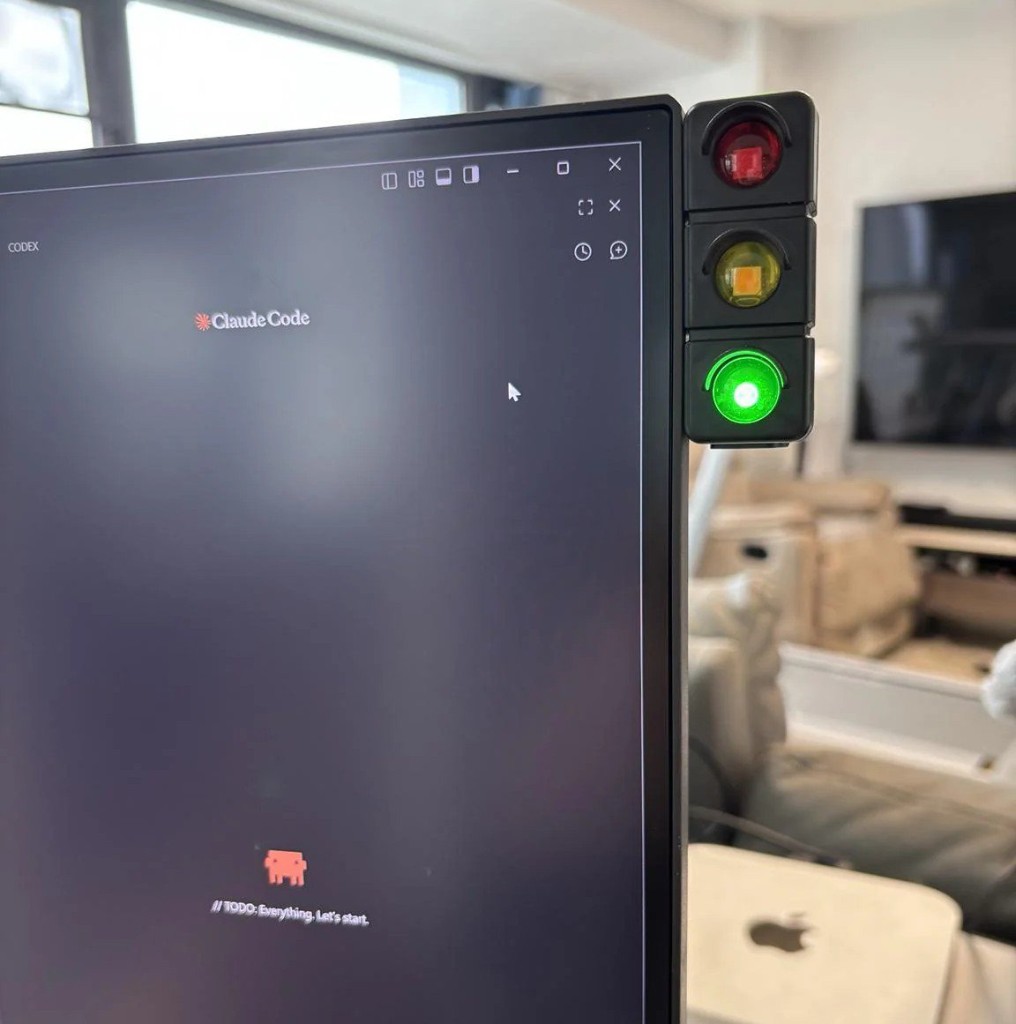 A physical red-yellow-green traffic light clipped to a monitor running Claude Code — green lit, task complete
A DIY Claude Code traffic light on a developer's monitor — green indicates the agent finished and is idle. Photo via the r/ClaudeCode community; same concept @gxjo_dev and others popularized on X.
Traffic light color map
Community builds mostly agree on this mapping for DIY hardware (as @gxjo_dev and @tuakdotsol described on X):
| Light | Meaning | Typical hook trigger |
|---|---|---|
| 🔴 Red | Waiting on your approval | PermissionRequest, Notification + permission_prompt |
| 🟡 Yellow | Running — tools, edits, bash | PreToolUse, UserPromptSubmit, model generating |
| 🟢 Green | Task complete — idle, ready for you | Stop, idle_prompt, SessionEnd |
Some macOS apps use a different mapping (e.g. Lights uses red = executing, yellow = permission). Always match hooks to your project's README.
The physical gadget works because Claude Code hooks already expose every state transition. Sound notifications use Notification events only; traffic lights usually wire PreToolUse, PermissionRequest, Stop, and Notification together for three distinct colors.
Ready-made projects (copy their hook configs)
You do not need to 3D-print anything on day one. These open-source projects ship hook templates:
| Project | Type | Platform | Link |
|---|---|---|---|
| Lights | macOS menu-bar + floating widget | macOS | OS-integrated — @rodrigocmasc built the same idea |
| claude-code-traffic-light | Always-on-top desktop widget | Windows / Python | Multi-window aggregation |
| trafficlight4ai | Floating widget + system tray | Linux / Windows (Qt) | Codex, Claude Code, Copilot, Gemini |
| vibecoding-signal-light | Physical USB traffic light | macOS + MCP2221 GPIO | Knight-Rider-style desk hardware |
| claude-traffic-light-control | Physical ESP8266 + LEDs | Serial from hooks | Full state machine + timeouts |
Lights is the closest to "integrated with the OS" — a macOS menu-bar app on localhost:9876. Its color map differs from DIY hardware (red = executing, yellow = permission, green = idle). Hooks call:
curl localhost:9876/executing    # → red (model/tools running)
curl localhost:9876/permission   # → yellow (needs your input)
curl localhost:9876/idle         # → green (response complete)
Install the app, run Setup Hooks from the menu, and Claude Code writes the curl commands into your settings.
DIY physical light — minimal hook sketch
If you built or bought a USB traffic light (the r/ClaudeCode photo style), point each hook at a script that sets GPIO or sends a serial command. Example pattern from claude-traffic-light-control:
{
  "hooks": {
    "PreToolUse": [{ "matcher": "", "hooks": [{ "type": "command", "command": "./hooks/set-light.sh THINKING" }] }],
    "PermissionRequest": [{ "matcher": "", "hooks": [{ "type": "command", "command": "./hooks/set-light.sh WAITING_USER" }] }],
    "Stop": [{ "matcher": "", "hooks": [{ "type": "command", "command": "./hooks/set-light.sh TASK_COMPLETE" }] }]
  }
}
set-light.sh maps WAITING_USER → red, THINKING → yellow blink, TASK_COMPLETE → green. Ask Claude Code to generate the script for your hardware.
Multiple Claude sessions?
@tobiastornros asked the obvious question on X: what if you have multiple sessions? Desktop widgets like claude-code-traffic-light aggregate all sessions and show the highest-priority state (red beats yellow beats green). Physical single-lamp setups usually show whichever session last fired an event — or you run one light per machine, not per tab.
Traffic light + sound together
Best unattended setup: Option B sounds for audio when you are in another room, plus Option E widget for visual status when you are at the desk. Both read from the same ~/.claude/settings.json hook block — add afplay and curl in parallel hook commands, or use separate hook entries for the same event.
Prompt to paste into Claude Code:
Add Notification hooks: Glass sound on permission_prompt, Ping on idle_prompt.
Also add PreToolUse hook calling curl localhost:9876/executing and Stop hook
calling curl localhost:9876/idle for the Lights macOS app.
Merge into ~/.claude/settings.json.
All notification matchers (reference)
Use these in the "matcher" field if you want to go beyond approval + task done:
| Matcher | When it fires |
|---|---|
permission_prompt | Approve a tool call (after about 6 seconds waiting) |
idle_prompt | Finished about 60 seconds ago, no typing since |
auth_success | Login succeeded |
elicitation_dialog | MCP elicitation form open, no typing for about 6 seconds |
elicitation_url_dialog | MCP server asks you to open a browser URL |
elicitation_complete | URL-mode elicitation complete |
agent_needs_input / agent_completed | Background session waiting or finished (agent view open) |
"" (empty string) | Everything — same sound for all events |
Bonus setups
Bell + hooks together
terminal_bell and Notification hooks both run — you may get double sounds. To use hooks only:
claude config set --global preferredNotifChannel notifications_disabled
Then rely entirely on your permission_prompt / idle_prompt hooks.
Long agent runs — delayed reminder
If you walk away during a long loop, ask Claude to add a hook that plays a sound 10 seconds after a permission_prompt if you have not responded yet. Community pattern from r/ClaudeCode — Claude can generate the script.
Fun audio alternatives
| Tool | What it does |
|---|---|
| PeonPing | Warcraft Peon voice lines (~4,850 GitHub stars) |
| claude-code-voice-hooks | Sounds on 18 hook points including approval |
| cmux | Visual pane rings when any parallel session needs you |
iTerm2 / Kitty / Ghostty native alerts
claude config set --global preferredNotifChannel iterm2 # or kitty, ghostty
These terminals get desktop notifications by default with "auto" — no hooks required, but you cannot separate approval vs task-done sounds without hooks.
Troubleshooting
| Problem | Fix |
|---|---|
| No sound at all | Enable audible bell; check VS Code enableBell |
| Hook not listed | Run /hooks; validate JSON at jsonlint.com |
| Same sound twice | Disable built-in channel: notifications_disabled |
| Only approval, no task-done sound | Add a second hook entry with idle_prompt matcher |
| Hook feels slow | Add "timeout": 10 to the hook object |
Copy-paste checklist
- ☐ Choose Option A (one bell), Option B (two sounds), or Option E (traffic light)
- ☐ Edit
~/.claude/settings.json(or install Lights / trafficlight4ai) - ☐ Run
/hooksin Claude Code to verify - ☐ Test approval — trigger a Bash permission prompt (red / Glass sound)
- ☐ Test running — watch yellow during tool execution
- ☐ Test task done — green light or Ping when Claude goes idle
- ☐ Enable terminal audible bell if using
terminal_bell
Summary
| Goal | Do this |
|---|---|
| Quickest ding | claude config set --global preferredNotifChannel terminal_bell |
| Ding on approval only | Hook with matcher: "permission_prompt" |
| Chime when task done | Hook with matcher: "idle_prompt" |
| Both, different sounds | Two Notification hook entries — Option B |
| Traffic light on desk | Option E — Lights or DIY ESP8266 |
| Zero JSON editing | Ask Claude Code to set it up (Option D) |
Five minutes of setup means you can start a long agent run, make coffee, and hear a ding or see a green light when Claude needs you — instead of discovering a stalled session twenty minutes later. The traffic-light trend is the same insight as sound hooks: agentic coding works better when status crosses into the physical world, not just the terminal buffer.
Related posts
- Claude Code Hooks: Automate Actions on Tool Calls
- Claude Code settings.json Complete Reference
- Claude Code Permission Modes Explained
- Loop Engineering: Coding Agents That Run While You Sleep
- cmux: Smart Notifications for Parallel AI Sessions
Matcher names and preferredNotifChannel values were re-checked on October 16, 2026 against Claude Code docs.