



What You Are Building
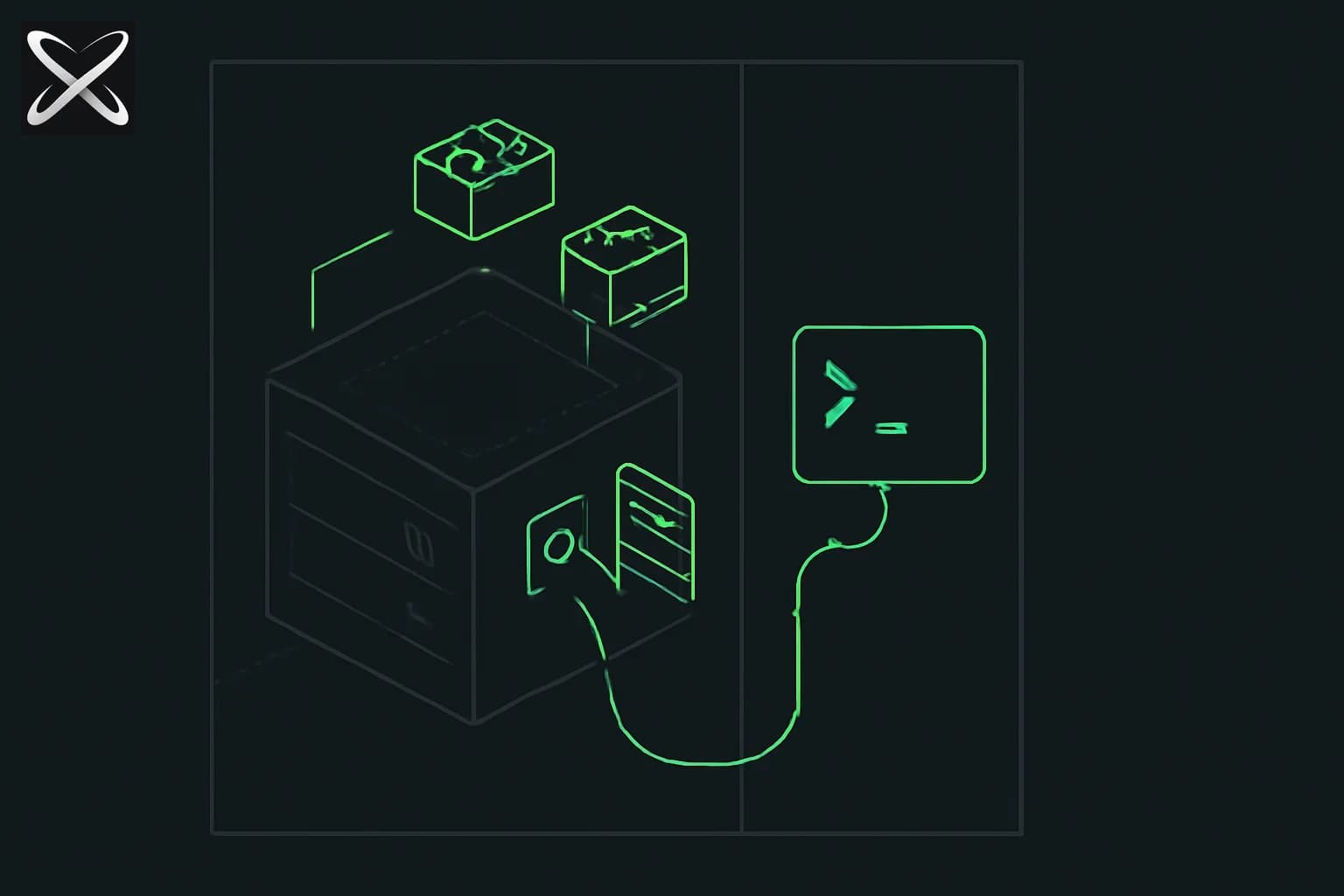
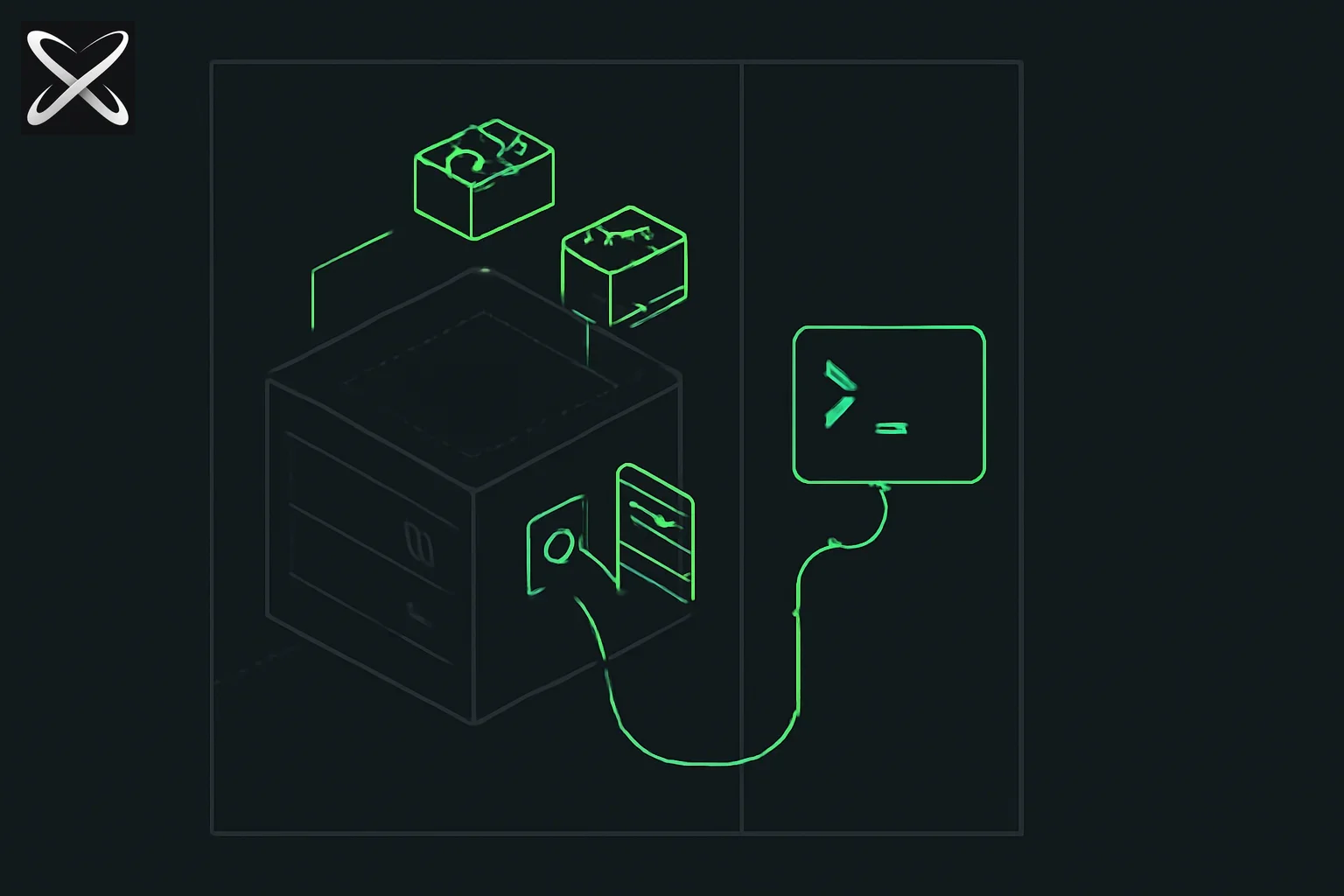 Build your first MCP server diagram: a server box built from a blueprint with tool and resource ports connecting to a Claude Code terminal
By the end of this guide you will have a working MCP (Model Context Protocol) server written in TypeScript. It will expose two tools — a calculator and a file reader — plus a resource and a prompt template. You will connect it to Claude Code and watch Claude call your tools live.
No boilerplate, no scaffolding generators. You write every line.
What an MCP server actually does
An MCP server is a process that speaks the Model Context Protocol — an open standard Anthropic designed so that any AI agent can discover and use external capabilities without custom integration code. Your server sits next to the AI and says: "Here is a list of things I can do. Send me a structured request and I will do them."
The three things an MCP server can expose are:
- Tools — callable functions with defined input schemas. The AI calls them to take actions.
- Resources — read-only data sources. The AI reads them for context.
- Prompts — reusable prompt templates with argument slots.
Once your server is running and registered, Claude treats your tools the same way it treats built-in abilities. You ask "calculate 42 * 37" and Claude calls your calculator tool instead of guessing.
Prerequisites
Before you start, make sure you have:
- Node.js 18 or later — run
node --versionto check. - Claude Code (or Claude Desktop) installed.
- Basic JavaScript or TypeScript knowledge. You do not need to be an expert.
That is it. No databases, no cloud accounts, no Docker.
Setting Up the Project
Create a fresh directory and initialise a Node.js project:
mkdir my-first-mcp-server && cd my-first-mcp-server
npm init -y
npm install @modelcontextprotocol/sdk
npm install --save-dev typescript @types/node tsx
npx tsc --init
Open the generated tsconfig.json and make sure these two options are set:
{
  "compilerOptions": {
    "target": "ES2022",
    "module": "Node16",
    "moduleResolution": "Node16",
    "outDir": "./dist",
    "strict": true
  }
}
Add a start script to package.json:
{
  "scripts": {
    "start": "tsx src/index.ts",
    "build": "tsc"
  }
}
Create the source directory:
mkdir src
Understanding the MCP SDK
The @modelcontextprotocol/sdk package gives you three main things:
The Server class — your MCP server instance. You register tools and resources on it, then connect a transport.
Tool registration — this example uses the low-level Server class with request handlers for discovery and execution. The higher-level McpServer API offers registration helpers; do not mix the two styles without checking the SDK reference.
Transport setup — determines how clients connect. For local development you use StdioServerTransport, which communicates over stdin/stdout. The process that launches your server (Claude Code, Claude Desktop) writes to your stdin and reads from your stdout.
The typical lifecycle is:
- Create a
Serverinstance. - Register tools, resources, and prompts.
- Create a transport.
- Await
server.connect(transport)to initialize transport handling; the process then remains available for client requests.
Building Tool 1: A Calculator
Create src/index.ts and start with the calculator tool:
import { Server } from "@modelcontextprotocol/sdk/server/index.js";
import { StdioServerTransport } from "@modelcontextprotocol/sdk/server/stdio.js";
import {
  CallToolRequestSchema,
  ListToolsRequestSchema,
} from "@modelcontextprotocol/sdk/types.js";
import * as fs from "fs";
import * as path from "path";

// ---------------------------------------------------------------------------
// Server instance
// ---------------------------------------------------------------------------

const server = new Server(
  {
    name: "my-first-mcp-server",
    version: "1.0.0",
  },
  {
    capabilities: {
      tools: {},
      resources: {},
      prompts: {},
    },
  }
);

// ---------------------------------------------------------------------------
// Tool definitions
// ---------------------------------------------------------------------------

const TOOLS = [
  {
    name: "calculate",
    description:
      "Evaluate a basic arithmetic expression. Supports +, -, *, / and parentheses.",
    inputSchema: {
      type: "object" as const,
      properties: {
        expression: {
          type: "string",
          description: "The arithmetic expression to evaluate, e.g. '(3 + 4) * 2'",
        },
      },
      required: ["expression"],
    },
  },
  {
    name: "read_file",
    description: "Read the contents of a file from the local filesystem.",
    inputSchema: {
      type: "object" as const,
      properties: {
        file_path: {
          type: "string",
          description: "Absolute or relative path to the file to read.",
        },
        max_lines: {
          type: "number",
          description:
            "Maximum number of lines to return (default: 100). Use this to avoid flooding context.",
        },
      },
      required: ["file_path"],
    },
  },
];

// ---------------------------------------------------------------------------
// List tools handler
// ---------------------------------------------------------------------------

server.setRequestHandler(ListToolsRequestSchema, async () => {
  return { tools: TOOLS };
});

// ---------------------------------------------------------------------------
// Call tool handler
// ---------------------------------------------------------------------------

server.setRequestHandler(CallToolRequestSchema, async (request) => {
  const { name, arguments: args } = request.params;

  if (name === "calculate") {
    return handleCalculate(args as { expression: string });
  }

  if (name === "read_file") {
    return handleReadFile(args as { file_path: string; max_lines?: number });
  }

  return {
    content: [{ type: "text", text: `Unknown tool: ${name}` }],
    isError: true,
  };
});
Now add the handler functions. This learning example restricts the accepted expression before using JavaScript evaluation. It is not a production arithmetic parser:
// ---------------------------------------------------------------------------
// Calculator handler
// ---------------------------------------------------------------------------

function handleCalculate(args: { expression: string }) {
  const { expression } = args;

  // Allow only digits, operators, spaces, and parentheses
  const safe = /^[\d\s+\-*/().]+$/.test(expression);
  if (!safe) {
    return {
      content: [
        {
          type: "text",
          text: `Invalid expression: only basic arithmetic is supported.`,
        },
      ],
      isError: true,
    };
  }

  try {
    // Learning example only: use an explicit arithmetic parser in production
    const result = Function(`"use strict"; return (${expression})`)();
    return {
      content: [
        {
          type: "text",
          text: `${expression} = ${result}`,
        },
      ],
    };
  } catch (err) {
    return {
      content: [
        {
          type: "text",
          text: `Evaluation error: ${(err as Error).message}`,
        },
      ],
      isError: true,
    };
  }
}
Building Tool 2: A File Reader
// ---------------------------------------------------------------------------
// File reader handler
// ---------------------------------------------------------------------------

function handleReadFile(args: { file_path: string; max_lines?: number }) {
  const { file_path, max_lines = 100 } = args;
  const resolvedPath = path.resolve(file_path);

  try {
    if (!fs.existsSync(resolvedPath)) {
      return {
        content: [
          {
            type: "text",
            text: `File not found: ${resolvedPath}`,
          },
        ],
        isError: true,
      };
    }

    const stat = fs.statSync(resolvedPath);
    if (stat.isDirectory()) {
      return {
        content: [
          {
            type: "text",
            text: `${resolvedPath} is a directory, not a file. Use the list_files resource to explore directories.`,
          },
        ],
        isError: true,
      };
    }

    const content = fs.readFileSync(resolvedPath, "utf-8");
    const lines = content.split("\n");
    const truncated = lines.length > max_lines;
    const output = lines.slice(0, max_lines).join("\n");

    return {
      content: [
        {
          type: "text",
          text: truncated
            ? `${output}\n\n[Truncated: showing ${max_lines} of ${lines.length} lines]`
            : output,
        },
      ],
    };
  } catch (err) {
    return {
      content: [
        {
          type: "text",
          text: `Error reading file: ${(err as Error).message}`,
        },
      ],
      isError: true,
    };
  }
}
Adding a Resource
Resources are data the AI can request for context. Here you will add a resource that lists files in a directory:
import {
  ListResourcesRequestSchema,
  ReadResourceRequestSchema,
} from "@modelcontextprotocol/sdk/types.js";

// ---------------------------------------------------------------------------
// Resources
// ---------------------------------------------------------------------------

server.setRequestHandler(ListResourcesRequestSchema, async () => {
  const cwd = process.cwd();
  const entries = fs.readdirSync(cwd);

  return {
    resources: entries.map((name) => ({
      uri: `file:///${path.join(cwd, name)}`,
      name,
      description: `File or directory: ${name}`,
      mimeType: fs.statSync(path.join(cwd, name)).isDirectory()
        ? "inode/directory"
        : "text/plain",
    })),
  };
});

server.setRequestHandler(ReadResourceRequestSchema, async (request) => {
  const uri = request.params.uri;
  // Strip the file:/// prefix
  const filePath = uri.replace(/^file:\/\/\//, "/");

  try {
    const content = fs.readFileSync(filePath, "utf-8");
    return {
      contents: [
        {
          uri,
          mimeType: "text/plain",
          text: content,
        },
      ],
    };
  } catch (err) {
    throw new Error(`Cannot read resource: ${(err as Error).message}`);
  }
});
Adding a Prompt Template
Prompts give Claude pre-written instruction templates that users can invoke by name. Add a code review prompt:
import {
  ListPromptsRequestSchema,
  GetPromptRequestSchema,
} from "@modelcontextprotocol/sdk/types.js";

// ---------------------------------------------------------------------------
// Prompts
// ---------------------------------------------------------------------------

server.setRequestHandler(ListPromptsRequestSchema, async () => {
  return {
    prompts: [
      {
        name: "review_file",
        description: "Review a file for bugs, style issues, and improvements.",
        arguments: [
          {
            name: "file_path",
            description: "Path to the file to review.",
            required: true,
          },
        ],
      },
    ],
  };
});

server.setRequestHandler(GetPromptRequestSchema, async (request) => {
  if (request.params.name !== "review_file") {
    throw new Error(`Unknown prompt: ${request.params.name}`);
  }

  const filePath = request.params.arguments?.file_path ?? "unknown";

  return {
    description: "Code review prompt",
    messages: [
      {
        role: "user",
        content: {
          type: "text",
          text: `Please review the file at ${filePath}. Use the read_file tool to read it, then give me:
1. A summary of what the code does.
2. Any bugs or logic errors.
3. Style or readability improvements.
4. Specific suggestions with line numbers where possible.`,
        },
      },
    ],
  };
});
Setting Up the Stdio Transport and Starting the Server
Add the server startup code at the bottom of src/index.ts:
// ---------------------------------------------------------------------------
// Start server
// ---------------------------------------------------------------------------

async function main() {
  const transport = new StdioServerTransport();
  await server.connect(transport);
  // Do not log to stdout — it is reserved for MCP protocol messages.
  // Use stderr for any debug output.
  console.error("MCP server running on stdio");
}

main().catch((err) => {
  console.error("Fatal error:", err);
  process.exit(1);
});
One critical rule: never write to stdout yourself. The MCP protocol uses stdout as the communication channel. Any console.log() call in your handler will corrupt the stream. Use console.error() for all debug output.
Test that the server starts without errors:
npm start
You should see MCP server running on stdio in your terminal. Press Ctrl+C to stop it.
Connecting to Claude Desktop
The following JSON configuration is for Claude Desktop. The location depends on your OS:
- macOS:
~/Library/Application Support/Claude/claude_desktop_config.json - Windows:
%APPDATA%\Claude\claude_desktop_config.json - Linux:
~/.config/Claude/claude_desktop_config.json
Open that file (create it if it does not exist) and add your server:
{
  "mcpServers": {
    "my-first-mcp-server": {
      "command": "node",
      "args": ["--loader", "tsx/esm", "/absolute/path/to/my-first-mcp-server/src/index.ts"],
      "env": {}
    }
  }
}
Replace /absolute/path/to/my-first-mcp-server with the actual path. Use pwd in your project directory to get it.
If you built to JavaScript first (npm run build), you can point to the compiled output instead:
{
  "mcpServers": {
    "my-first-mcp-server": {
      "command": "node",
      "args": ["/absolute/path/to/my-first-mcp-server/dist/index.js"],
      "env": {}
    }
  }
}
After saving the Desktop configuration, restart Claude Desktop. For Claude Code, build the server and register it separately using the CLI:
claude mcp add --transport stdio my-first-mcp-server -- node /absolute/path/to/my-first-mcp-server/dist/index.js
Use /mcp inside Claude Code to inspect the connection. See the official MCP registration reference for scope and configuration details.
Testing the connection
Open a new chat in Claude Code and try:
Use the calculate tool to compute (144 / 12) + (7 * 8).
Claude should respond with the result using your tool. You will see the tool call appear in the conversation.
Then test the file reader:
Read the first 20 lines of sample.txt in this disposable project using the read_file tool.
Debugging Your MCP Server
When something goes wrong, here are the most common issues and how to fix them.
"No tools available" or tools not appearing
Check that:
- Your
ListToolsRequestSchemahandler returns the correct shape:{ tools: [...] }. - You are not accidentally returning an empty array.
- Claude Code was fully restarted after you changed the config.
Server crashes immediately on startup
Your server is probably throwing an error before the transport connects. Run it manually in a terminal:
npm start
If you see an error message, fix it before connecting to Claude Code.
Protocol corruption errors
This means something wrote to stdout. Search your code for console.log and change every instance to console.error.
Using the MCP Inspector
The inspector is the best debugging tool available. Run it against your server:
npx @modelcontextprotocol/inspector npm start
This opens a browser UI where you can call tools directly and see the raw protocol messages. It is far faster than iterating through Claude Code.
The Complete src/index.ts
Here is the complete file assembled from all the sections above:
import { Server } from "@modelcontextprotocol/sdk/server/index.js";
import { StdioServerTransport } from "@modelcontextprotocol/sdk/server/stdio.js";
import {
  CallToolRequestSchema,
  ListToolsRequestSchema,
  ListResourcesRequestSchema,
  ReadResourceRequestSchema,
  ListPromptsRequestSchema,
  GetPromptRequestSchema,
} from "@modelcontextprotocol/sdk/types.js";
import * as fs from "fs";
import * as path from "path";

const server = new Server(
  { name: "my-first-mcp-server", version: "1.0.0" },
  { capabilities: { tools: {}, resources: {}, prompts: {} } }
);

// --- Tools ---

const TOOLS = [
  {
    name: "calculate",
    description: "Evaluate a basic arithmetic expression. Supports +, -, *, / and parentheses.",
    inputSchema: {
      type: "object" as const,
      properties: {
        expression: { type: "string", description: "The arithmetic expression to evaluate." },
      },
      required: ["expression"],
    },
  },
  {
    name: "read_file",
    description: "Read the contents of a file from the local filesystem.",
    inputSchema: {
      type: "object" as const,
      properties: {
        file_path: { type: "string", description: "Absolute or relative path to the file." },
        max_lines: { type: "number", description: "Maximum lines to return (default: 100)." },
      },
      required: ["file_path"],
    },
  },
];

server.setRequestHandler(ListToolsRequestSchema, async () => ({ tools: TOOLS }));

server.setRequestHandler(CallToolRequestSchema, async (request) => {
  const { name, arguments: args } = request.params;

  if (name === "calculate") {
    const { expression } = args as { expression: string };
    if (!/^[\d\s+\-*/().]+$/.test(expression)) {
      return { content: [{ type: "text", text: "Invalid expression." }], isError: true };
    }
    try {
      const result = Function(`"use strict"; return (${expression})`)();
      return { content: [{ type: "text", text: `${expression} = ${result}` }] };
    } catch (e) {
      return { content: [{ type: "text", text: `Error: ${(e as Error).message}` }], isError: true };
    }
  }

  if (name === "read_file") {
    const { file_path, max_lines = 100 } = args as { file_path: string; max_lines?: number };
    const resolved = path.resolve(file_path);
    try {
      if (!fs.existsSync(resolved)) {
        return { content: [{ type: "text", text: `File not found: ${resolved}` }], isError: true };
      }
      const lines = fs.readFileSync(resolved, "utf-8").split("\n");
      const truncated = lines.length > max_lines;
      const output = lines.slice(0, max_lines).join("\n");
      return {
        content: [{
          type: "text",
          text: truncated ? `${output}\n\n[Truncated: ${max_lines}/${lines.length} lines shown]` : output,
        }],
      };
    } catch (e) {
      return { content: [{ type: "text", text: `Error: ${(e as Error).message}` }], isError: true };
    }
  }

  return { content: [{ type: "text", text: `Unknown tool: ${name}` }], isError: true };
});

// --- Resources ---

server.setRequestHandler(ListResourcesRequestSchema, async () => {
  const cwd = process.cwd();
  const entries = fs.readdirSync(cwd);
  return {
    resources: entries.map((name) => ({
      uri: `file:///${path.join(cwd, name)}`,
      name,
      mimeType: fs.statSync(path.join(cwd, name)).isDirectory() ? "inode/directory" : "text/plain",
    })),
  };
});

server.setRequestHandler(ReadResourceRequestSchema, async (request) => {
  const filePath = request.params.uri.replace(/^file:\/\/\//, "/");
  const content = fs.readFileSync(filePath, "utf-8");
  return { contents: [{ uri: request.params.uri, mimeType: "text/plain", text: content }] };
});

// --- Prompts ---

server.setRequestHandler(ListPromptsRequestSchema, async () => ({
  prompts: [{
    name: "review_file",
    description: "Review a file for bugs, style issues, and improvements.",
    arguments: [{ name: "file_path", description: "Path to the file.", required: true }],
  }],
}));

server.setRequestHandler(GetPromptRequestSchema, async (request) => {
  const fp = request.params.arguments?.file_path ?? "unknown";
  return {
    messages: [{
      role: "user",
      content: { type: "text", text: `Review the file at ${fp}. Read it with read_file, then give bugs, style issues, and improvements.` },
    }],
  };
});

// --- Start ---

async function main() {
  const transport = new StdioServerTransport();
  await server.connect(transport);
  console.error("MCP server running on stdio");
}

main().catch((e) => { console.error(e); process.exit(1); });
Next Steps: HTTP Transport and Publishing
Remote servers should follow the SDK's current Streamable HTTP examples, including the applicable authorization and deployment guidance. Legacy HTTP+SSE examples use a different transport pattern; a local stdio server cannot become a secure remote service merely by wrapping one handler in Express.
Start with the official MCP server documentation and the maintained SDK examples. Validate the remote connection separately, define which callers may invoke each operation, and review the deployment's request and resource limits before publishing.
Verify discovery and execution as separate steps
A server process starting without an exception is only the first check. Next, use the Inspector to list the advertised tools and confirm their names, descriptions, and input schemas. Then call each tool directly with a valid input and inspect the result before asking an agent to choose it automatically.
For the calculator, test ordinary arithmetic, malformed input, and an operation whose result is not useful, such as division by zero. Decide what the tool should return in each case. The demonstration uses a restricted JavaScript expression; it is not a general-purpose arithmetic parser or a production security boundary. For a real service, use a parser with explicit supported operations and validate the result.
For the file reader, use a temporary folder containing public sample files. Test an existing file, a missing file, a directory, and an oversized file. A line limit controls the returned text but does not limit how much data the example reads into memory. A production implementation needs a byte limit and a deliberate set of readable files as well.
Keep the demo's access boundary visible
The example resolves user-supplied paths using the server process's permissions. It does not confine reads to a project folder. Run it only with disposable public samples while learning. Before adapting it to sensitive files, define an allowed root, resolve real paths, reject escapes and unsuitable file types, and bound input and output sizes.
Tools and resources should enforce the same intended access policy. Restricting the file-reading tool while leaving a resource handler able to open any supplied file URI would preserve an alternate access path. Audit all handlers that touch the filesystem, not only the tool that appears in the agent's menu.
The official MCP server tutorial explains the protocol roles and the need to keep stdio logging off stdout. Pair that reference with your own handler checks. Protocol compliance does not establish that an operation is authorized or appropriately bounded.
Diagnose the client launch environment
A server can work in your terminal and fail when a client launches it. Compare the executable path, arguments, working directory, and environment available in both contexts. Prefer an absolute path to the built entry point so the result does not depend on which folder the client happened to start from.
Connect the server to one client first and keep the registration instructions specific to that client. Claude Desktop's JSON configuration and Claude Code's MCP registration are distinct workflows. The Claude Code MCP guide documents its CLI registration, scope choices, and connection diagnostics.
When discovery succeeds but a call fails, preserve the exact input and the returned error. When discovery itself fails, inspect startup and protocol output before changing the model prompt. These checks distinguish an application error from a transport problem and make the next debugging step much more precise.
Summary
You built a full MCP server from scratch. It has:
| Feature | What it does |
|---|---|
calculate tool | Restricted arithmetic demonstration; replace evaluator for production |
read_file tool | Reads files with line-count limiting |
list_files resource | Exposes the working directory to Claude |
review_file prompt | Pre-built code review instruction template |
The pattern for every new tool you add is the same: define the schema in TOOLS, handle the name in CallToolRequestSchema, write a handler function. You can build database queries, HTTP API calls, shell command runners, or anything else you can express in TypeScript.
Read next
- Claude Code + Unity MCP guide — a real-world official MCP server, from a game engine's own CLI
- What Is a REST API? How to Call AI APIs
- Multi-Agent Orchestration Patterns
- Agent Markdown Files: The Complete Guide