



Imagine you have a 200-page product manual, legal contract, or research report. You want to ask it a question and get a precise answer instantly — without reading the whole thing. That is exactly what a document Q&A bot does. And with Langflow, you can build one from scratch in about 30 minutes, with zero lines of code.
This tutorial walks through every step: installing Langflow, laying out the flow on the canvas, connecting each node, and running your first question against a real PDF. By the end you will have a working Retrieval-Augmented Generation (RAG) pipeline and a clear mental model of how it works.
What Is Langflow?
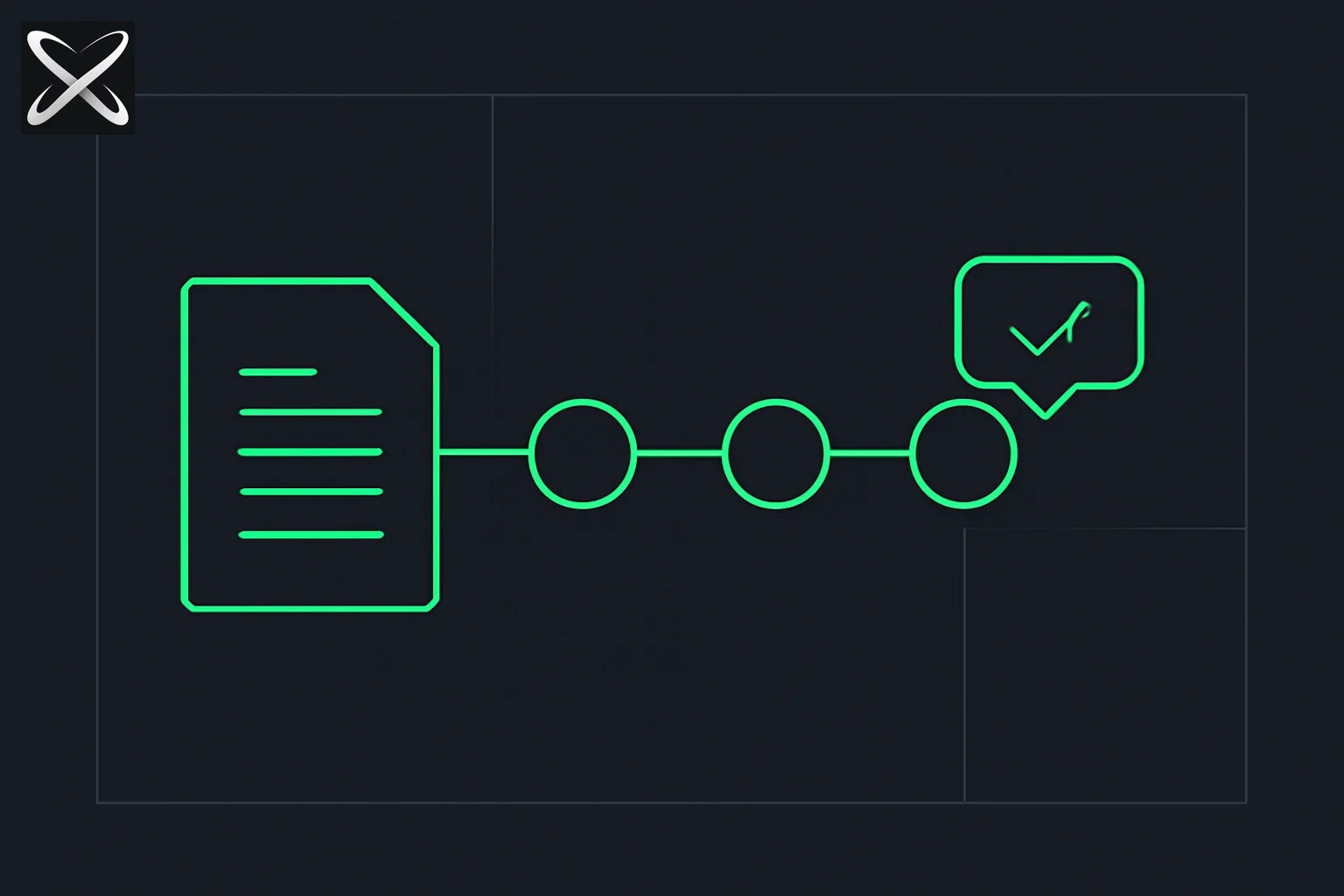 Langflow document Q&A bot diagram showing a document passing through three connected flow nodes into an answer
Langflow is a visual canvas for building AI workflows. Instead of writing Python, you drag nodes onto a whiteboard, configure them through a side panel, and connect them with lines that represent data flowing from one step to the next. Click Run and the pipeline executes.
Under the hood, Langflow is built on top of LangChain — the popular Python framework for chaining LLM calls, tools, and memory. Langflow exposes that power through a point-and-click interface, which means you get production-grade patterns (chunking, embeddings, vector retrieval, prompt templating) without needing to understand the code behind them.
Langflow is well suited for founders validating AI product ideas, marketers building content pipelines, operations managers automating document workflows, and product managers prototyping features before handing them to an engineering team. If you can draw a flowchart, you can build in Langflow.
Prerequisites
Before you start, you need two things:
1. Langflow installed or a Langflow Cloud account. The quickest way to run Langflow locally is:
pip install langflow
langflow run
This starts a local server and opens the canvas in your browser at http://localhost:7860. For the official installation guide and cloud option, visit Langflow's documentation.
2. An API key from OpenAI or Anthropic. You will use this for both the embedding model and the LLM that answers questions. Log in to platform.openai.com or console.anthropic.com, create an API key, and keep it somewhere accessible. You will paste it into the node settings inside Langflow.
That is the full list. No Python knowledge, no local GPU, no database setup.
Step-by-Step: Build a Document Q&A Bot
The flow you are about to build has nine components. Here is the architecture before you touch anything:
PDF file → Document Splitter → Embeddings → Vector Store → Retriever → LLM → Answer
You also add a Chat Input so you can type questions, and a Chat Output so you see the answers. Every arrow in that diagram becomes a connection line on the Langflow canvas.
Step 1: Launch Langflow and Create a New Flow
Open your browser to http://localhost:7860 (or your Langflow Cloud URL). You will see the Projects dashboard. Click New Flow, then choose Blank Flow from the template picker.
The canvas opens: a large dark grid with a toolbar on the left side listing component categories. This is your workspace. You can zoom in and out with the scroll wheel and pan by clicking and dragging on empty space.
Step 2: Add a File Component
In the left toolbar, click Data to expand that category. Drag a File component onto the canvas and drop it near the left side. A card appears with a file upload button in the center.
Click the upload area on the card and select a PDF from your machine. For this tutorial, any PDF works — a product guide, a report, a contract. Once uploaded, the file name appears on the card.
This component's job is simple: it reads the raw bytes of your document and passes them downstream as text.
Step 3: Add a Document Splitter
From the left toolbar, open the Processing category and drag a Recursive Character Text Splitter component onto the canvas, placing it to the right of the File component.
Click the settings icon on the Splitter card to open its configuration panel. Set:
- Chunk Size: 500
- Chunk Overlap: 50
Why these numbers matter. A chunk is a fragment of your document that gets turned into a vector and stored. If chunks are too large (say, 2,000 characters), the retrieved chunks carry a lot of irrelevant text and the LLM answer becomes noisy. If they are too small (50 characters), each chunk loses context — a sentence like "The maximum load is 450 kg" becomes meaningless without the surrounding paragraph.
500 characters is roughly two to four sentences, which tends to be the right size for factual Q&A. The 50-character overlap means adjacent chunks share 50 characters at their edges, so a sentence that straddles a chunk boundary still appears in full in at least one chunk.
Now draw a connection: hover over the output port (small circle) on the right edge of the File card, click it, and drag to the input port on the left edge of the Splitter card. A line appears between them.
Step 4: Add an Embeddings Component
Open the Embeddings category in the toolbar and drag an OpenAI Embeddings component onto the canvas, placing it below the Splitter.
In the configuration panel:
- Model: text-embedding-3-small
- OpenAI API Key: paste your key here
text-embedding-3-small converts text into a 1,536-dimensional vector — essentially a list of numbers that encodes the semantic meaning of the text. Words and sentences with similar meanings end up with similar vectors. This is what allows retrieval to work by meaning rather than by keyword matching.
You do not need to connect the Embeddings node to the Splitter directly — the Vector Store node you add in the next step will pull from both.
Step 5: Add a Vector Store (Chroma)
Open the Vector Stores category and drag a Chroma component onto the canvas, placing it to the right of the Splitter.
In the configuration panel:
- Collection Name:
document_qa_tutorial(any name works) - Persist Directory: leave blank for in-memory mode
Connect the Splitter's output to the Chroma component's Documents input. Then connect the OpenAI Embeddings output to the Chroma component's Embedding input.
When the flow runs, Chroma will:
- Take each text chunk from the Splitter
- Ask the Embeddings component to turn it into a vector
- Store both the vector and the original text in memory
The result is a searchable index of your entire document.
Step 6: Add a Retriever
Still in the Vector Stores category (or check Retrievers), add a Chroma Search Retriever component and place it to the right of the Chroma store.
In the configuration panel:
- Top K: 4
Top K controls how many chunks the retriever fetches in response to a question. Setting it to 4 means the retriever finds the 4 most semantically relevant chunks from your document and passes them to the LLM. Four chunks at 500 characters each gives the LLM about 2,000 characters of focused context — enough to answer most factual questions without overwhelming the prompt.
Connect the Chroma component's output to the Retriever's input.
Step 7: Add a Chat Input and an LLM
Chat Input: Open the Inputs category and drag a Chat Input component onto the canvas. This is where you will type questions when testing the flow. No configuration needed — it uses whatever you type in the chat panel.
LLM: Open the Models category and drag a ChatOpenAI component (or ChatAnthropic if you prefer Claude) onto the canvas.
In the ChatOpenAI configuration panel:
- Model Name: gpt-4o-mini (or
gpt-4ofor stronger answers) - OpenAI API Key: paste your key
- Temperature: 0 — setting temperature to 0 makes answers deterministic and factual, which is what you want for document Q&A
The LLM node needs two inputs: the user's question and the retrieved context. You will wire both in the next step.
Step 8: Connect Everything and Add a Prompt Template
Before connecting the LLM, add a Prompt component from the Prompts category. This component lets you write the instruction that combines the retrieved context with the user's question into a single message for the LLM.
In the Prompt configuration panel, set the template to something like:
You are a helpful assistant. Use the following document excerpts to answer the question.
If the answer is not in the excerpts, say "I don't know based on the provided document."

Context:
{context}

Question:
{question}
Now make the connections:
- Retriever output → Prompt's
contextinput - Chat Input output → Prompt's
questioninput - Prompt output → ChatOpenAI's
Human Messageinput
Your canvas now has a complete pipeline. Take a moment to trace the path:
User types a question → Chat Input passes it to the Prompt → The Retriever fetches the 4 most relevant chunks from the Chroma store → The Prompt merges the chunks and the question into a single formatted message → ChatOpenAI generates an answer.
Step 9: Add a Chat Output and Run the Flow
Open the Outputs category and drag a Chat Output component onto the canvas. Connect the ChatOpenAI output to the Chat Output input.
Now click the Run button (the play icon in the top right corner). Langflow will execute the ingestion phase first: it reads the PDF, splits it into chunks, embeds each chunk, and loads them into Chroma. Depending on your PDF size, this takes between a few seconds and a minute.
Once ingestion completes, a chat panel opens at the bottom of the canvas. Type a question that is answerable from your document — something like "What is the maximum load capacity?" or "What does section 3.2 cover?"
The flow will retrieve the relevant chunks, pass them through the prompt, and display the LLM's answer in the chat panel. You can ask follow-up questions immediately.
Congratulations. You just built a RAG pipeline.
What You Just Built: A Plain-English Explanation
Here is what happened at each stage, in terms a non-engineer can use:
File component: Read the PDF and converted it to plain text.
Document Splitter: Cut that text into 500-character pieces with 50-character seams. Think of it like cutting a long rope into shorter segments that slightly overlap so no knot gets lost at the cut.
Embeddings: Translated each text piece into a list of 1,536 numbers that encode its meaning. Two pieces about "return policy" will have similar numbers even if the exact words differ.
Chroma Vector Store: Filed all those numbered pieces in a searchable database — like an index card box organized by meaning rather than alphabetical order.
Retriever: When you asked a question, it converted your question into the same kind of numbers, then found the 4 index cards whose numbers were closest. Those are the most relevant chunks.
Prompt Template: Wrote a note to the LLM that said: "Here are 4 relevant passages from the document. Now answer this question using only those passages."
ChatOpenAI: Read the note and wrote a precise answer.
Chat Output: Displayed that answer to you.
The whole pattern — retrieval plus generation — is what the industry calls RAG. You just built it without touching a single line of code.
Common Mistakes in Langflow RAG Pipelines
Chunk size too large. Setting chunk size to 2,000 or higher is the most common beginner error. Large chunks pack multiple topics into a single retrieved passage, making the LLM's job harder and the answers less precise. Start at 500 and only go higher if your questions require broad context (like "summarize the whole document").
No chunk overlap. Setting overlap to 0 means any sentence that falls at a chunk boundary gets cut in half. The first half lives in one chunk, the second half in the next. Neither chunk is useful for that sentence. A 10% overlap (50 characters for a 500-character chunk) is a safe floor.
Top K too low or too high. With Top K set to 1, the retriever fetches only the single best-matching chunk. For a narrow factual question that is fine, but for anything requiring context from two paragraphs, you will get incomplete answers. With Top K set to 20, you flood the LLM with 10,000 characters of context, which increases cost and can dilute the answer. Start at 4 and tune based on answer quality.
Temperature above 0 for factual Q&A. A temperature of 0.7 (the default in many tools) makes the LLM creative and variable. For document Q&A you want the opposite: consistent, grounded answers. Keep temperature at 0 for retrieval-based flows.
Not testing with document-specific questions. A common mistake is testing with a generic question the LLM can answer from training data, like "What is photosynthesis?" That question does not exercise the retrieval path at all — the LLM just answers from memory. Test with a question whose answer exists only in your document.
Going Further: Three Upgrades to Make This Production-Ready
1. Swap Chroma for Pinecone. The in-memory Chroma store resets every time you restart the flow. For a persistent, production-grade index, replace the Chroma components with Pinecone components. Langflow has a built-in Pinecone node — you just fill in your Pinecone API key, index name, and environment. The rest of the pipeline stays identical.
2. Add conversation memory. Right now each question is independent — the LLM does not remember your previous questions. Add a Conversation Buffer Memory component from the Memory category and connect it to the ChatOpenAI node. The LLM will now maintain context across multiple turns, enabling natural follow-up questions like "Can you expand on that last point?"
3. Add a web search tool. If a question falls outside your document, the current bot says "I don't know." You can extend it by adding a Search API tool (Langflow has nodes for Tavily, DuckDuckGo, and others) and routing unanswered questions to a web search. This turns your document bot into a hybrid that answers from your content first and falls back to the web when needed.
When Langflow Is the Right Tool — and When It Is Not
Langflow excels when:
- You are validating an AI workflow idea before investing engineering time
- Your team is non-technical but needs to own and modify the pipeline
- You are building something that maps cleanly to a linear flow: input → process → output
- You want to swap components (different LLMs, different vector stores) quickly to compare results
Langflow reaches its limits when:
- You need complex conditional logic that does not fit the node graph model
- You are processing millions of documents per day and need fine-grained performance control
- You need deep integration with an existing codebase or proprietary data systems that do not have Langflow connectors
- You are building something that requires custom training or fine-tuning, not just prompt engineering
If you hit those limits, the Langflow flow you built is still useful as a prototype spec: it documents the exact pipeline an engineering team should implement in code. For a detailed comparison of Langflow against other no-code AI tools, see our companion post on Langflow vs n8n vs Make vs Flowise.
Build This Live With a Guide
Reading a tutorial is one thing. Building it with someone watching your screen, answering questions in real time, and pushing you to the next level is another.
At explainx.ai, we run a 4-hour live Langflow workshop on September 7, 2026. In one session you will build three complete flows from scratch:
- A RAG pipeline — exactly what this tutorial covers, with additional polish around prompt design and retrieval tuning
- A tool-calling agent — a Langflow agent that decides when to search the web, run a calculator, or query an API based on what you ask it
- A multi-agent workflow — two or more specialized agents that collaborate: one researches, one writes, one reviews
The workshop is designed for founders, marketers, ops managers, and product managers. Anyone who can use a whiteboard can build in Langflow. No Python required.
Reserve your seat: explainx.ai/workshops/langflow
Seats are capped to keep the session interactive. If you found this tutorial useful, the workshop is the fastest way to go from "I can follow a tutorial" to "I can build this myself for any document, any use case."
Summary
You built a full document Q&A bot in Langflow by chaining nine components: File, Text Splitter, Embeddings, Vector Store, Retriever, Prompt, LLM, Chat Input, and Chat Output. That nine-node pipeline is the same RAG architecture used in production AI products at companies of every size — Langflow just makes it accessible without code.
The key principles to remember:
- Chunk size and overlap are the most impactful parameters to tune
- Top K controls the quality-cost tradeoff in retrieval
- Temperature 0 is the right default for factual, document-grounded answers
- In-memory Chroma is fine for learning; switch to Pinecone or another persistent store before going live
When you are ready to go beyond this tutorial — building agents, connecting APIs, and orchestrating multi-step workflows — the September 7 workshop at explainx.ai is the structured environment to do it.